Installer


See it before you run it
These are real captures. Each week a workflow boots a new live ISO in QEMU, moves through the installer, and publishes each step.

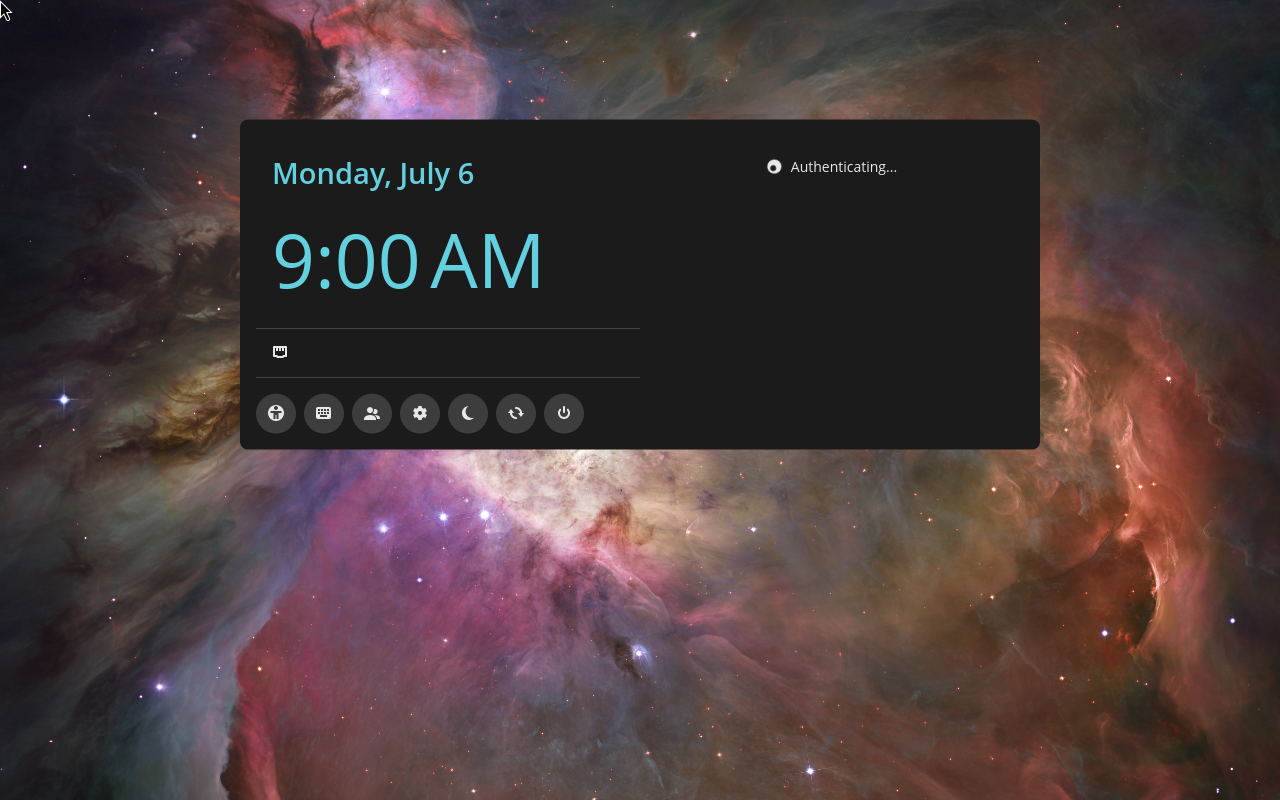
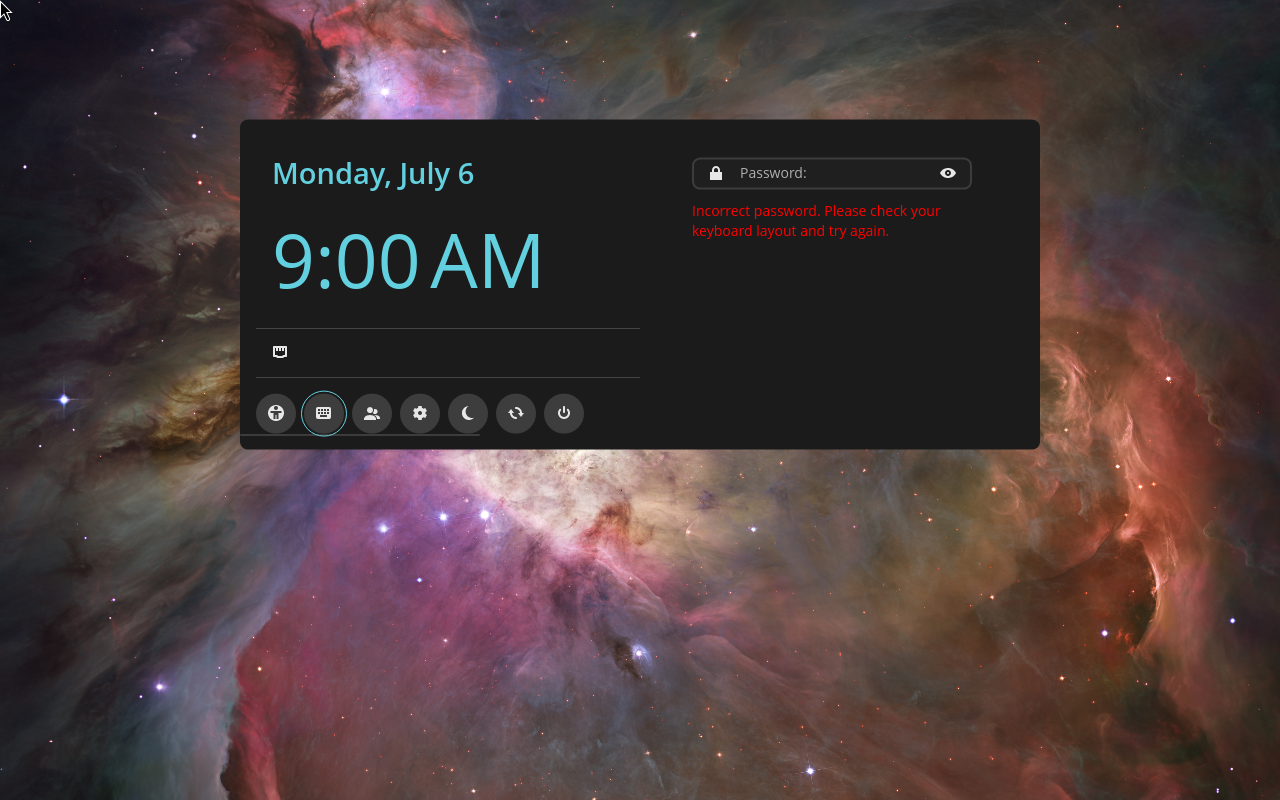
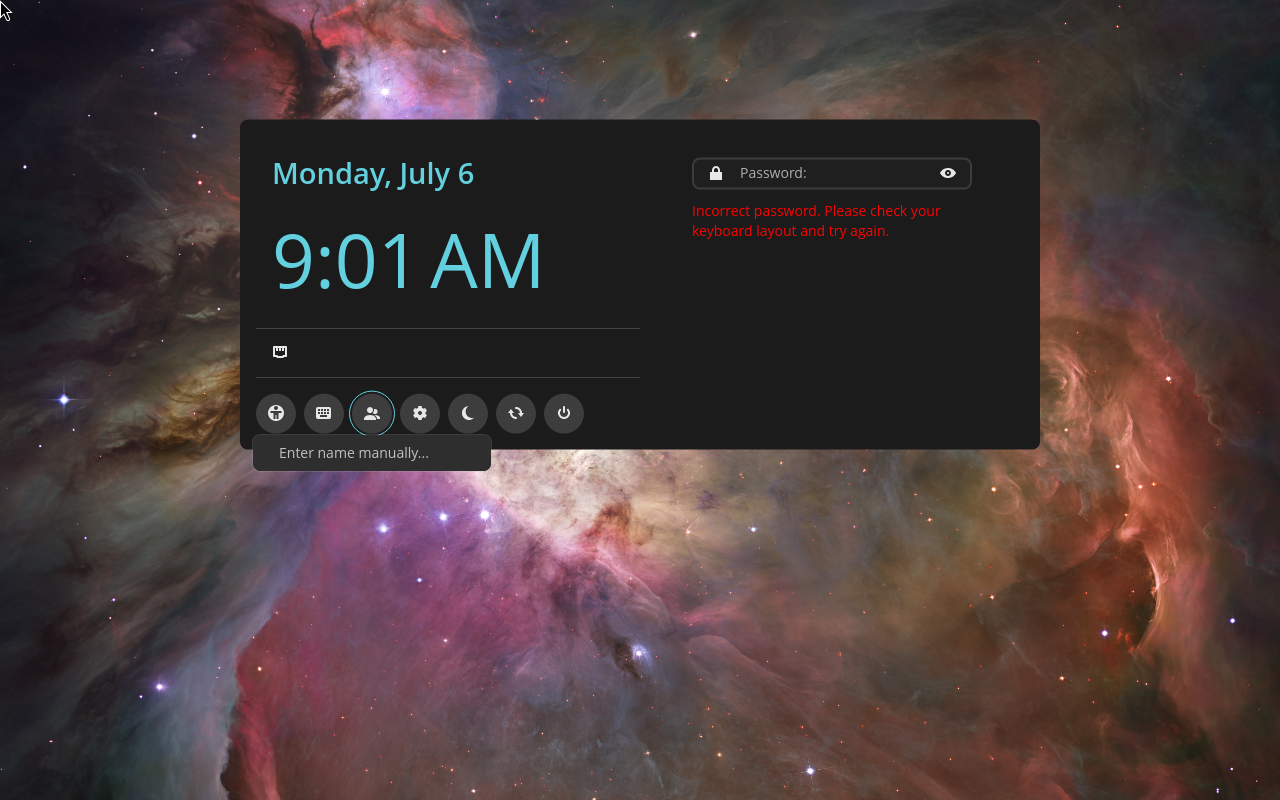
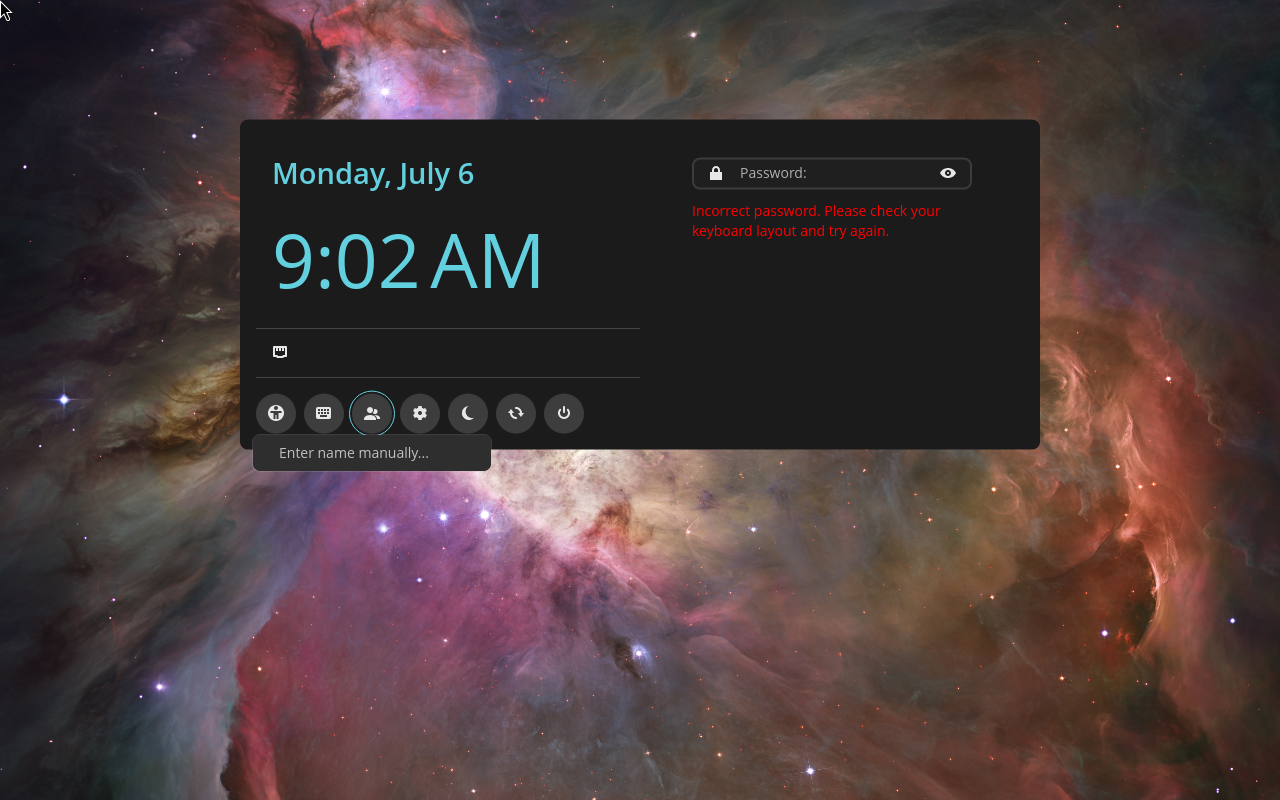
COSMIC flow
The same journey on the COSMIC desktop variant.
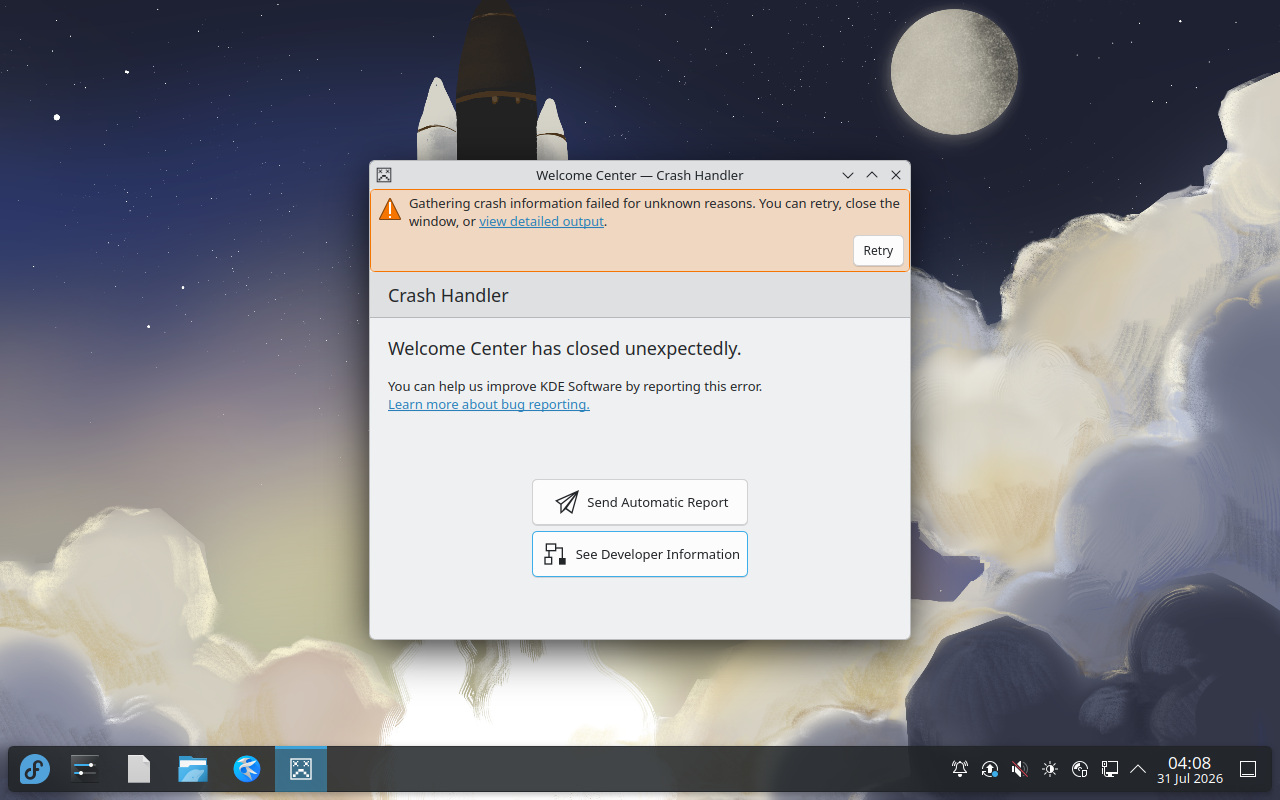
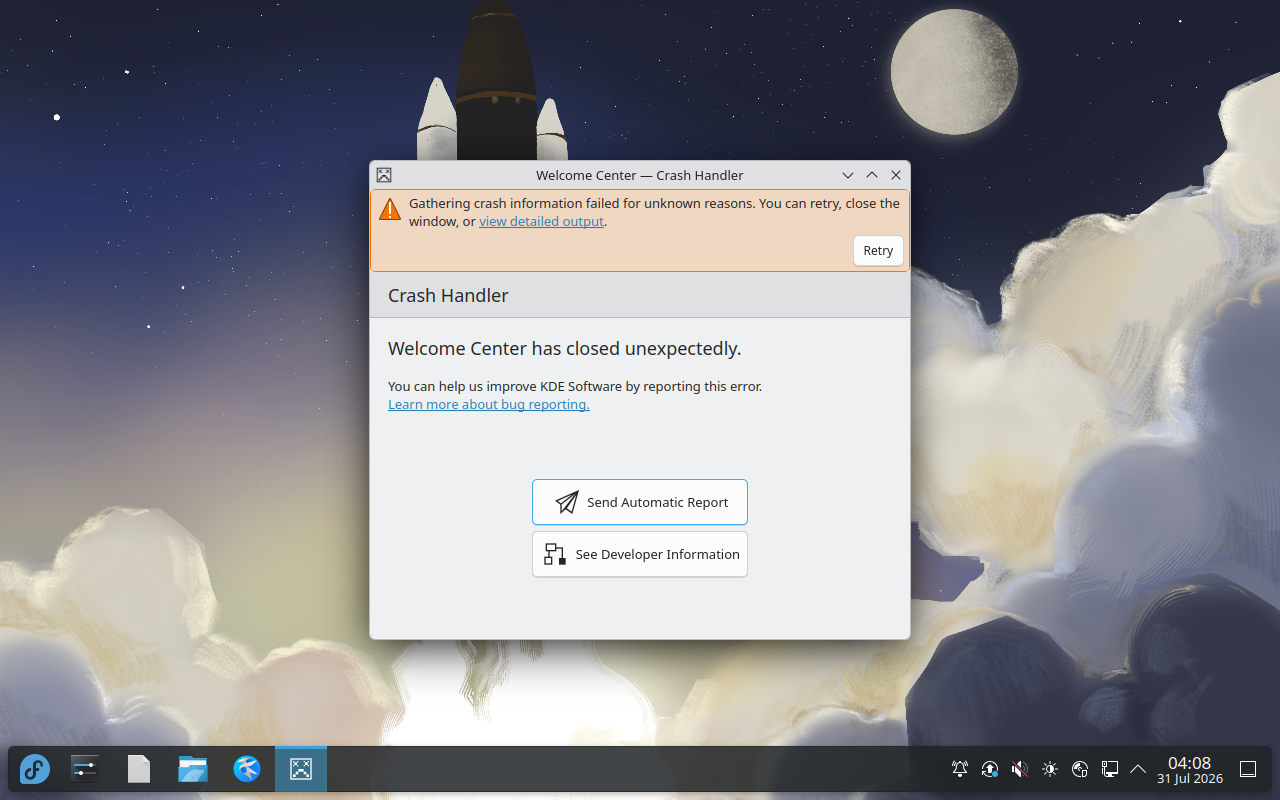
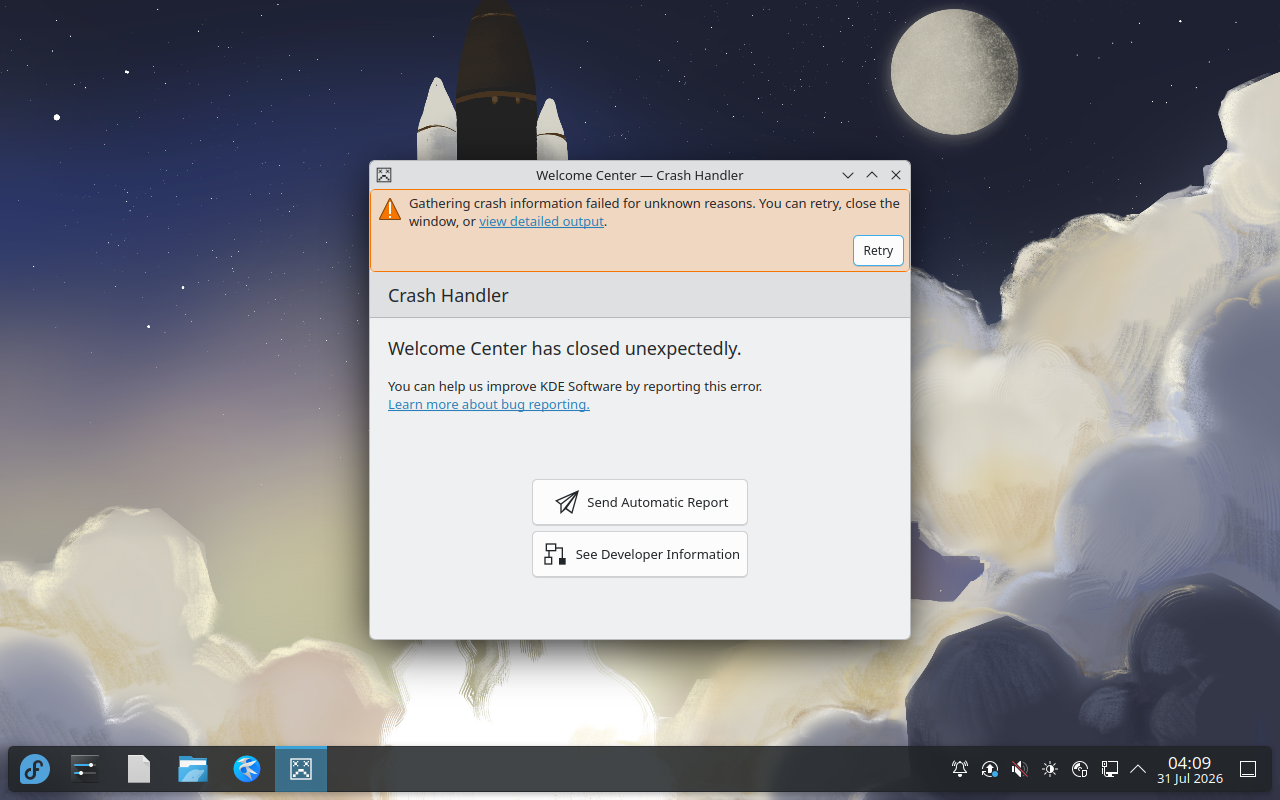
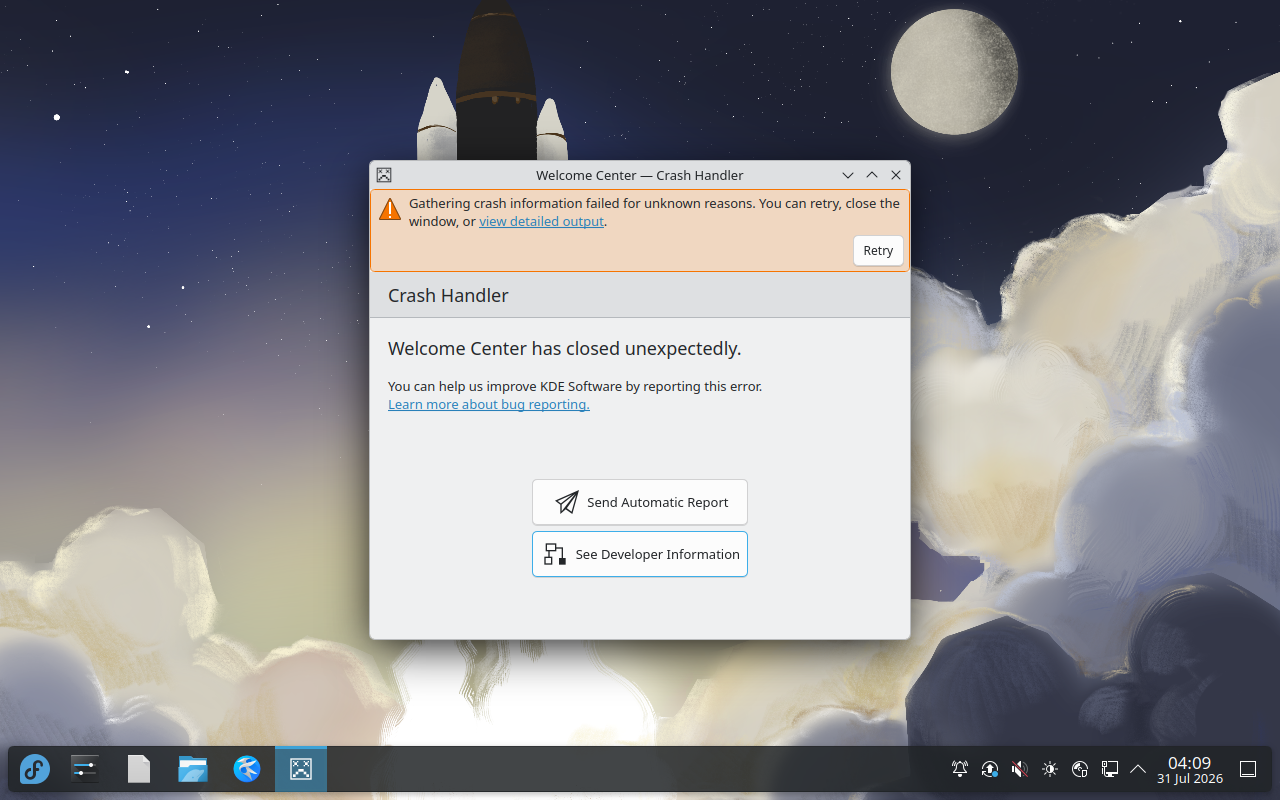
There are four independent frontends: KDE, COSMIC, Niri and XFCE. A smoke test captures each one every week. The test boots the frontend, then moves through it. It makes a screenshot at each step and reads the screen with OCR to make sure the step is correct.
KDE frontend
Automated launch-and-navigate capture on the KDE variant.
Niri frontend
Automated launch-and-navigate capture on the Niri variant.


XFCE frontend
Automated launch-and-navigate capture on the XFCE variant.

TunaOS installs with bootc-installer. This is no longer one GTK4 and Libadwaita application. There is now one frontend for each desktop: KDE, COSMIC, Niri and XFCE.
Each frontend uses the toolkit of its desktop. KDE uses Qt Widgets, COSMIC
uses Iced, Niri uses a TUI, and XFCE uses GTK3. Thus the installer agrees
with the session that it runs in. Before, each desktop received the same
application, in the GNOME style. All frontends use the same fisherman bootc install
backend.
The steps that follow are the same for each frontend. But the position of the controls is different in each one. The captures above show you the appearance of each frontend.
Part 1: Installing to Disk
When you boot from a live ISO, the installer starts automatically. It finds
the live environment with the tunaos.live=1 kernel parameter.
Step 1 — Welcome
The welcome screen shows your variant's name and emoji and gives you three options:
- Install — begin the installation wizard
- Try — close the installer and examine the live desktop first
- Accessibility — open GNOME accessibility settings
Step 2 — Disk Selection
Choose the disk for the installation, then set the partition options.
Filesystem
| Variant | Available filesystems | Default |
|---|---|---|
| Albacore, Skipjack | XFS, ext4 | XFS |
| Yellowfin, Bonito | XFS, Btrfs, Btrfs (subvolumes), ext4 | Btrfs (subvolumes) |
Btrfs is not available on the EL-based variants, Albacore and Skipjack. Their kernel gives only limited support for it.
Full Disk Encryption (FDE)
Set Encrypt this disk to on. This starts LUKS encryption of the full disk. The installer then asks you for a passphrase two times.
TPM Unlock
If your system has a TPM 2.0 chip, you can set TPM unlock to on. The system then decrypts the disk automatically at each boot, and you do not give the passphrase each time. This option needs FDE.
⚠️ The installer erases all data on the target disk. Make a backup first.
Step 3 — Confirm
Examine your choices of disk, filesystem and encryption, then confirm. This is the last point where you can go back. After this, the installer writes to the disk.
Step 4 — Installation
The installer runs bootc install to-disk. Experimental unified storage is
on. The screen shows the progress. This usually needs 5 to 15 minutes. The
speed of your hardware and your network changes this time.
Step 5 — Done
When the installation is complete, the installer asks you to reboot. Remove the USB drive before the system starts again.
Part 2: First Boot Setup
Boot your new installation. First Setup then runs one time and configures your system.
Language
Select the language that you want. This sets the system locale.
Keyboard Layout
Choose your keyboard layout.
Timezone & Location
Set your timezone. The system clock uses it.
Hostname
Set a name for your machine on the network (e.g. james-laptop).
User Account
Create your primary user account:
- Full name
- Username
- Password
Theme
Choose between light and dark mode for the GNOME desktop.
Applications
Select more Flatpak applications from Flathub. The image already contains the core applications.
Setup Progress
First Setup installs the applications that you selected and applies the system configuration. This can need some minutes.
Done
Your system is ready. First Setup does not run again at the next boots.
Recovery Key
If you set Full Disk Encryption to on, the installer makes a recovery key. It shows the key after the installation. Keep the key in a safe place. The key unlocks your disk if you forget the passphrase, or if TPM unlock does not operate.
Troubleshooting
Installer doesn't launch on boot
Make sure that you boot from the ISO in UEFI mode. The live environment needs UEFI. It does not support a legacy BIOS boot.
No disks shown in disk selection
The installer shows only full block devices. In a VM, attach a virtual disk first. The installer does not show the partitions of a disk one by one. It selects the full disk and makes new partitions on it.
Installation fails or stalls
- Make sure that your network connection operates. The installer gets the container image during the installation
- Make sure that the target disk has 20 GB or more of free space
- Examine GitHub Issues for known problems
TPM unlock not working after install
TPM unlock uses the secure boot state at the time of the installation. If you change the secure boot settings later, enroll again:
sudo systemd-cryptenroll --tpm2-device=auto --wipe-slot=tpm2 /dev/your-disk
Source
Each frontend has its own repository. All of them use the same fisherman
bootc install backend:
- tuna-os/bootc-installer — GNOME/Libadwaita, the default flow captured above
- tuna-os/tuna-installer-kde — Qt6 Widgets
- tuna-os/tuna-installer-cosmic — Iced/Rust
- tuna-os/tuna-installer-niri — TUI
- tuna-os/tuna-installer-xfce — GTK3