user guide
Switch from Windows to Linux without losing your data — and change your mind any time until you're sure.
wootc installs a real, modern Linux desktop from inside Windows. There's no repartitioning of your Windows drive, no USB stick to make, and no point of no return until you decide there is one. Your Linux system lives in a single file next to Windows; both boot from the same disk. If anything goes wrong, your next reboot is still Windows.
This guide is written for people who have never touched a partition editor. If a step ever feels scary, that's a bug in our wording — nothing wootc does is permanent until the very last, clearly-labelled step.
Contents
- Is my PC ready?
- Install Linux (Phase 1)
- First boot into Linux (Phase 2)
- Bring your stuff over
- Try it first, commit later
- Import from another disk or a backup
- Encryption & BitLocker
- Go Linux-only (Phase 3)
- Uninstall — put everything back
- Troubleshooting
1. Is my PC ready?
wootc runs a quick check when it starts and tells you in plain language if anything needs attention. Under the hood it wants:
- Windows 10 or 11, 64-bit, UEFI (nearly all PCs since ~2015).
- At least 35 GB of free space on
C:— 20 GB for Linux plus the 15 GB the app keeps back so Windows still has room. More is better; you choose the size. - Secure Boot on is fine — wootc stages a boot loader signed by Microsoft, and checks before it changes anything that your PC's firmware trusts the certificate it was signed with. If it does not, wootc says so and stops rather than leaving you at a startup error (#322).
- BitLocker off, for now. wootc never asks you to decrypt your drive, but the encrypted-drive path is not proven green yet, so the alpha stops before installing on a BitLocker-protected PC and says so (#34, see §7).
You don't need to disable Secure Boot, make a bootable USB, or shrink partitions yourself. wootc handles all of it.
2. Install Linux (Phase 1)
Download and run wootc.exe. You'll see the Launchpad:
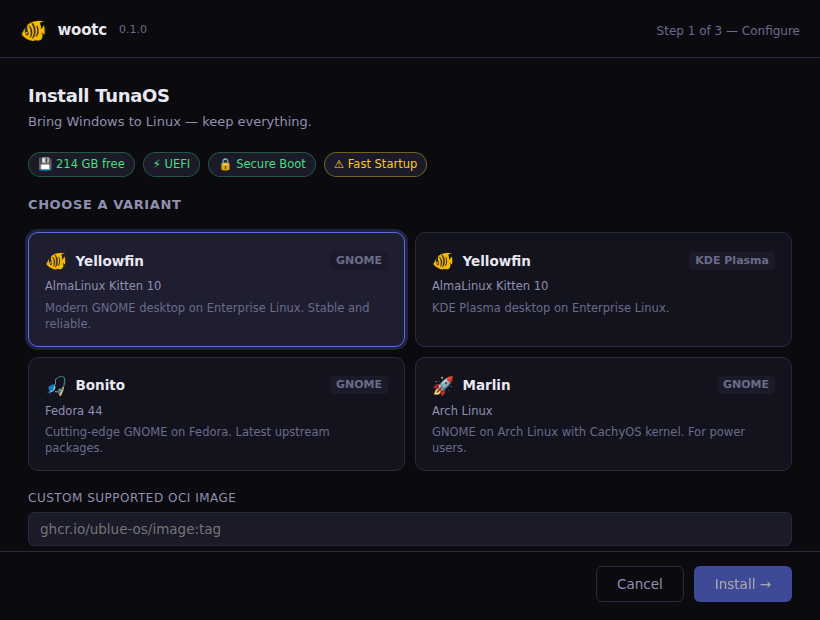
- Pick a desktop. Choose from the catalog — GNOME, KDE Plasma, Niri, or XFCE, on an Enterprise Linux, Fedora, Arch, or Debian base. Not sure? The first card is pre-selected for you — in the alpha that is Bluefin LTS, the combination proven end-to-end (see RELEASING).
- Set a password. That's the whole form: your username and computer name are mirrored from this PC, the disk is sized from your free space, and TPM-backed encryption is picked for you. The form states the plan under the password field, and everything is adjustable under Advanced — identity, disk size, encryption (§7), and the look toggle.
- "Make it feel like Windows" is on by default — wallpaper, accent color, keyboard layout, taskbar pins, and desktop shortcuts come across on first login, and your saved Wi-Fi networks become NetworkManager connections. Untick it under Advanced to keep the desktop's own look. Supported on the Wayland desktops (GNOME, KDE Plasma, niri); other settings still migrate.
- Click Install. wootc creates your Linux disk file, stages a signed boot entry, and arms a one-time boot into the installer. Nothing else on your PC changes.
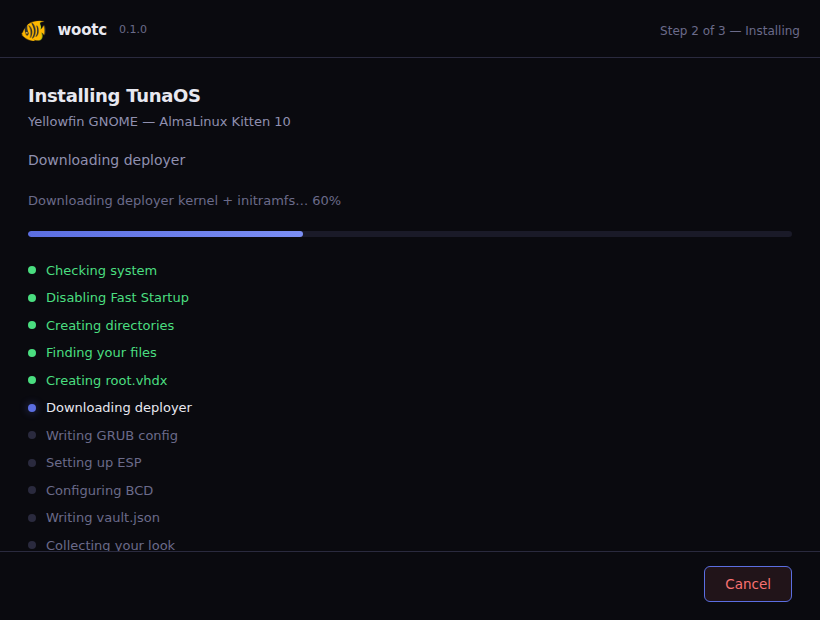
When it finishes, reboot when you're ready. That's the only moment Linux takes over — and it's a one-shot: if the install were to fail, your PC boots straight back to Windows.
3. First boot into Linux (Phase 2)
On the next reboot, wootc's deployer runs once — it unpacks your chosen Linux image onto your disk file and reboots into your new desktop. This first run takes a few minutes; after that, Linux boots like any normal OS.
Your Linux system boots directly from the disk file on your Windows drive. The OS itself is a standard, image-based (bootc) system that updates itself atomically — the same image whether it lives in a file today or on its own partition later.
Windows is still there. You can boot back into it any time from your PC's boot menu; wootc doesn't remove it (until you ask it to — §8).
4. Bring your stuff over
Open the Bring Over From Windows dashboard. wootc migrates honestly — it moves what it safely can and clearly says what needs a fresh sign-in. It follows three consent tiers:
| Tier | What happens | Examples |
|---|---|---|
| Applied automatically | Non-secret preferences with an obvious Linux equal | wallpaper, accent, keyboard layout, timezone, hostname |
| Offered with preview | Useful data you can inspect first | files, browser data, Steam libraries, Wi-Fi, apps |
| Never copied silently | Secrets & identity material | passwords, private keys, tokens, enterprise Wi-Fi creds |
What it brings over:
- Files — Documents, Desktop, Pictures, Downloads, Music, Videos.
- Browsers — Firefox moves everything (bookmarks, history, logins, open tabs). Chrome/Edge move bookmarks and history; sign in once and sync restores the rest.
- Steam — your installed games are reused in place; no re-download.
- MS Office → LibreOffice — styles, custom dictionary, and settings.
- Apps — detects your Windows apps and installs the Linux equivalents.
- WSL — copies your WSL dotfiles (public keys only) and turns your installed
packages into a Homebrew
Brewfile(brew bundlerebuilds your toolchain). - Wi-Fi — your saved networks become NetworkManager connections so you're online on first boot. Enterprise/802.1X networks are detected but need a fresh sign-in.
- Windows-Style Mode (on unless you turned it off under Advanced) — wallpaper, accent, keyboard, and your taskbar/desktop shortcuts.
Secrets stay put. wootc never silently copies passwords, private SSH/GPG keys, tokens, or credential stores — you sign in again where it matters.
5. Try it first, commit later
Not ready to reboot?
- Boot in VM (Phase 1) — run your installed Linux in a window without
rebooting, right from Windows. Because wootc installs into a single
root.diskfile on your existing drive without repartitioning, you can test drive your actual configured Linux system safely before ever rebooting. Any changes you make persist to the same disk.
You're always one reboot away from Windows.
6. Import from another disk or a backup
Already on Linux and want to pull data from a Windows install on a different drive — a second internal disk, an external/USB drive, or a backup? Open Bring Your Windows Over on the Linux side:
- Scan — wootc lists the Windows drives it finds.
- Unlock — BitLocker-encrypted drives are unlocked read-only with your password or 48-digit recovery key. The source drive is never modified or decrypted in place.
- Pick the user whose files to bring over.
- Choose what to import — the same categories as the dashboard above.
7. Encryption & BitLocker
Not yet available in the alpha. The design below is built and the code ships, but the BitLocker path has not been proven green end-to-end (#34), so every channel that ships today refuses to install on a BitLocker-protected PC rather than walk you into an unproven path: "BitLocker encryption isn't supported in the alpha yet — it's coming soon. For now, wootc needs drive encryption turned off." Turn BitLocker off, or wait for the gate to open. What follows is what happens once it does.
Your Windows BitLocker is safe. wootc never forces you to decrypt your Windows drive. If C: is BitLocker-protected, wootc offers to put Linux on an unencrypted partition (creating one by safely shrinking, or reusing an existing one) — C: stays encrypted the whole time.
Encrypting Linux is a separate choice for your Linux disk:
- TPM auto-unlock (recommended) — LUKS encryption that unlocks automatically via your PC's TPM chip. No prompt at boot.
- Passphrase — asks for a password every boot.
- None — fastest; anyone with the PC can read the Linux disk.
The one-time blue screen (Bazzite and friends). Some distributions ship
their own tuned kernel, and under Secure Boot your PC needs one-time
permission to trust it. For those images (the installer tells you on the
final screen), the first start shows a blue "MOK management" screen:
choose Enroll MOK → Continue → Yes, and type the password
universalblue (the same one the distribution's own documentation
uses). That's it — the screen never appears again, and Secure Boot stays
fully on.
8. Go Linux-only (Phase 3)
When you're confident, you can graduate Linux onto its own native partition and reclaim the space Windows was using. This is the one genuinely irreversible step, and wootc treats it that way:
- Stage 5 — Graduate to native (reversible). wootc puts a real Linux partition on your disk and moves your system onto it. Windows and your original setup stay put until you take the final step, so you can still roll back.
- Stage 6 — Remove Windows (irreversible). Only offered once everything you use is already on Linux. This deletes the Windows partition and grows Linux to fill the disk.
wootc refuses stage 6 until your data is verified native and a rollback snapshot exists — you can't accidentally delete something that hadn't moved yet.
Prefer to keep both? Just don't take stage 6. Dual-boot Windows + Linux is a perfectly good place to stop.
9. Uninstall — put everything back
Changed your mind? wootc is fully reversible up until Phase 3 stage 6.
Where to find it: open Settings → Apps → Installed apps (or Control
Panel → Programs) and uninstall TunaOS (wootc) — or simply run
wootc.exe again as Administrator, which opens the Manage screen with an
Uninstall button.
What it does:
- Removes the wootc boot entry from Windows.
- Removes the Linux bootloader files from the boot partition.
- Deletes wootc's installer files.
- Keeps your Linux disk file (
root.disk) by default, so your Linux data survives in case you come back. Tick "Also delete my Linux data" in the uninstaller to remove it too — that is the only step that deletes anything of yours. - If Linux was on a dedicated partition, can reclaim it and give the space back to Windows.
- Restores the Windows power settings (Fast Startup / hibernation) that setup turned off.
With the Linux data box ticked, your Windows install is back exactly as it was.
10. Troubleshooting
- "Boot Windows once and shut down fully." Windows Fast Startup or hibernation left the drive in a locked state. Boot Windows, choose Shut down (not restart), and try again.
- Stuck on the boot menu. Pick "Windows Boot Manager" to get back to Windows; nothing is lost.
- A migration says "sign in again." That's by design — wootc never copies passwords or tokens. Sign in once and cloud sync brings the rest.
- My PC has no TPM / old firmware. Choose GRUB2 + passphrase (or no) encryption in Advanced options.
- Windows wants to "scan and fix" the drive after I used Linux. Linux hands the drive back cleanly on every normal shutdown, but a power cut or forced power-off while Linux is running can leave Windows wanting a check. Let it run — it's Windows being careful, and your files are fine.
wootc is early, actively-developed software. The full Windows → deployer → native Linux → back-to-Windows loop is verified end-to-end on the KVM E2E rig — a real Windows 11 VM with UEFI, Secure Boot and TPM 2.0. Real-hardware evidence is the next gate on the ladder (ROADMAP, v0.2.0-alpha), not something already banked. See docs/SPEC.md for the design, docs/status.md for what each claim rests on, and docs/milestones.md for the ladder.