gui walkthrough
Screenshots are generated by the Playwright suite (tests/gui/), which
drives the real frontend bundle with a mocked backend — so this
walkthrough stays in sync with the shipping UI. Regenerate with
cd tests/gui && npx playwright test.
1. Launchpad — choose a variant
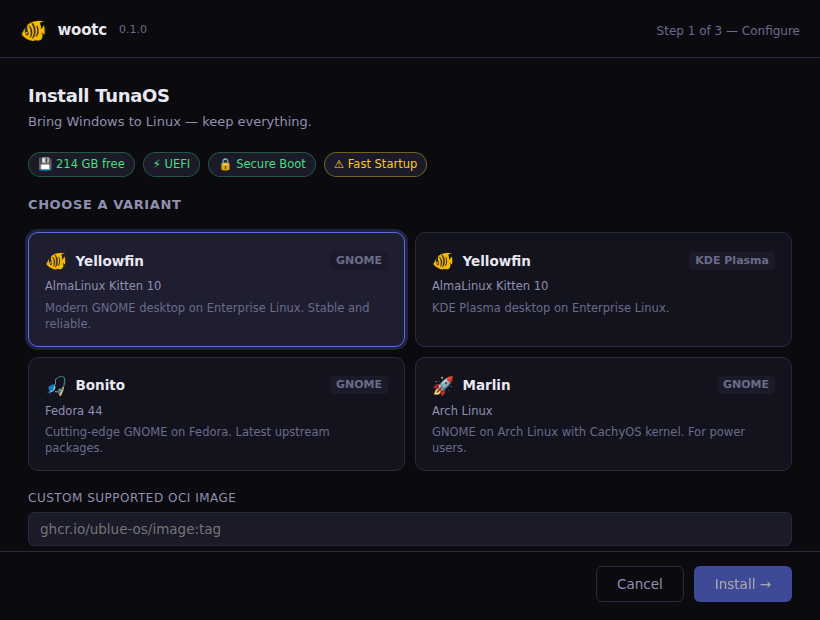
The first screen. System-info chips reflect the host (free space, UEFI,
Secure Boot, a Fast-Startup warning). The variant grid comes from the
catalog (GetImages, overridable via C:\wootc\images.json). Disk size,
username, hostname and password are collected here.
2. Validation gates the install
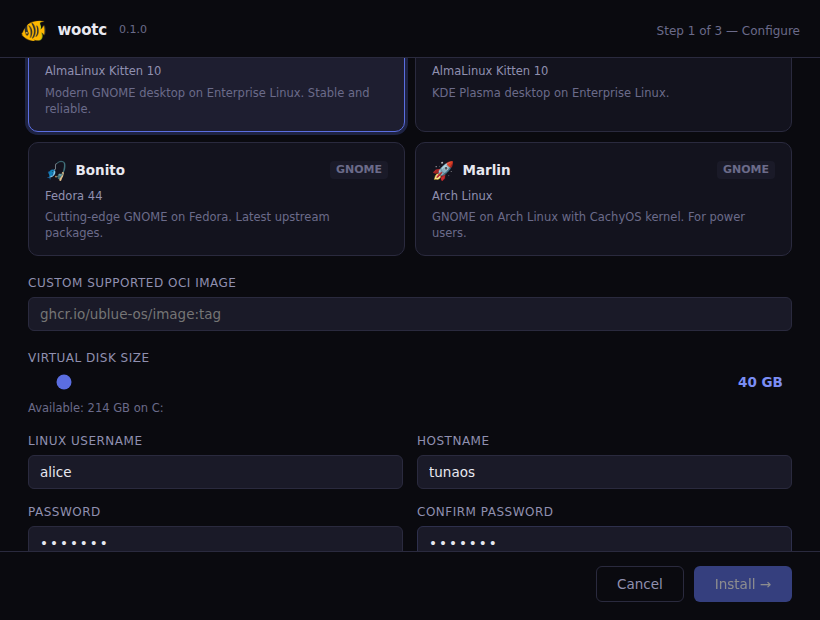
The Install button stays disabled with an inline reason until the form is valid — variant chosen, a valid Linux username, and matching passwords. No install can start half-configured.
3. Installing
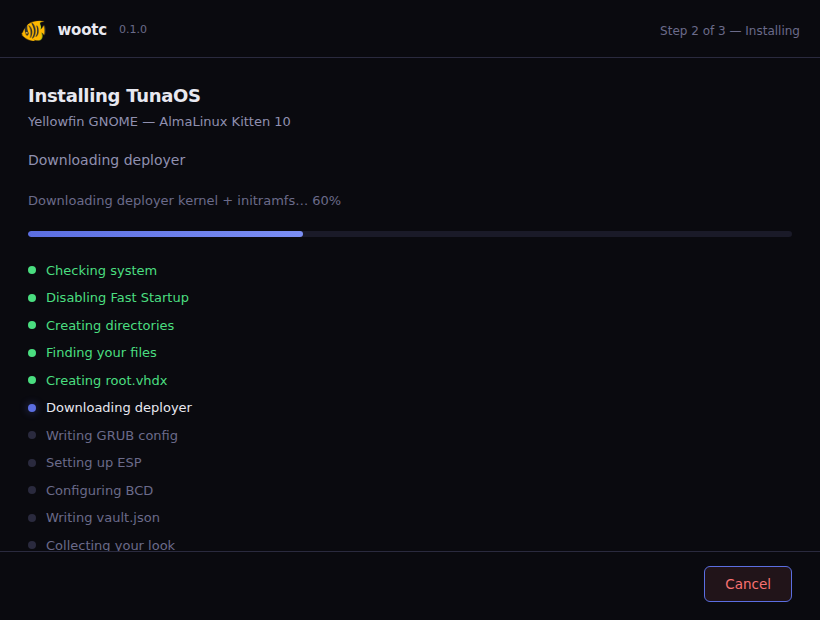
A live progress bar plus a step checklist driven by install:progress
events from the backend pipeline (the same pipeline the headless mode and
E2E exercise).
4. Done
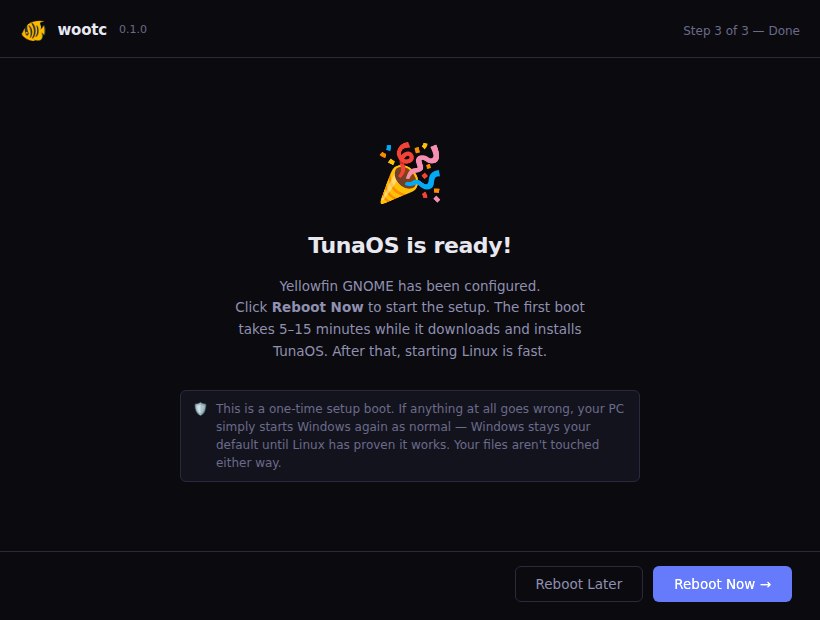
Reboot to start the deployer. First boot deploys TunaOS; subsequent boots are instant.
5. Control panel — managing an existing install
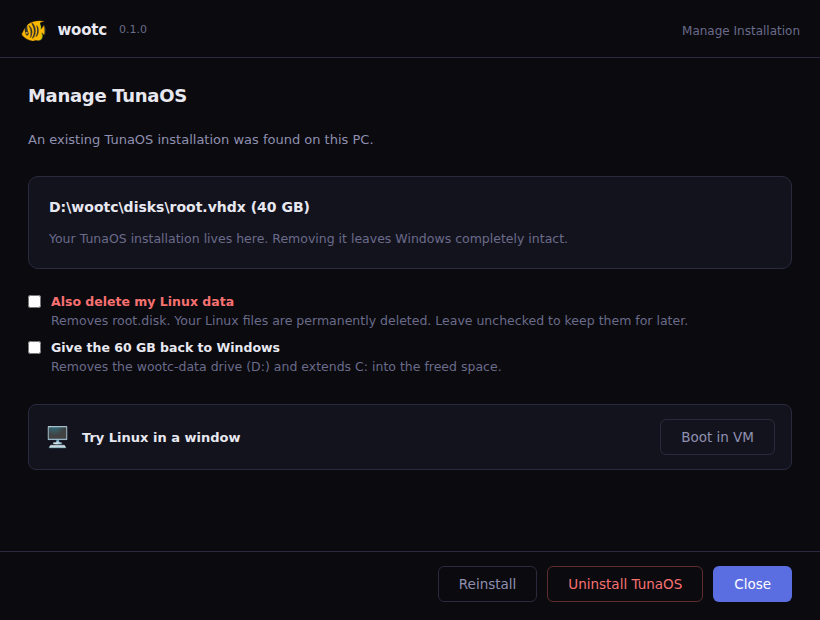
When a root.disk already exists, the app opens here instead: reinstall,
uninstall (removes the boot entry, never the disk), or close.
BitLocker — an unencrypted home for Linux (no forced decrypt)
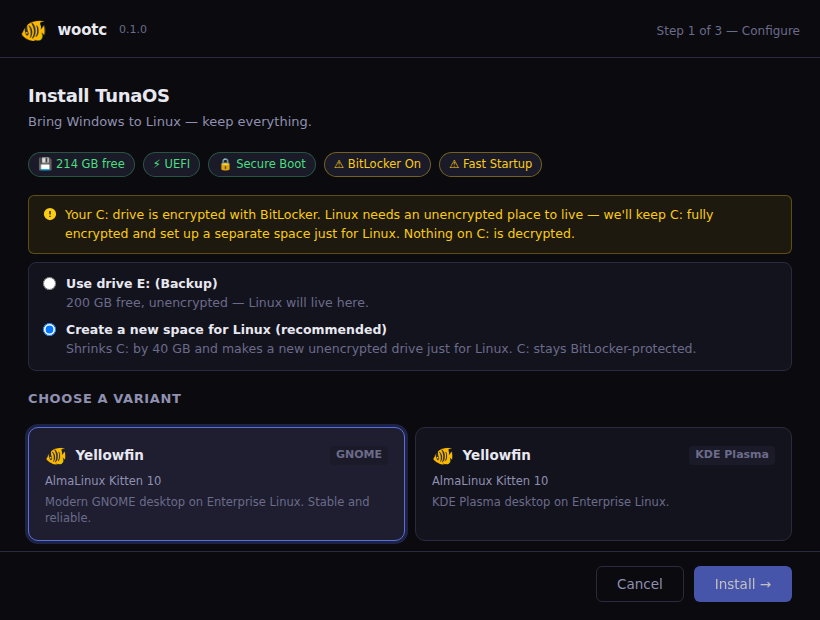
When C: is BitLocker-encrypted, wootc never asks the user to decrypt.
Instead it offers to put Linux on an unencrypted volume — reuse an
existing one, or carve a new wootc-data partition from C: while C:
stays fully BitLocker-protected. root.disk + vault live on that
unencrypted volume so the installed system can mount them read-write
every boot without a decryption prompt (SPEC §3.5).
6. Branded re-skin
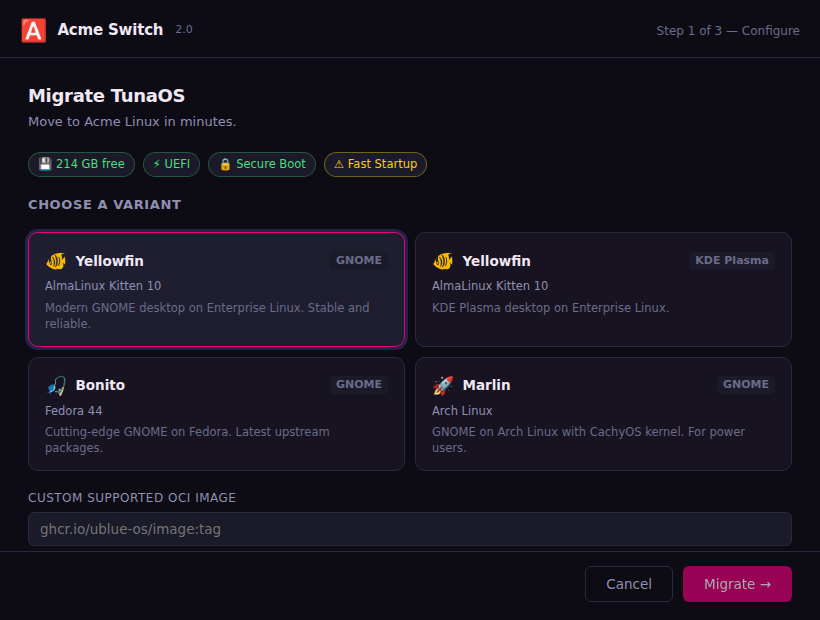
The same app re-skinned via C:\wootc\brand.json — partner name, logo,
accent color, and CTA verb ("Migrate"). See
branding.md.
7. Migration dashboard (installed Linux system)
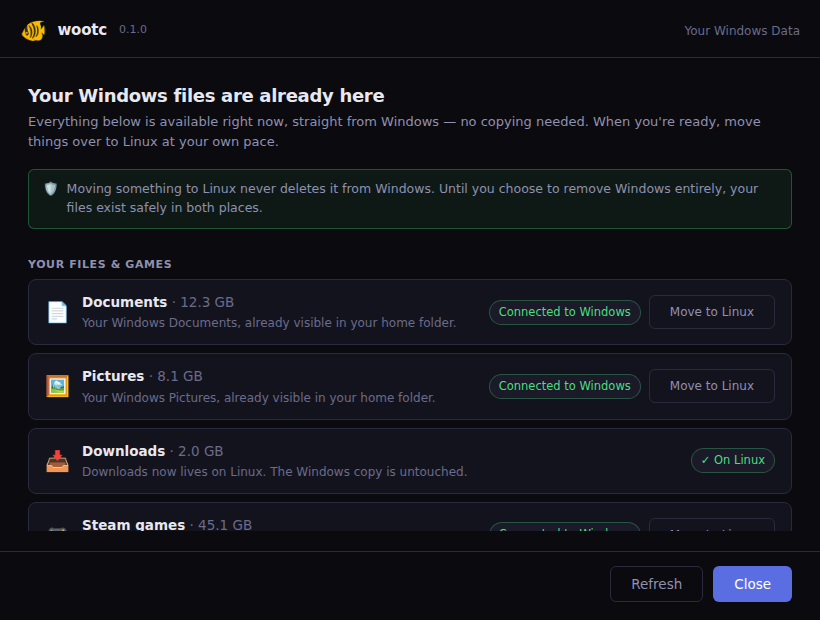
On the installed system the app becomes the migration dashboard
(GetMode returns migration when the Windows volume is bridged at
/host). Files and games show their live state (Connected to Windows /
On Linux) with reversible one-click conversion; apps show honest per-app
outcomes (signed in / sign in once / re-link needed); the MS Office →
LibreOffice summary lists what transferred. Everything reiterates the
North Star promise: nothing is ever deleted from Windows.
Linux-side apps
The screens above are the Windows installer (captured by the Playwright suite). The apps below are the GTK4/libadwaita tools that run on the migrated Linux system. Regenerate them with:
bash tests/gui/capture-linux-guis.sh
That renders each app headlessly in a container (Xvfb + GTK4's cairo software renderer) against the same fixture hooks the unit tests use, so these stay in sync with the shipping code.
8. Choose what to bring over
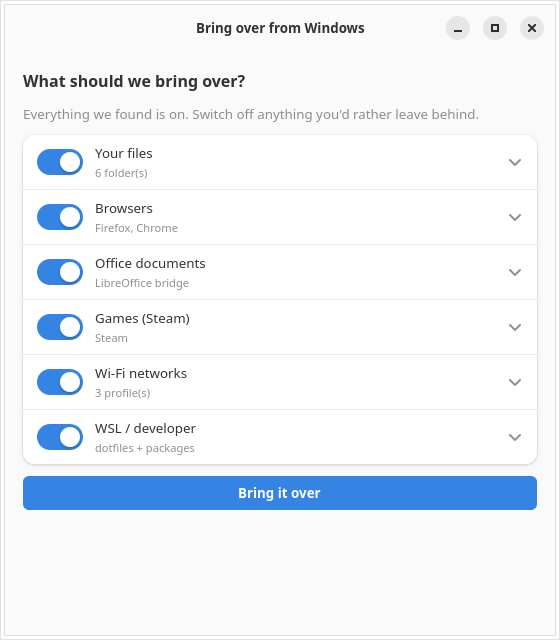
wootc-manifest-gui. It scans the mounted Windows volume and catalogs
everything migratable — files, browsers, Office documents, Steam, Wi-Fi,
WSL. Everything discovered is on by default; you switch off anything
you'd rather leave behind (an opt-out model, not a checklist you have to
fill in). Each row shows what was actually found — folder counts, which
browsers, how many Wi-Fi profiles. The choice is saved to
~/.config/wootc/migration-selection.json for the bridges to honor.
8b. Set up your account
wootc-user-gui. Your name, username, email and account picture are
carried over from Windows and already filled in — the screen asks for
exactly one thing you have to supply: a Linux password.
That is not an oversight, it is the one item wootc deliberately will not migrate. Windows stores an NTLM hash and Linux a PAM/shadow crypt hash; they are different algorithms, so there is nothing to copy. Copying credential material would also breach the "never migrate secrets" rule that keeps browser passwords and Wi-Fi enterprise credentials out of scope. The screen says so plainly rather than leaving a blank field.
The password is handled as carefully as that framing implies: it is
never written to disk, never passed on a command line (where any process
could read it from /proc), and reaches chpasswd on stdin only. The
~/.config/wootc/account.json file it saves records the identity fields
and a passwordSet boolean — never the secret itself.
9. Move fully to Linux (Phase 3)
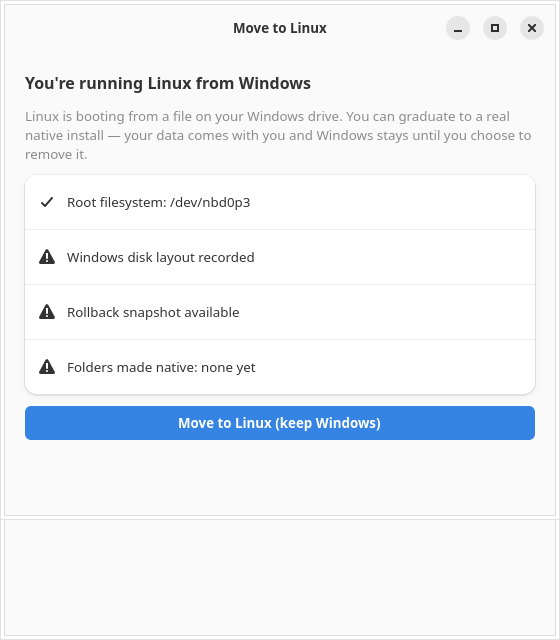
wootc-go-native-gui. While Linux is still running from root.disk on
the Windows volume, this offers to graduate onto a real disk. The safety
gates are surfaced directly in the UI — where root currently lives,
whether the Windows layout was recorded, whether a rollback snapshot
exists, and which folders are already native. Graduating keeps Windows
and root.disk in place, so it stays reversible.
10. Reclaim the Windows space
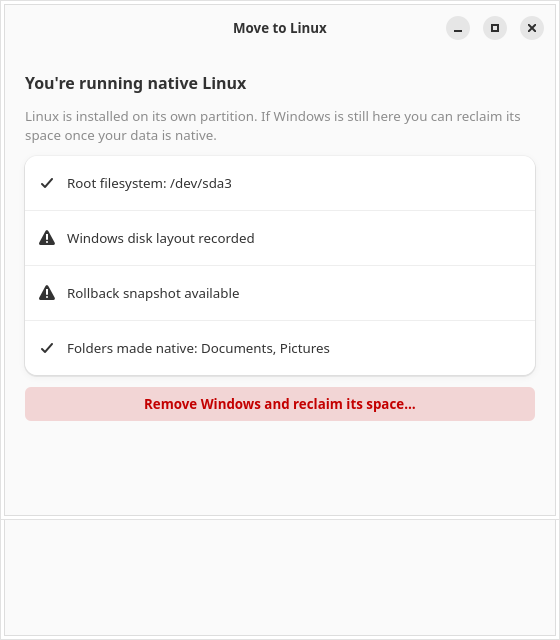
The same app once you're running natively. Reclaim is only offered
after your data is native — the identical hard gate the CLI enforces
(wootc-go-native refuses --reclaim otherwise). Before anything runs
you get the exact command plan to review; nothing destructive happens
without that explicit confirmation.
11. Bring your Windows over (another disk / BitLocker)
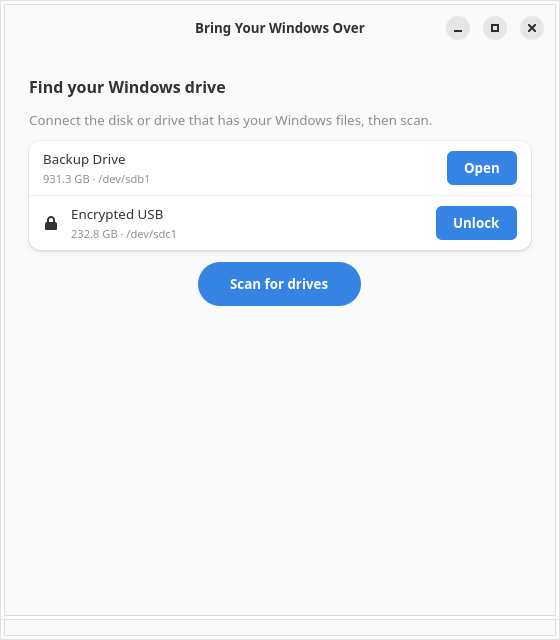
wootc-import-gui. For the case where Windows lives on a different
drive — a second internal disk, an external drive, or a backup. It finds
NTFS and BitLocker volumes (the running disk is never offered), unlocks
BitLocker read-only, and imports the same categories. Nothing on the
source drive is modified.