gui walkthrough
This is what the installer looks like, screen by screen. Every image on this
page is generated in CI from the real GTK3 wizard by
tests/gui/capture-screens.py, so it cannot drift from the app the way
hand-taken screenshots do.
The capture runs headless under Xvfb against fixtures — a canned image catalog
and a canned lsblk — so it never touches a real disk and the output is
reproducible.
1. Welcome
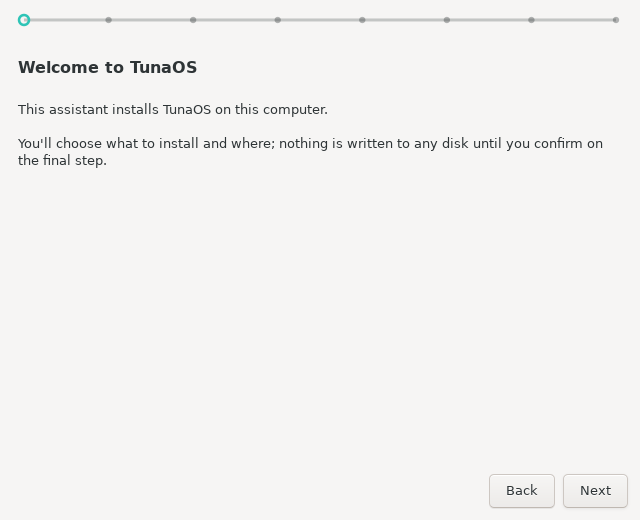
Nothing is written to any disk until you confirm on the final step. The dotted line across the top is the progress indicator for the whole wizard.
2. What to install
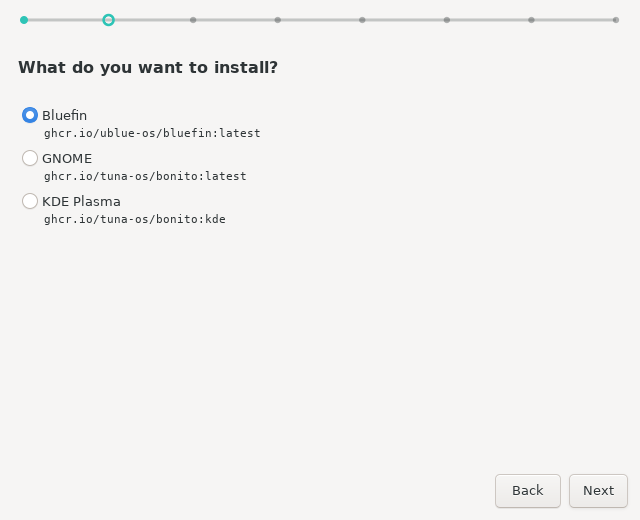
Each entry is a bootc image. The tree groups variants under their base image, so picking a desktop is one choice rather than a search through tags.
3. Where to install it
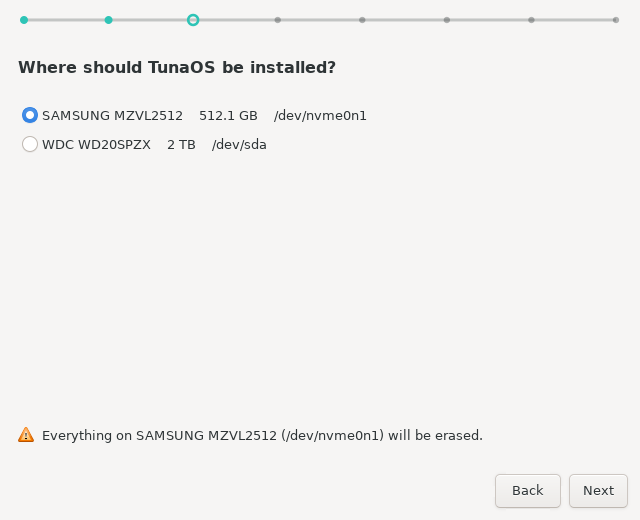
Only real, non-removable disks are offered, and the live medium you booted from is excluded — so the installer will not offer to overwrite itself.
4. Filesystem and encryption
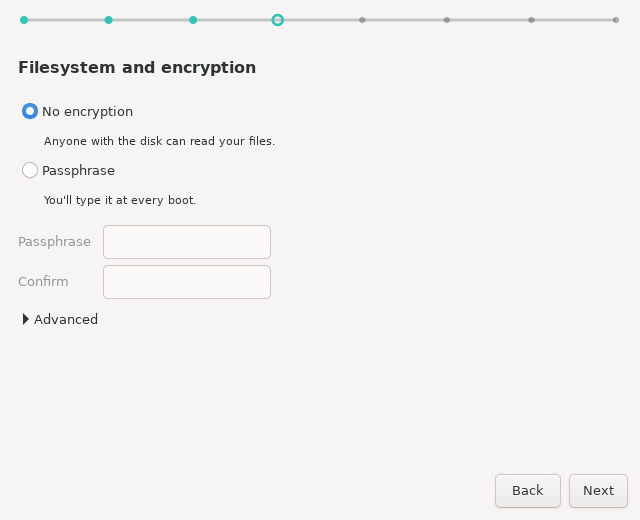
The passphrase fields stay disabled until you choose an option that needs one. Filesystem and btrfs subvolume layout live under Advanced, because the default is right for nearly everyone.
5. Your account
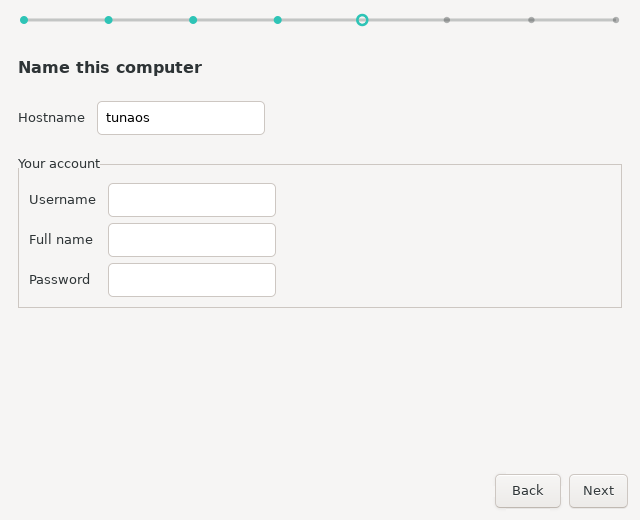
The computer name becomes the hostname. The account created here is an administrator on the new system.
6. Confirm
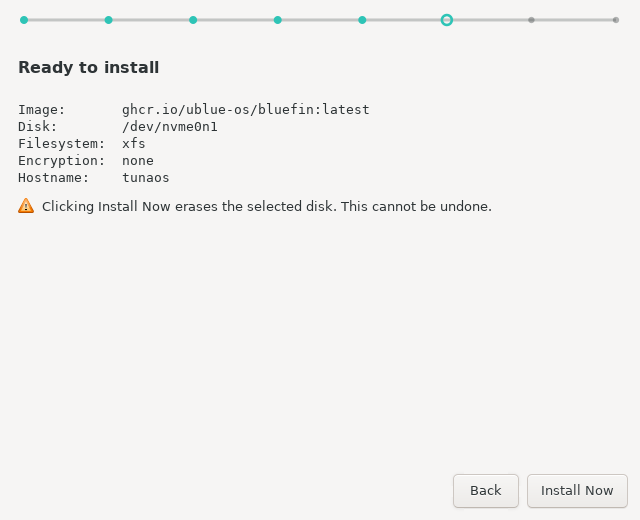
The last screen before anything is written, and the only one whose button is styled as destructive. Everything above this point is reversible by quitting.
7. Installing
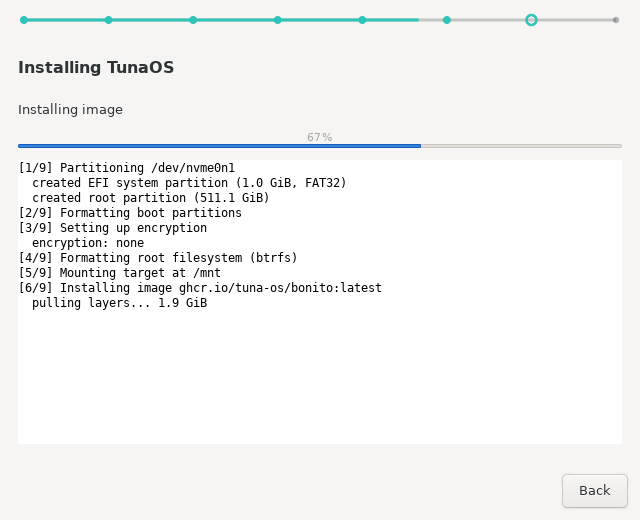
The log is visible by default — XFCE users want the output. The step label and
progress bar are driven by fisherman's own [n/9] markers rather than a timer,
so the bar reflects real progress rather than an estimate.
8. Done
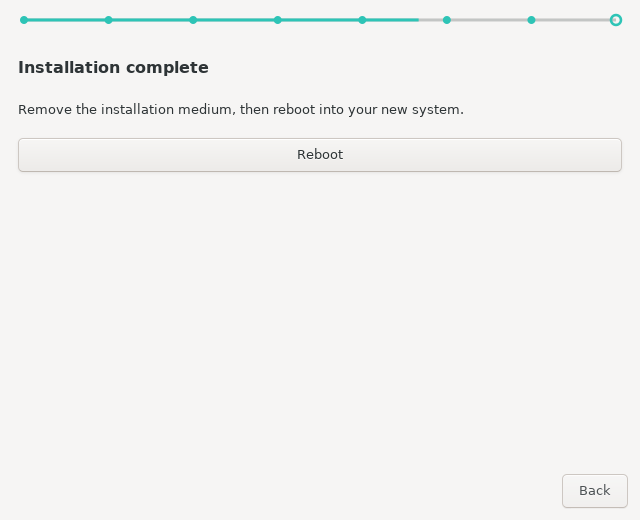
Remove the installation medium, then reboot into the new system.
Regenerating these
sudo apt-get install -y python3-gi python3-gi-cairo gir1.2-gtk-3.0 xvfb imagemagick
xvfb-run -a python3 tests/gui/capture-screens.py docs/screenshots
The script reads its own output back and fails if a screen did not really render — too few distinct colours, a near-uniform flat fill, or no text. That check exists because a capture rig which only asserts its PNGs exist will happily publish blank pages: the files are present and non-empty, and the pages are empty.