gui walkthrough
This is what the installer looks like, screen by screen. Every image on this
page is generated in CI from the real libcosmic application by the capture mode
built into the binary (TUNA_CAPTURE_DIR=... tuna-installer-cosmic), so it
cannot drift from the app the way hand-taken screenshots do.
The capture runs headless with no desktop, no GPU and no real disks: Xvfb for a display, Mesa's lavapipe for a software Vulkan adapter so wgpu has something to render on, and fixture data in place of every hardware query. It never touches a disk.
1. Welcome
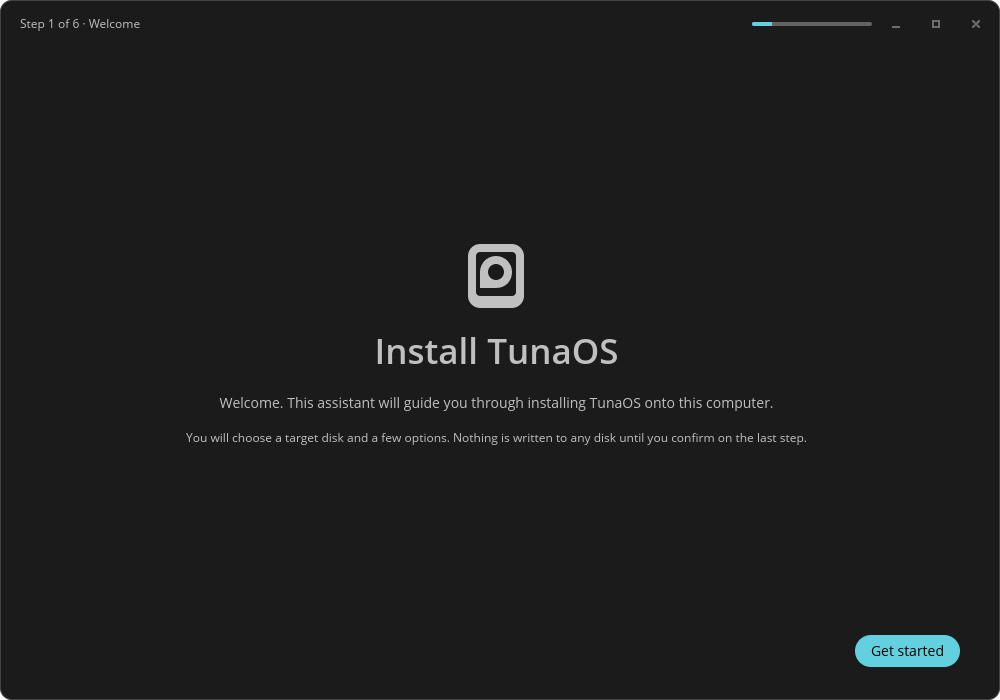
The COSMIC header bar carries the step counter and a progress bar for the whole wizard, so the chrome does the navigation reporting instead of the page body. Nothing is written to any disk until you confirm on the last step.
2. Select a disk
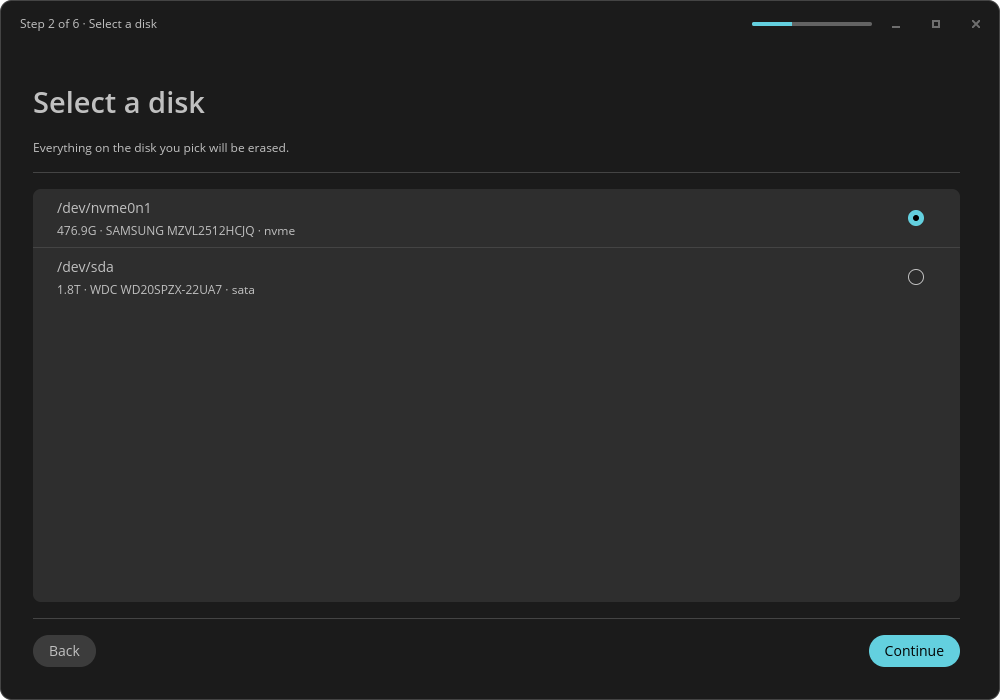
Disks come from lsblk -J. Each row is a COSMIC list item with the device
node, its size, model and bus. Continue stays unavailable until something
is selected, so there is no way to walk past this screen without a target.
3. Options
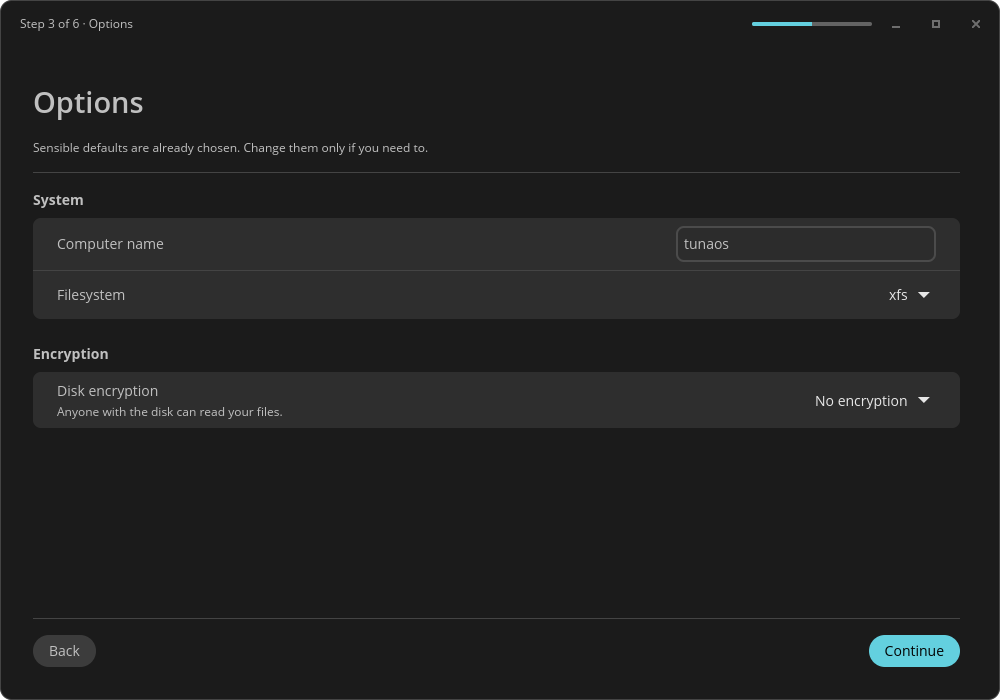
COSMIC settings sections: computer name, filesystem, and encryption. The defaults are already right for nearly everyone. The passphrase field does not exist at all until you pick an encryption mode that needs one — the KDE sibling crashed on exactly this relationship by wiring the toggle up before the passphrase widgets existed.
4. Confirm
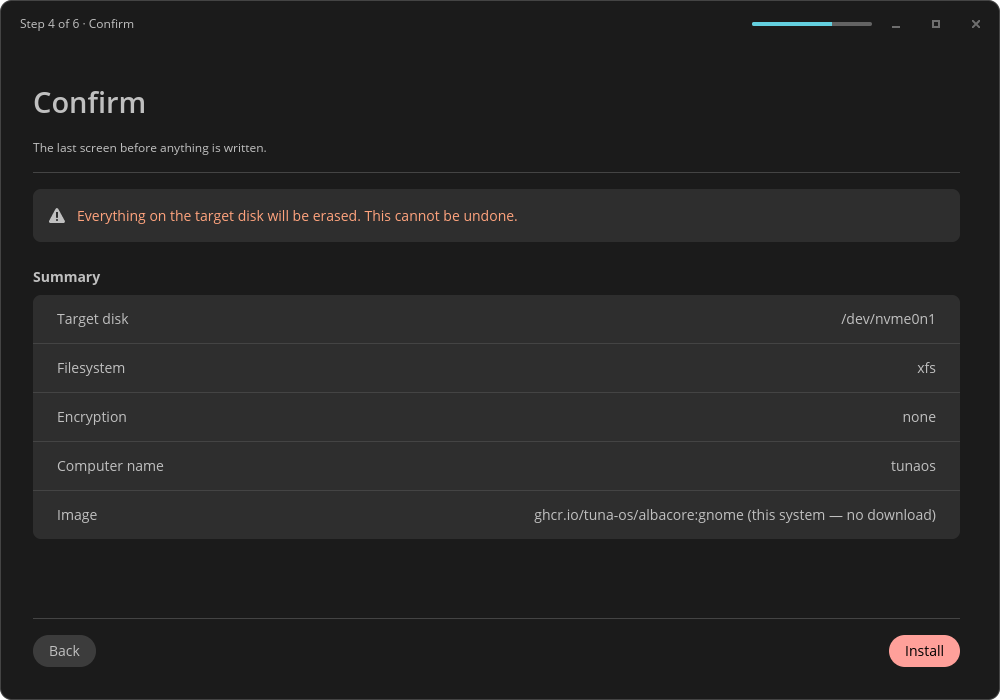
The summary of everything chosen, under a COSMIC warning banner. This is the last screen before anything is written, and the only one whose action button is styled destructive rather than suggested. Everything above this point is reversible by quitting.
5. Installing
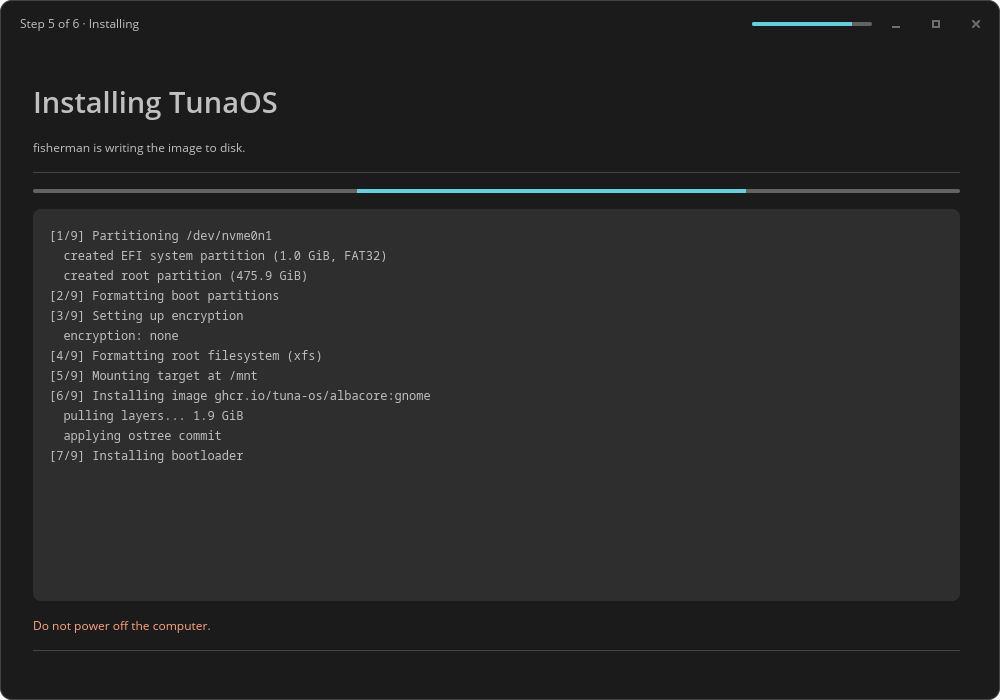
fisherman runs with the recipe JSON written 0600 under XDG_RUNTIME_DIR
(it may hold a passphrase), and its output streams into the log card.
The log shown here is fixture text. The capture harness sets this page
directly and never sends StartInstall; the message handler additionally
refuses StartInstall outright whenever capture mode is on. That interlock is
not decorative — in tuna-installer-xfce the page-enter hook called
start_install(), so a capture written the obvious way would have partitioned
the CI runner's disk.
6. Finished
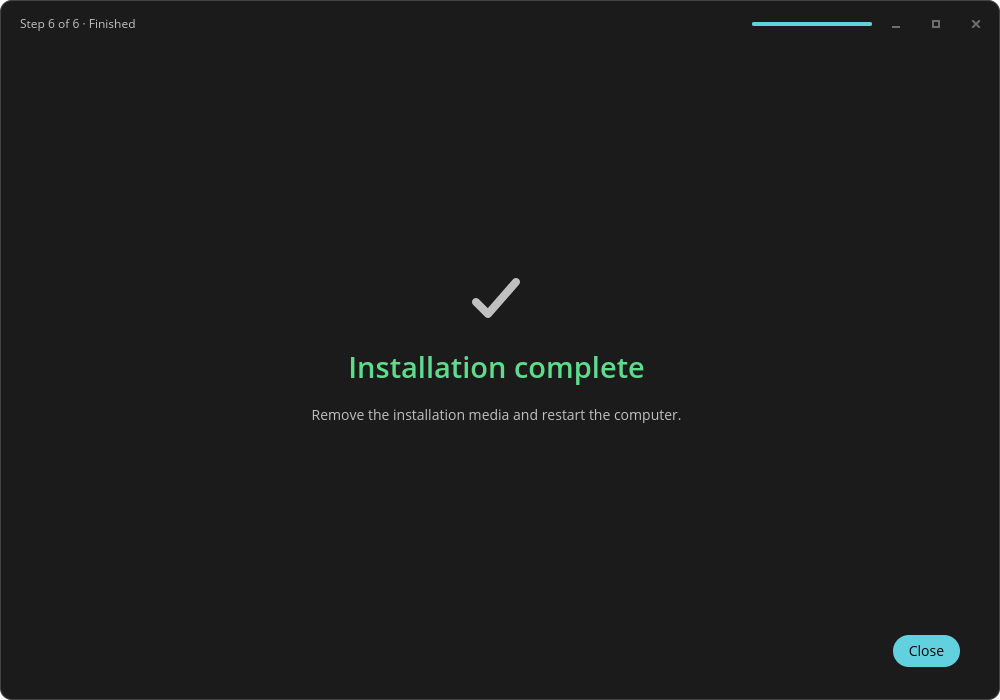
Success or failure, coloured from the COSMIC theme's success_text_color /
destructive_text_color rather than hardcoded RGB. Remove the installation
media and restart into the new system.
Regenerating these
sudo apt-get install -y mesa-vulkan-drivers xvfb imagemagick
just capture
The capture reads its own pixels back — it pulls the frame wgpu actually
presented via iced::window::screenshot and measures colour count, the share
of the frame taken by a single flat colour, and the share that is "ink". A page
that failed to render is a valid, non-empty PNG of nothing, so file existence
proves nothing; bootc-installer-asahi shipped a blank settings page behind
exactly that check. The thresholds are calibrated against measured output from
real renders and every run prints its numbers.
What the first capture run caught
Two defects that no diff would have shown, found the first time these images were rendered:
- No icons at all. Every
icon::from_name(...)silently drew nothing, including the dropdown chevrons on the Options page and the window controls in the header bar — the controls were simply absent. libcosmic resolves icons through the freedesktop icon theme, and nothing had named one. Fixed by settingdefault_icon_theme("Adwaita"). - An unreadable warning banner.
widget::warning::warningon the Confirm page drew near-white body text on a light amber fill: legible in the light COSMIC theme, effectively invisible in the dark one. Replaced with a card and warning-coloured text.
Both were live in the code and both are exactly the class of problem this job exists to surface.