walkthrough
Tuna Desktop's features as they look today. Every frame is taken by the GTK
shell proof (scripts/tuna-gtk-shell-proof) in a nested session, the
same run CI makes on every change, so the windows are the proof's test
windows and the services are its stubs. Regenerate with
scripts/tuna-walkthrough regen; the list of features lives in
docs/walkthrough.tsv. How each feature compares with GNOME 51 is in
the parity ledger.
Panel
Top bar
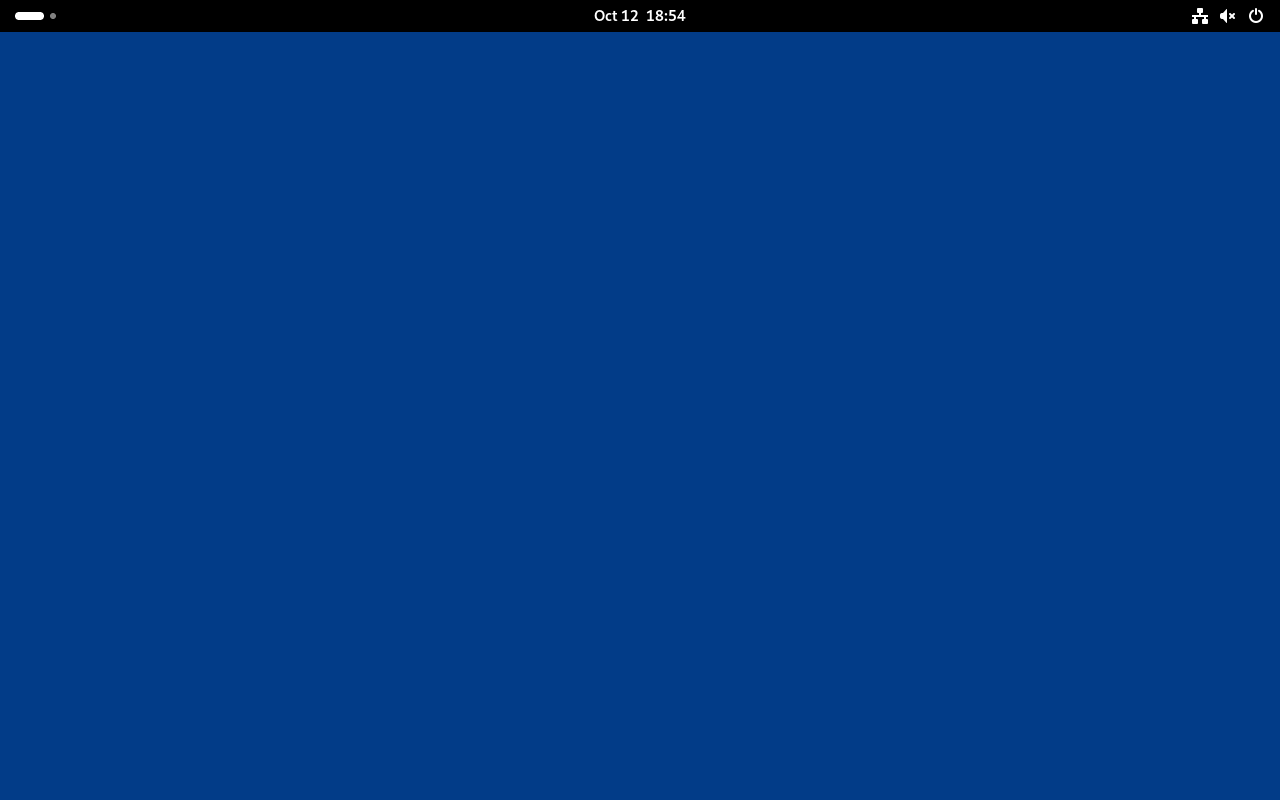
GNOME 51's black top bar: Activities with the workspace dots, the centred clock, and the status icons that open quick settings. (P-PN-01)
Date menu
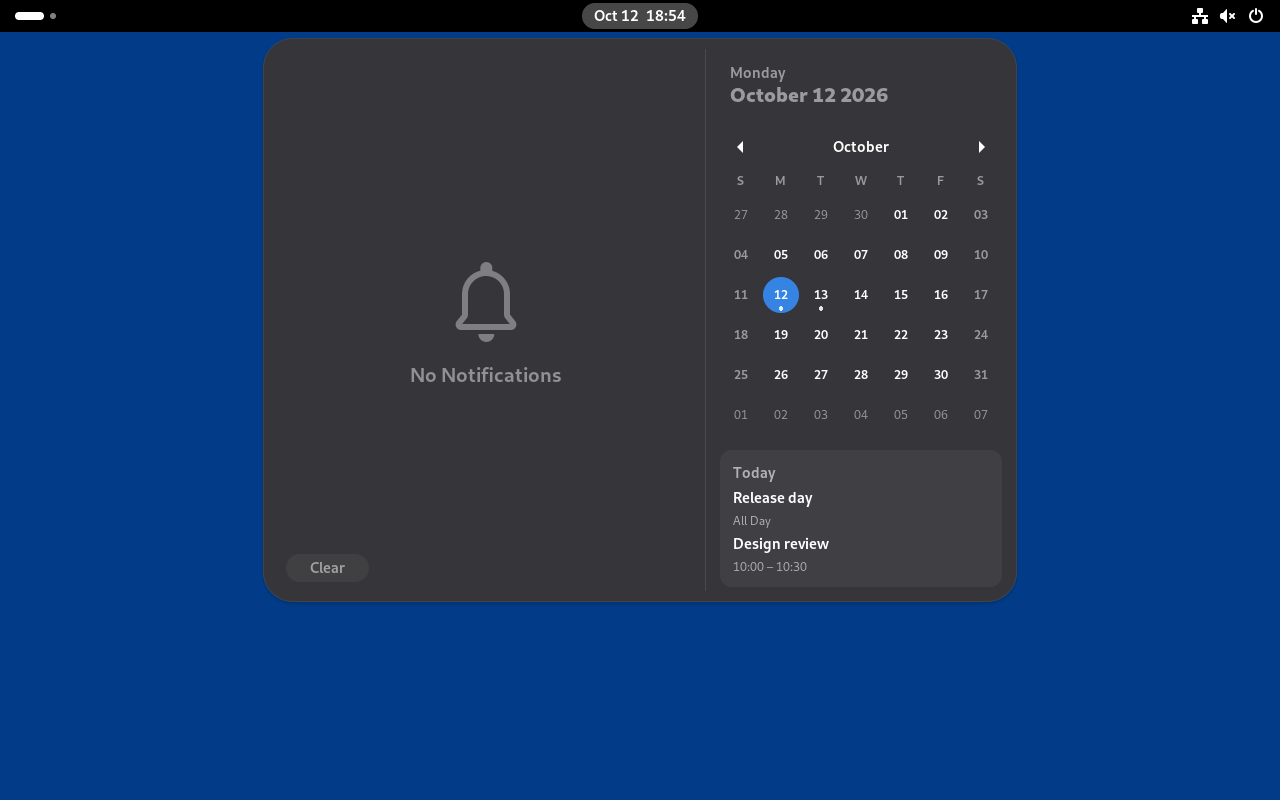
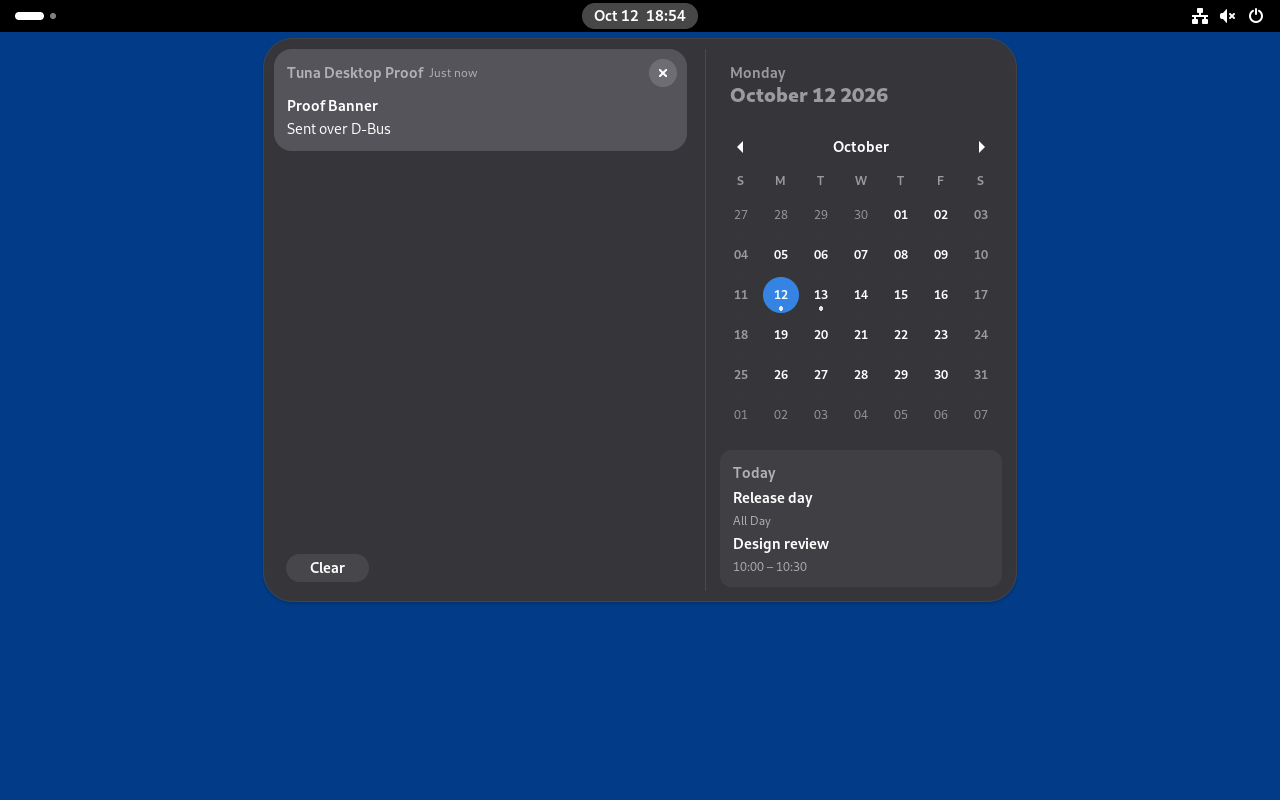
The clock opens the notification list beside the calendar, with today's events from the calendar server underneath. (P-PN-02)
Tray menus
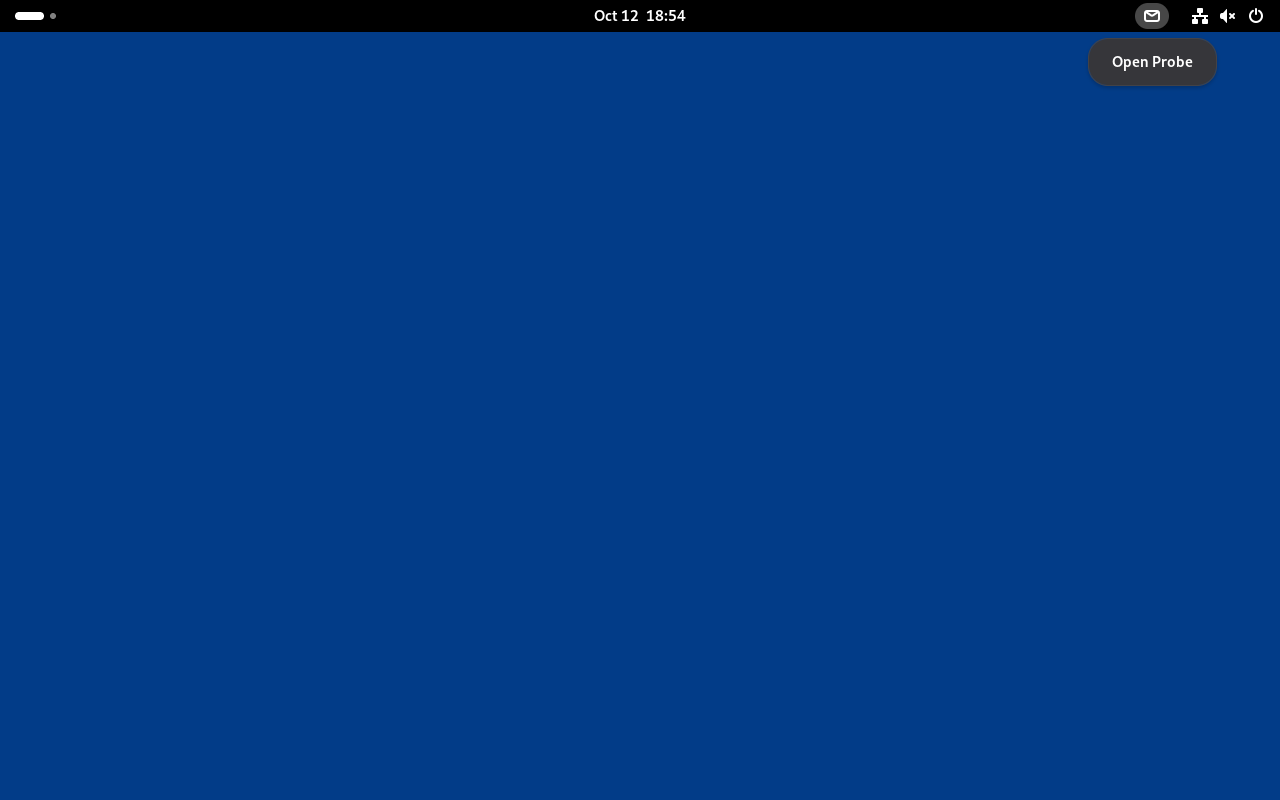
An AppIndicator (StatusNotifierItem) gets a panel icon, and its menu opens from the panel. (P-TR-01)
Quick settings
Quick settings
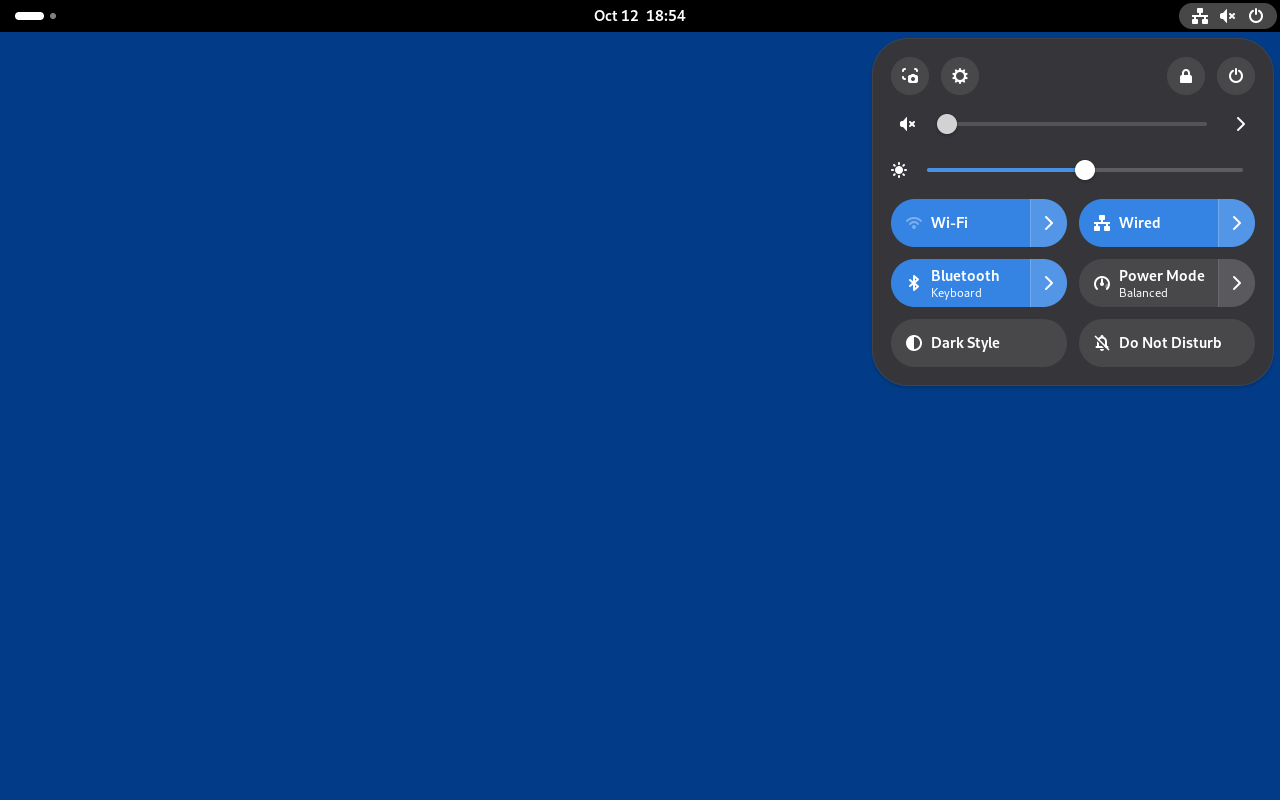
Volume and brightness sliders over the toggle grid. Each toggle reads its daemon: NetworkManager, BlueZ, power-profiles-daemon and GSettings. (P-PN-03)
Wi-Fi menu
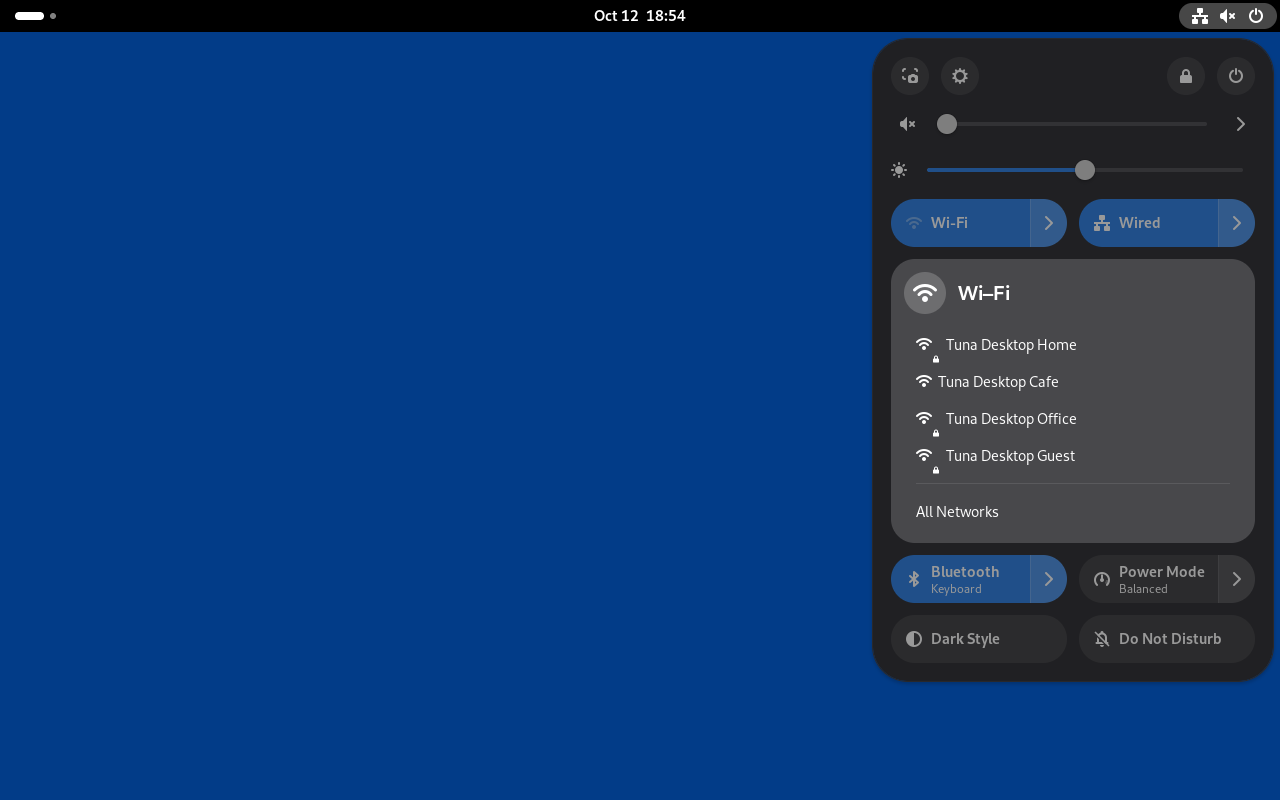
Networks grouped and sorted as GNOME does, scanned while the menu stays open; picking a saved one activates it. (P-PN-03)
Wi-Fi password
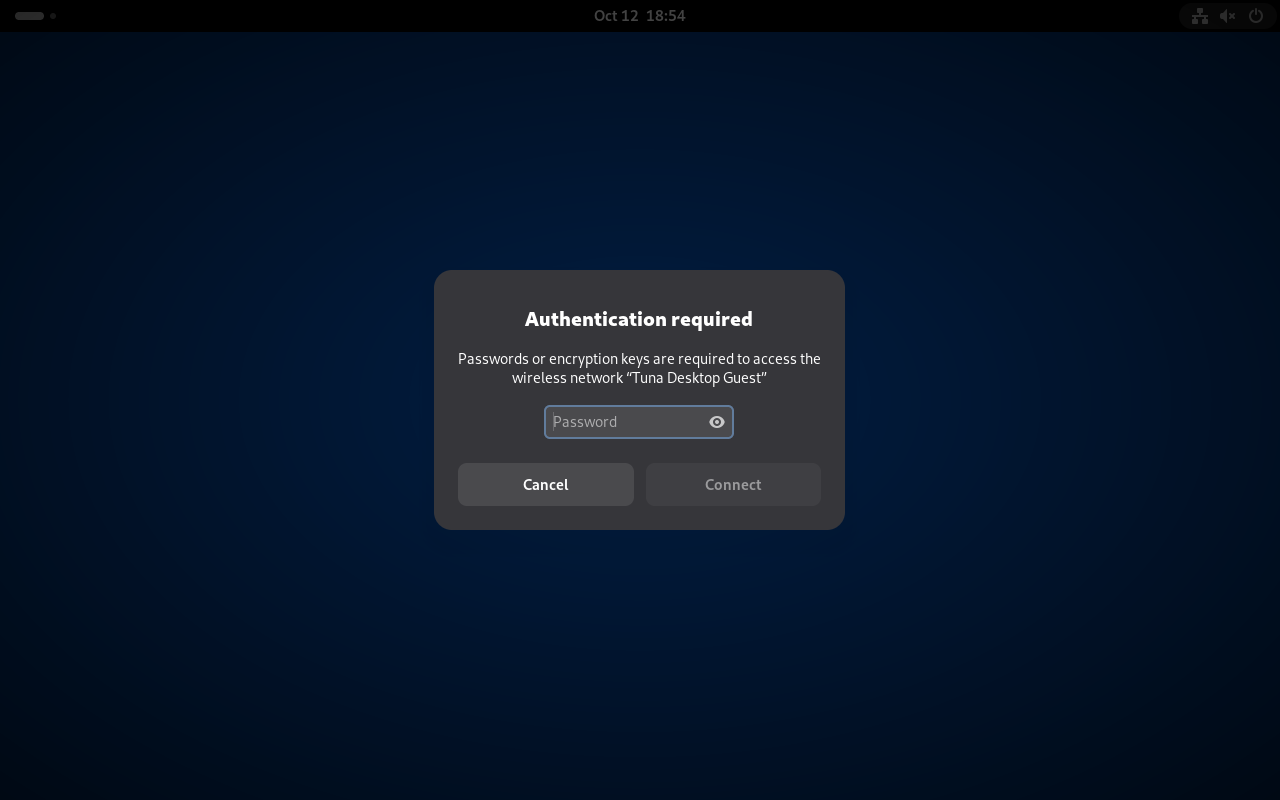
A secured network NetworkManager has no secret for: the shell's secret agent asks with GNOME's dialog. (P-PN-03)
Wired connections
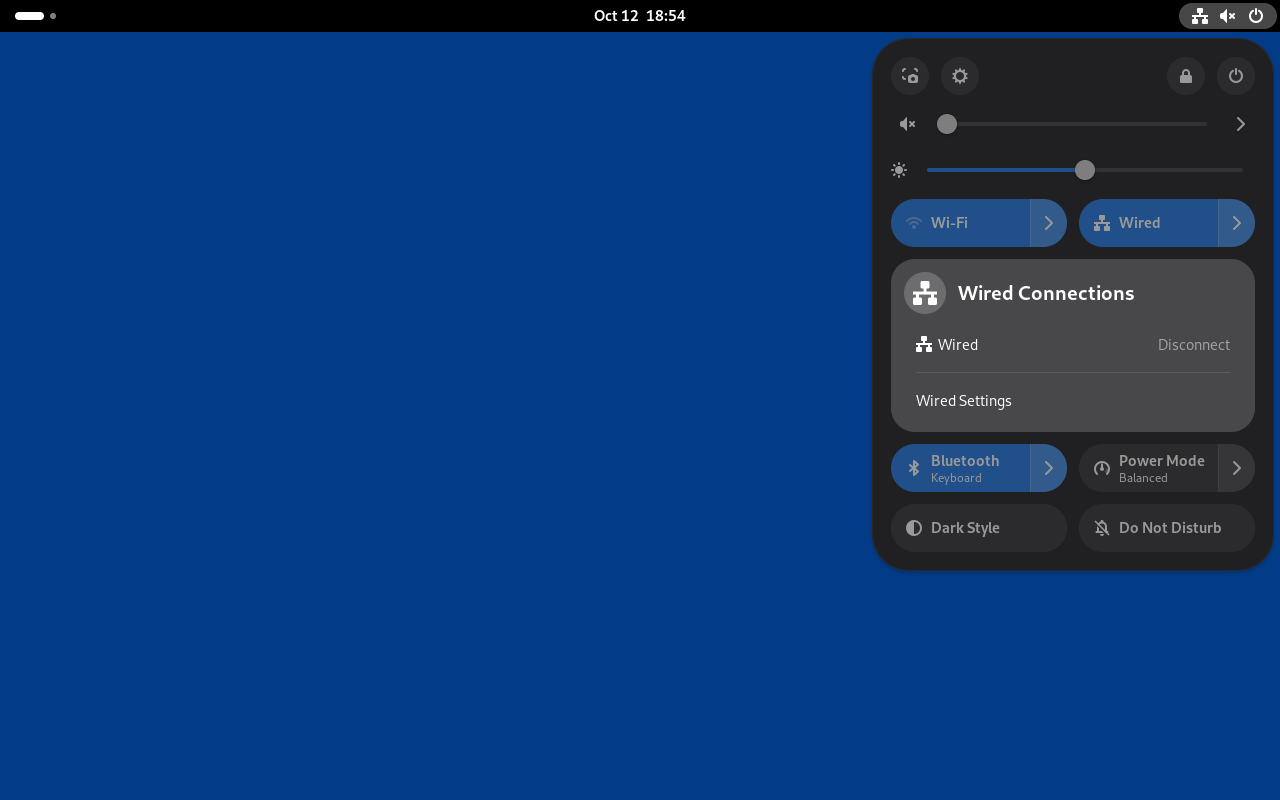
The Wired toggle's menu: Disconnect for the active profile, and Wired Settings. (P-PN-03)
Bluetooth menu
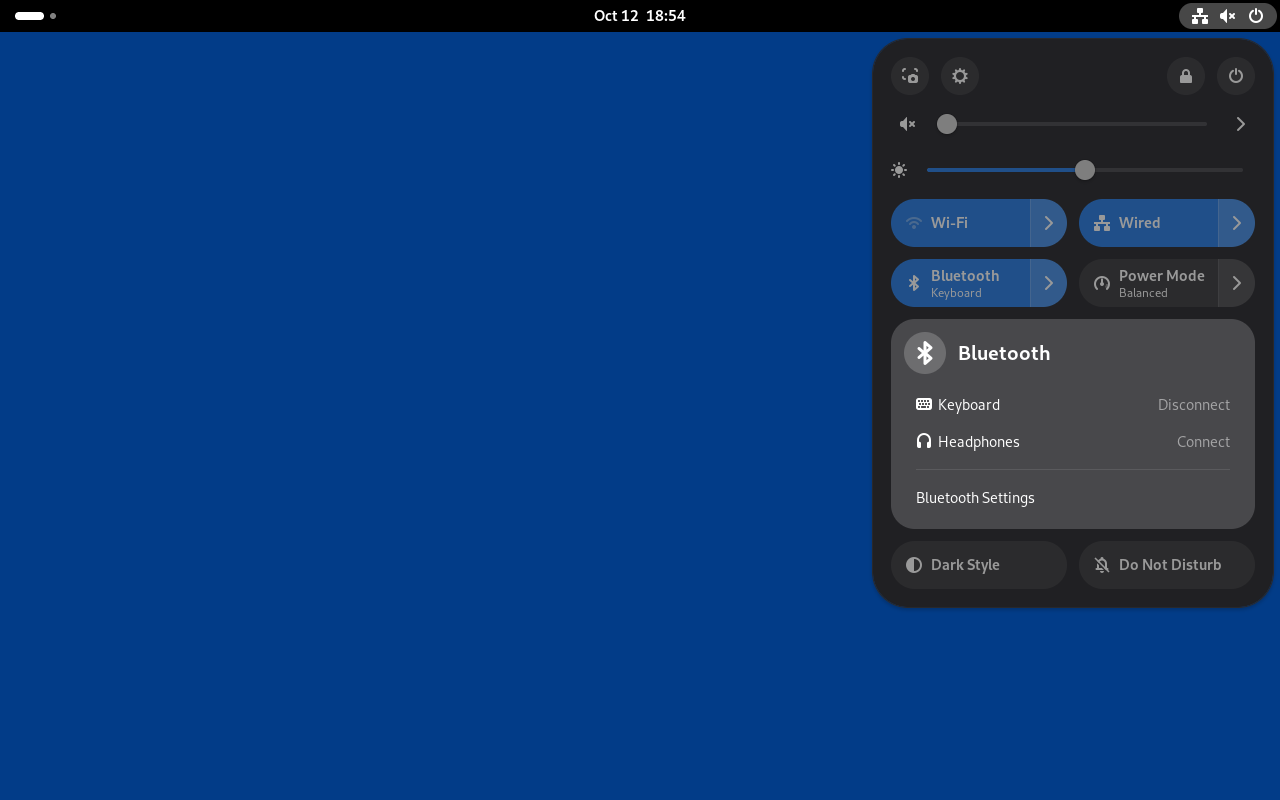
Paired devices with Connect or Disconnect, and Bluetooth Settings. (P-PN-03)
Microphone
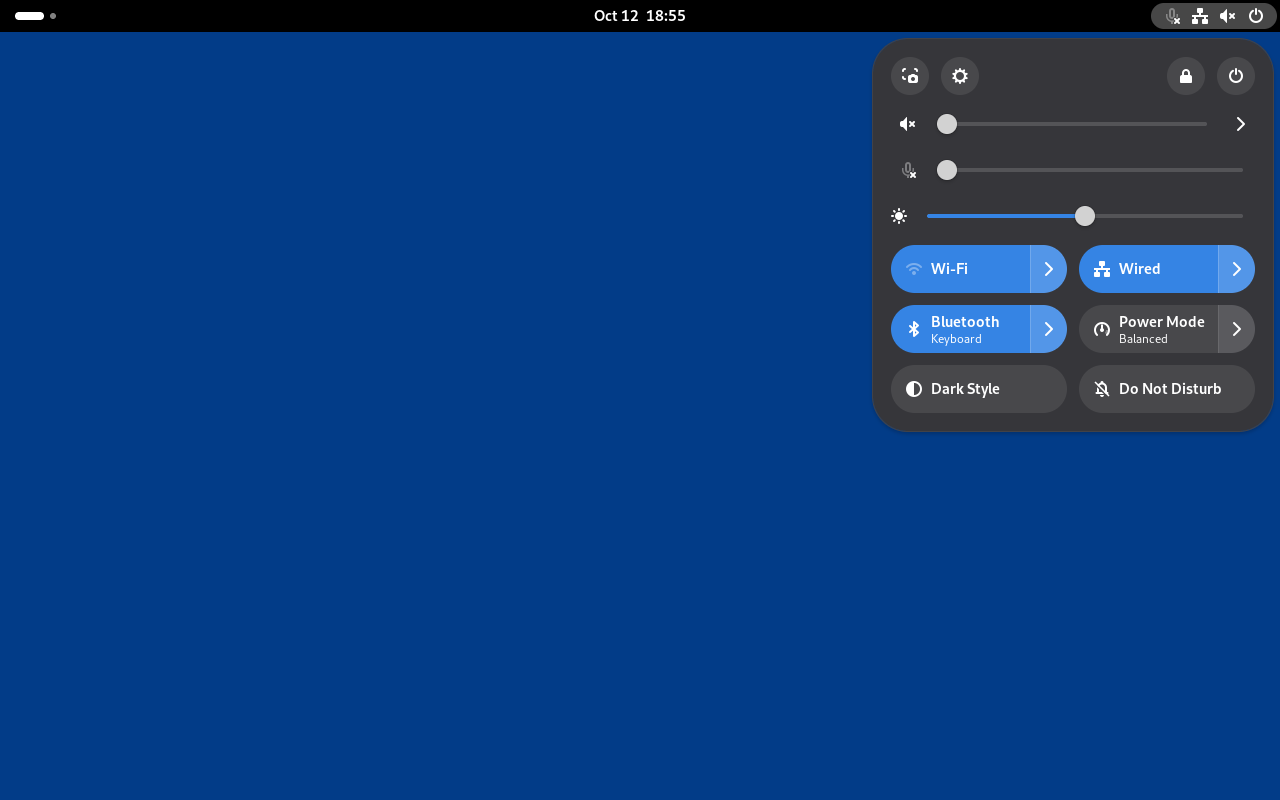
While an app records, an orange microphone leads the panel and a Microphone slider sits under the volume slider. (P-PN-03)
Power menu
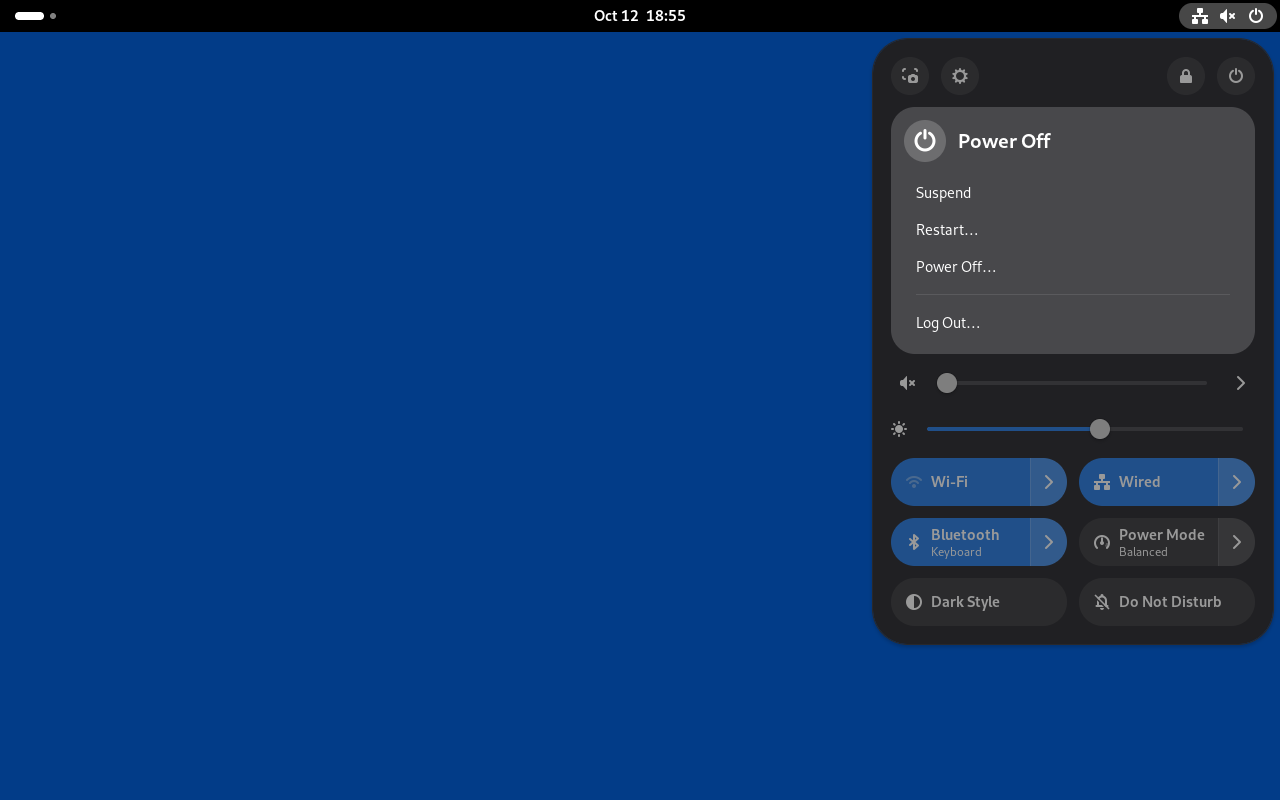
Suspend, Restart…, Power Off… and Log Out…, open in place. (P-SY-07)
Volume OSD
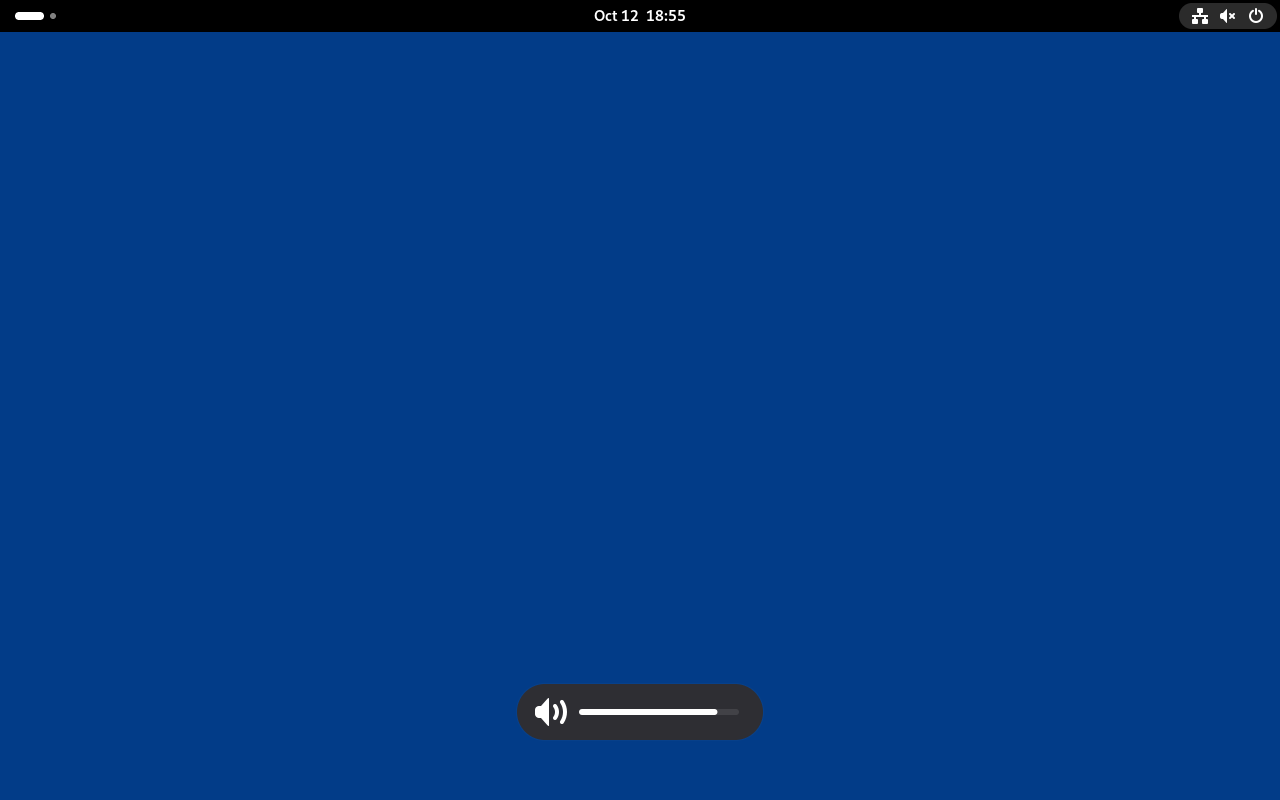
gnome-settings-daemon's volume keys show GNOME's on-screen display through ShowOSD. (P-ST-01)
Brightness OSD
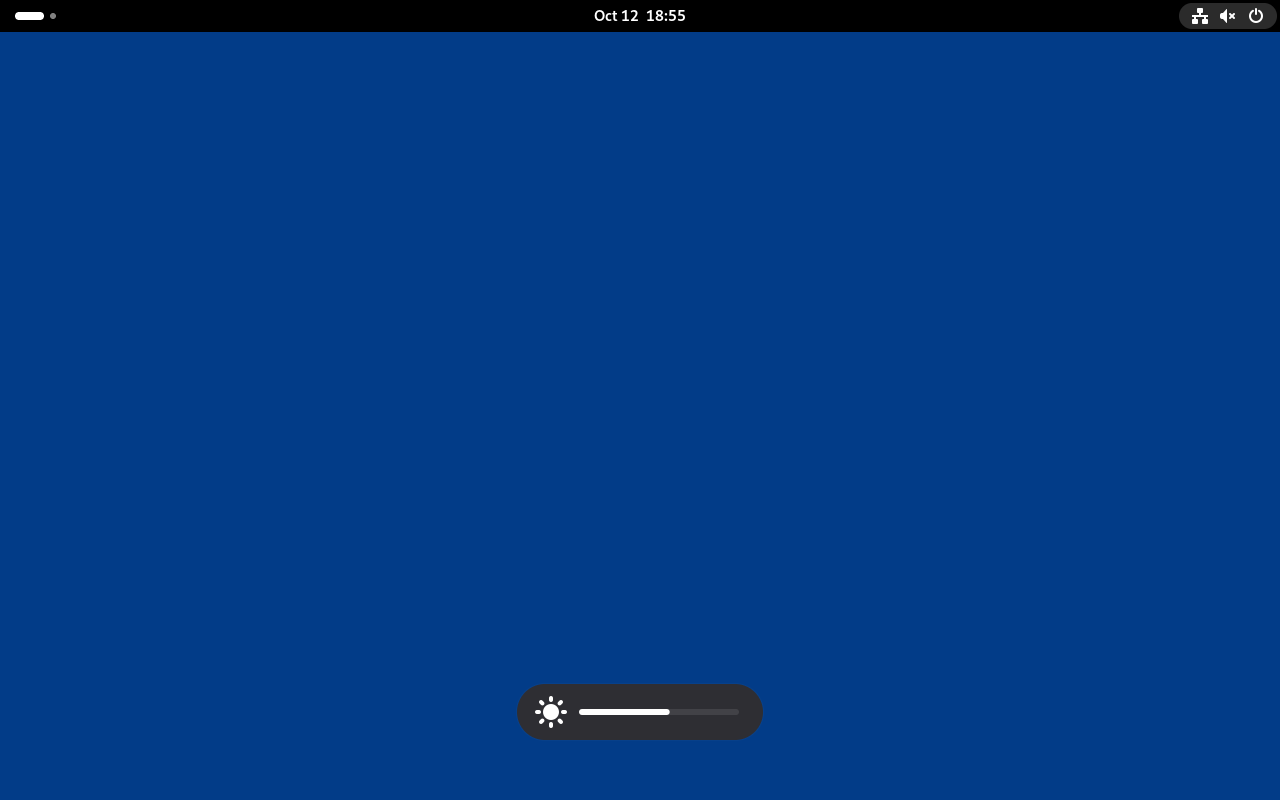
The brightness key steps the backlight through logind and shows the level. (P-ST-01)
Windows
Windows
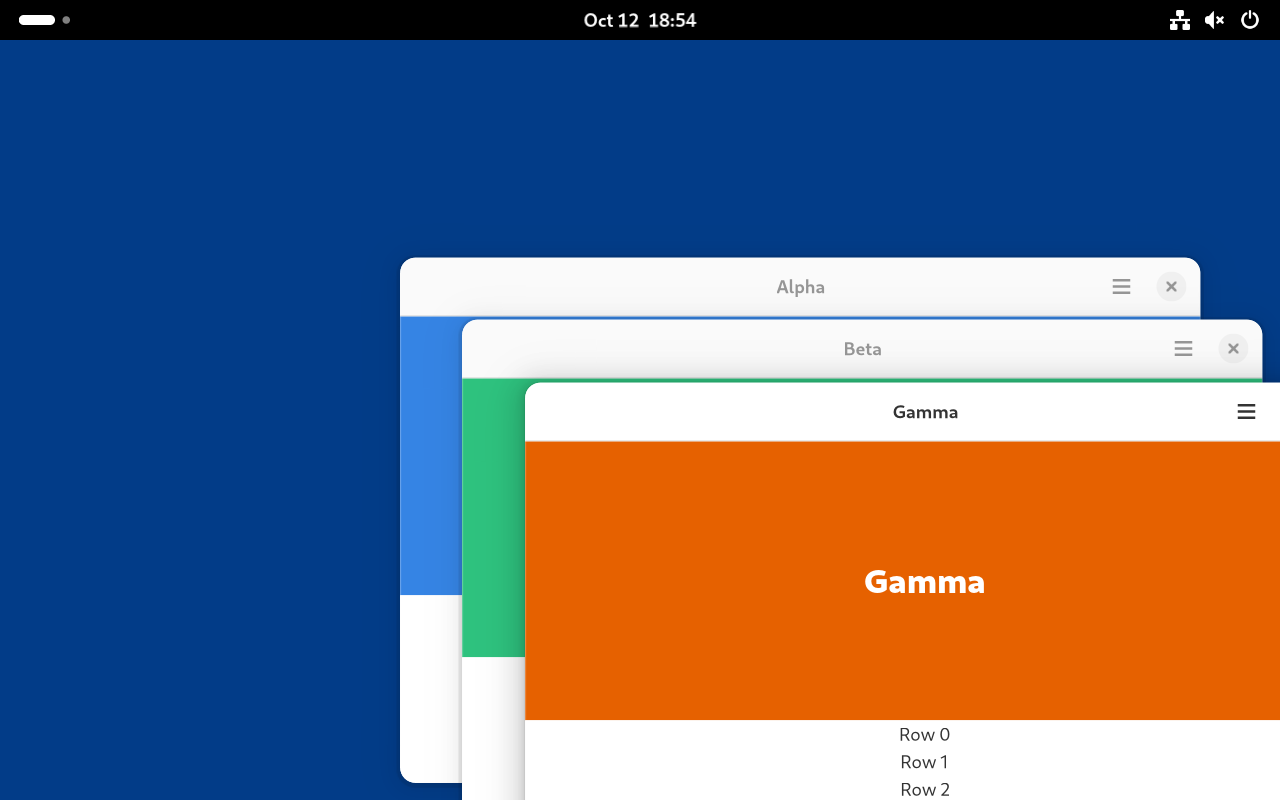
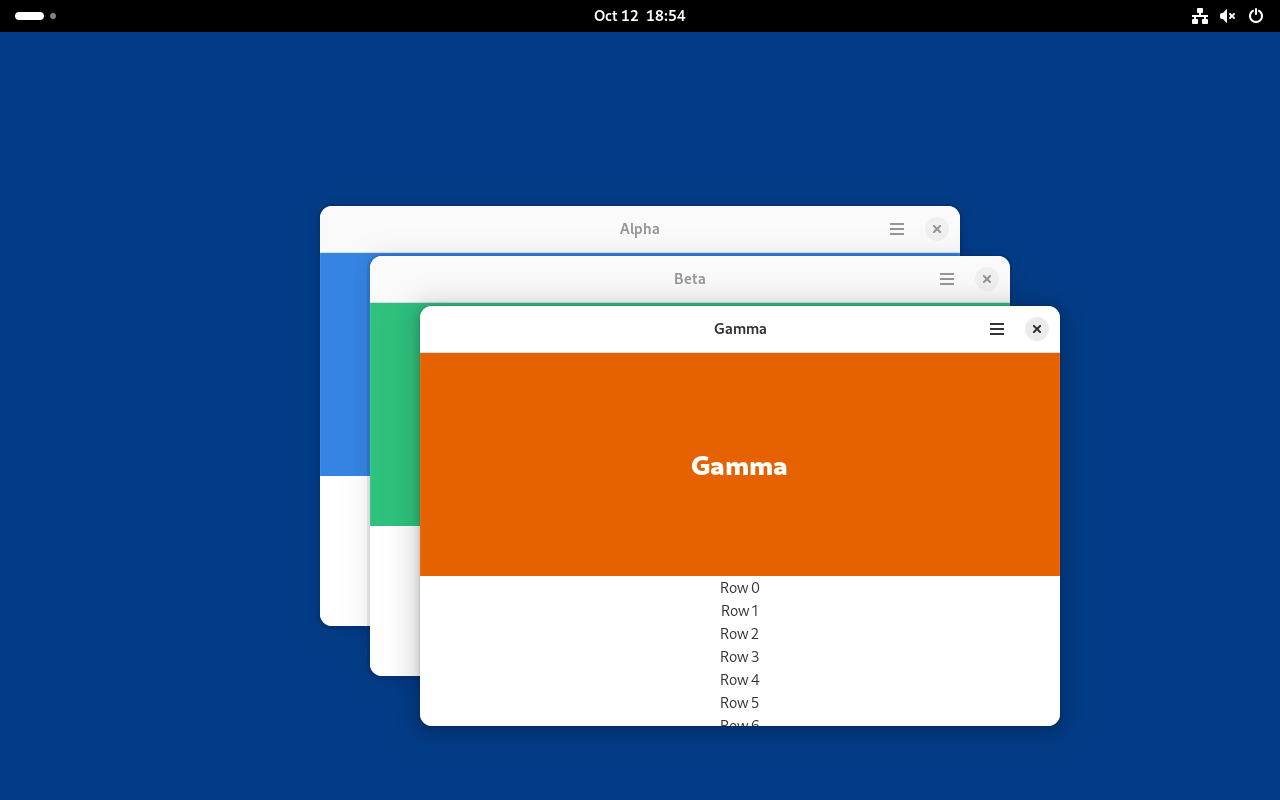
libadwaita windows placed by Mutter's cascade; the focused one on top. (P-WM-05)
App popovers
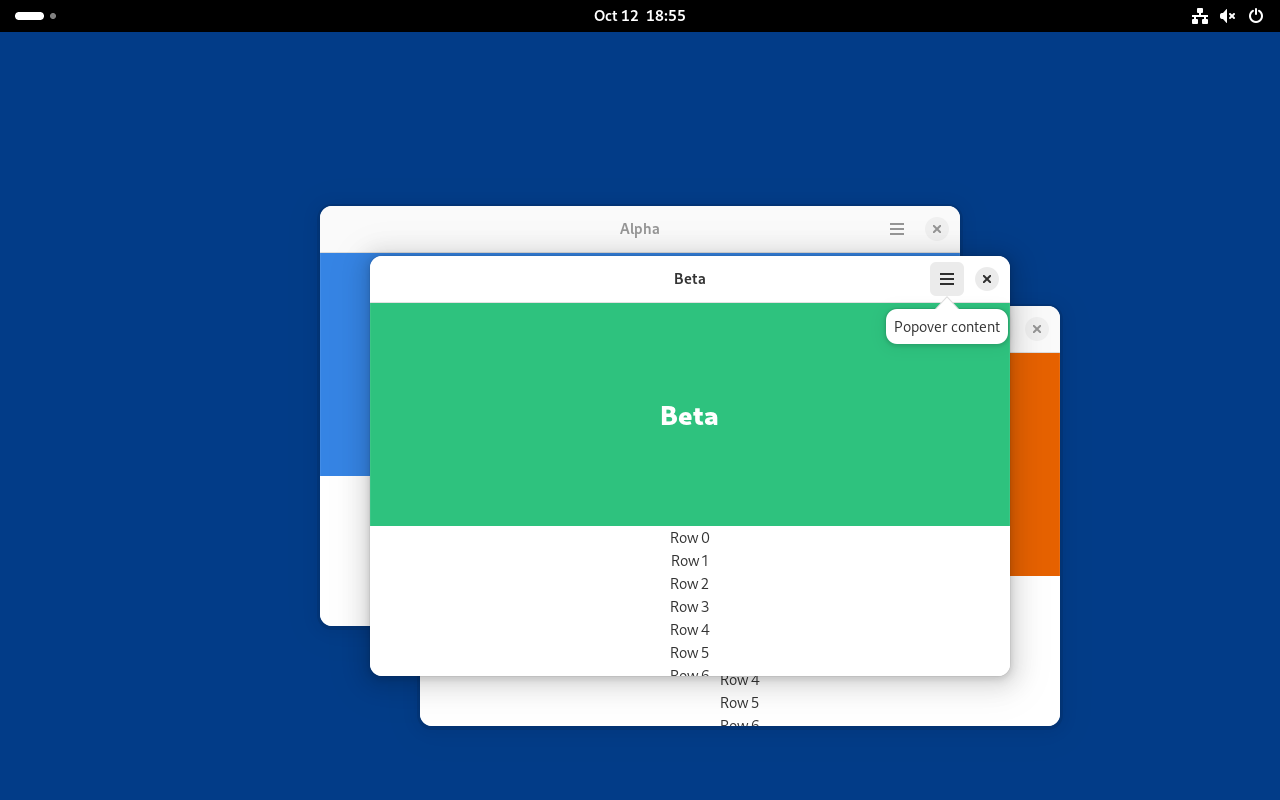
A header-bar menu opens as an xdg popup at the place its positioner asks for. (P-WM-06)
Edge tiling
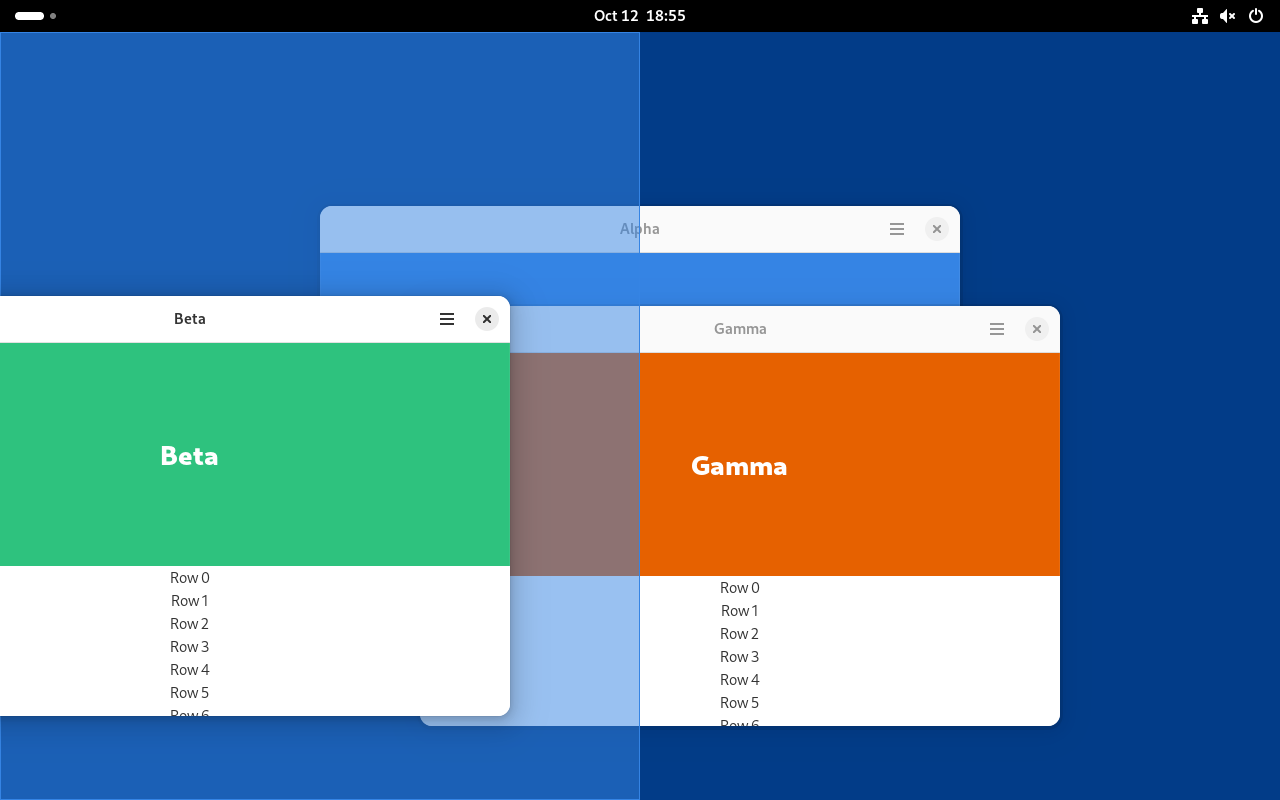
Dragging a window to the left edge shows the tile preview over the left half. (P-WM-02)
Window menu
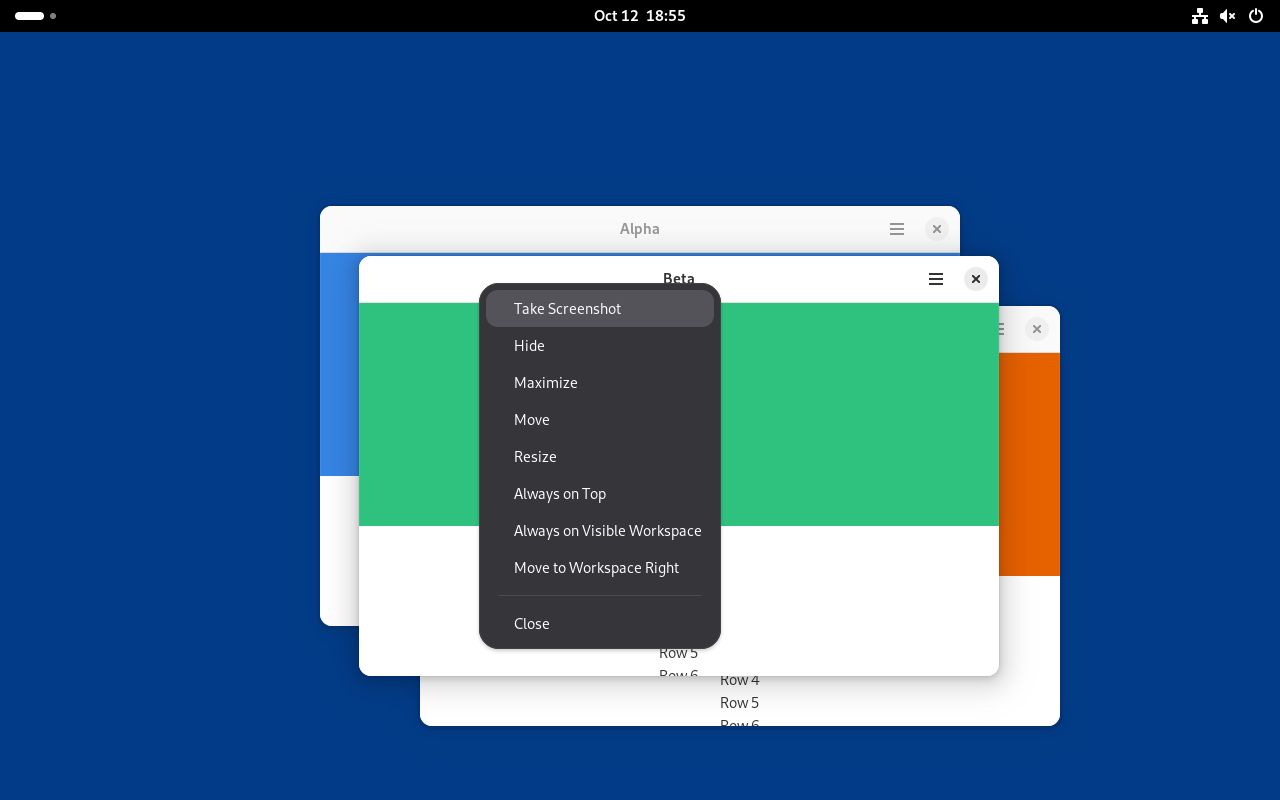
Right-clicking a header bar opens GNOME's window menu. (P-WM-05)
X11 apps
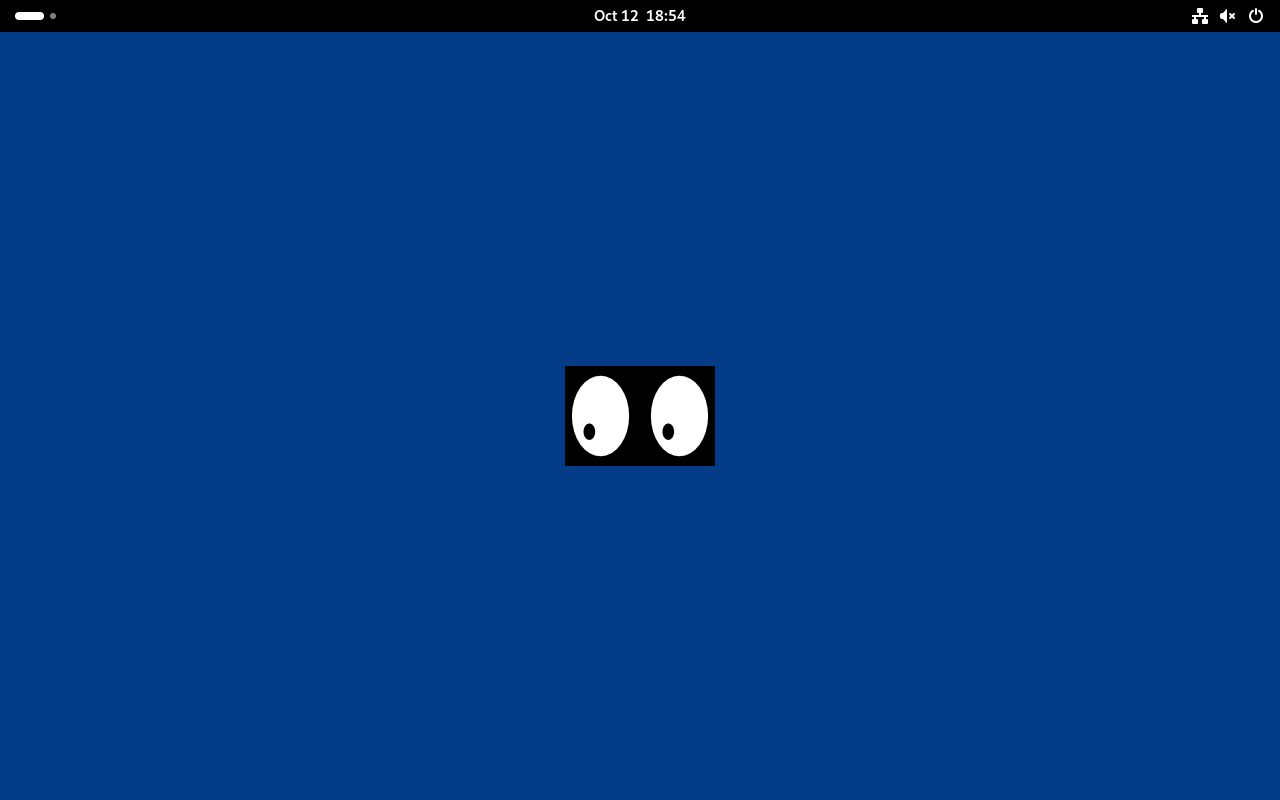
The session advertises DISPLAY without starting XWayland. The first X11 connection starts it on the reserved sockets; X11 apps get GNOME placement and focus. (P-SY-04)
Scrollable tiling
The strip
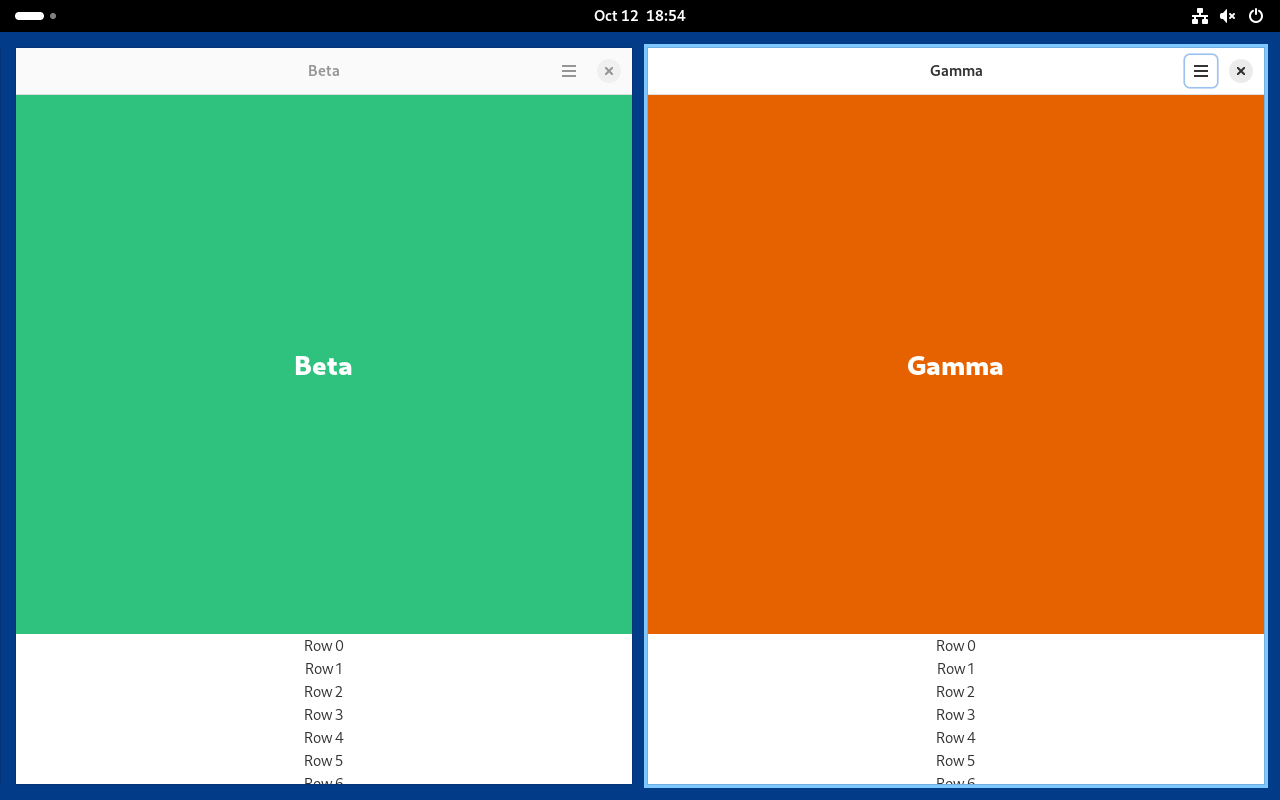
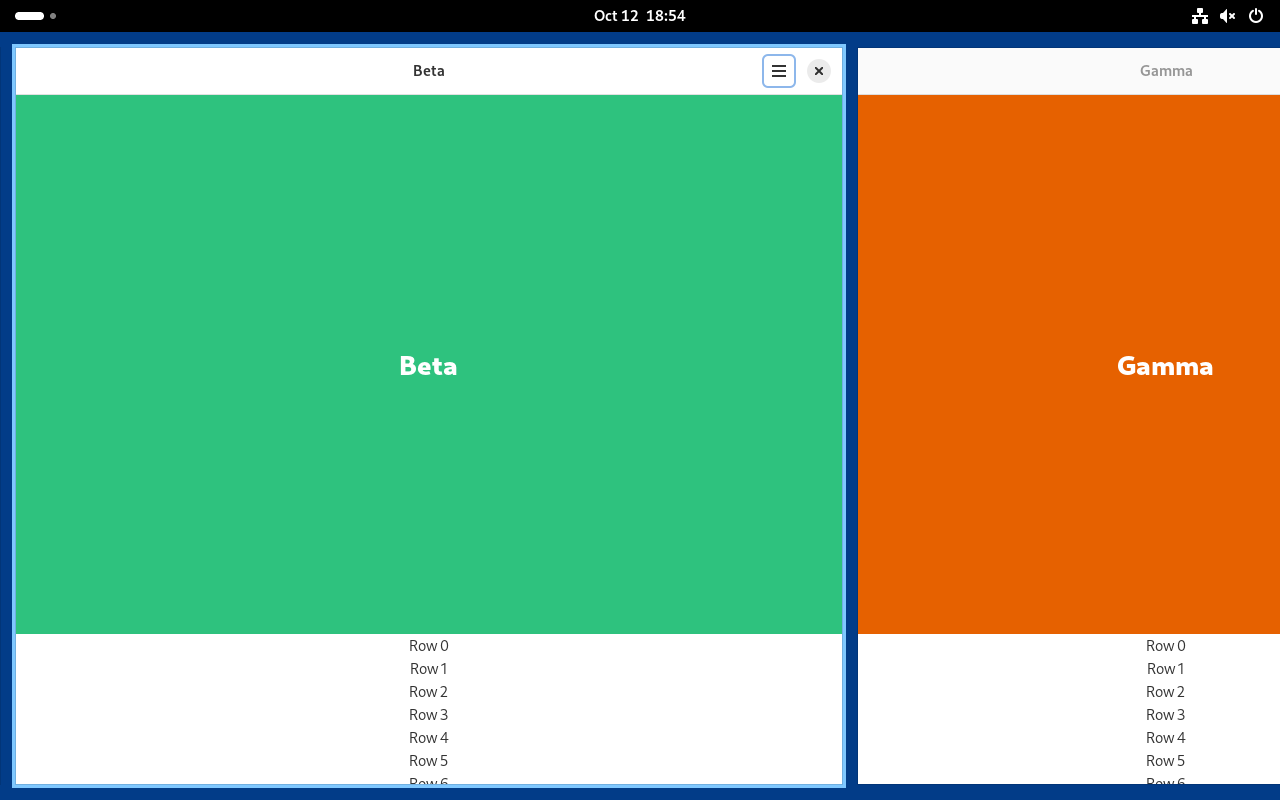
Super+Shift+T turns the windows into niri's strip: columns with 16px gaps, the view on the focused column, niri's focus ring around it. (P-WM-07)
Following focus
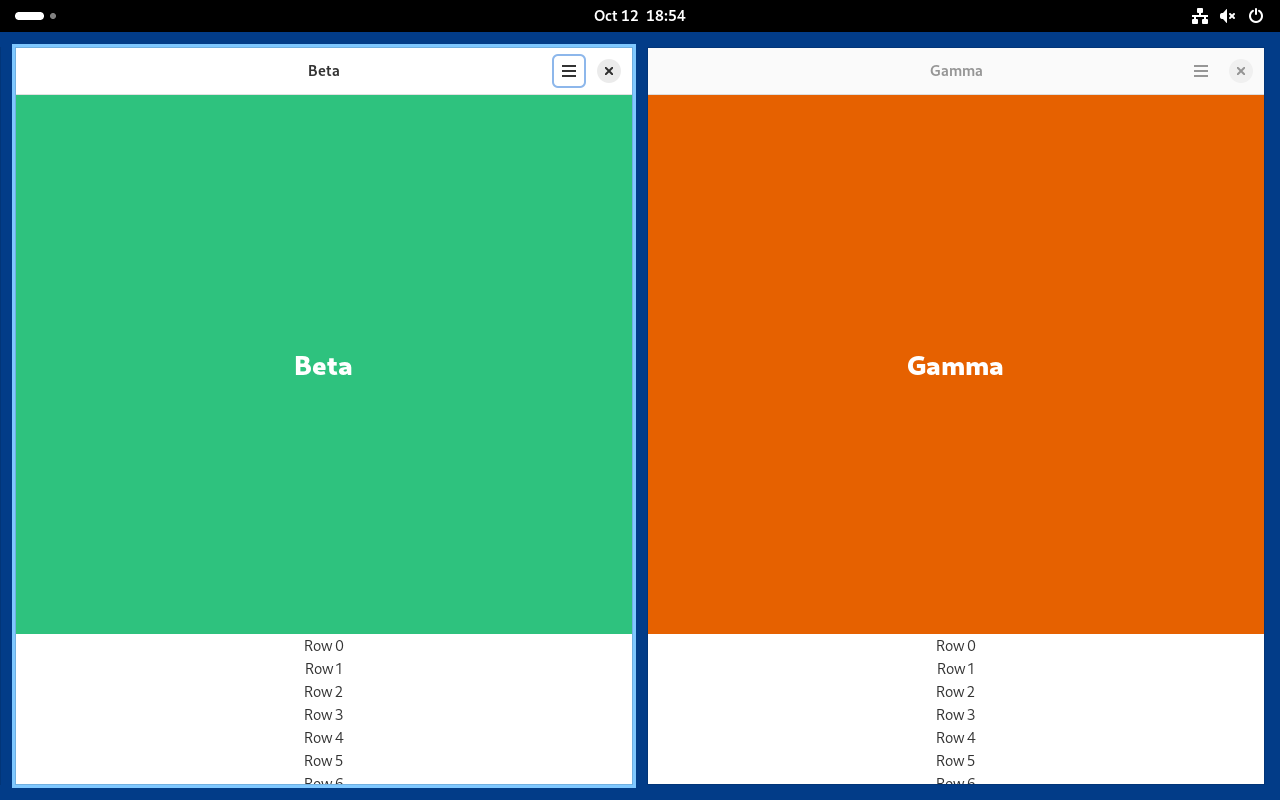
Super+R steps the column's width and Super+Left moves along the strip; the view scrolls the least that shows the focused column whole. (P-WM-07)
Column widths
Super+R cycles through 1/3, 1/2 and 2/3 widths; a widened column keeps its width as focus moves. The same-size niri comparison records matching geometry and the remaining pixel differences. (P-WM-07)
Switcher
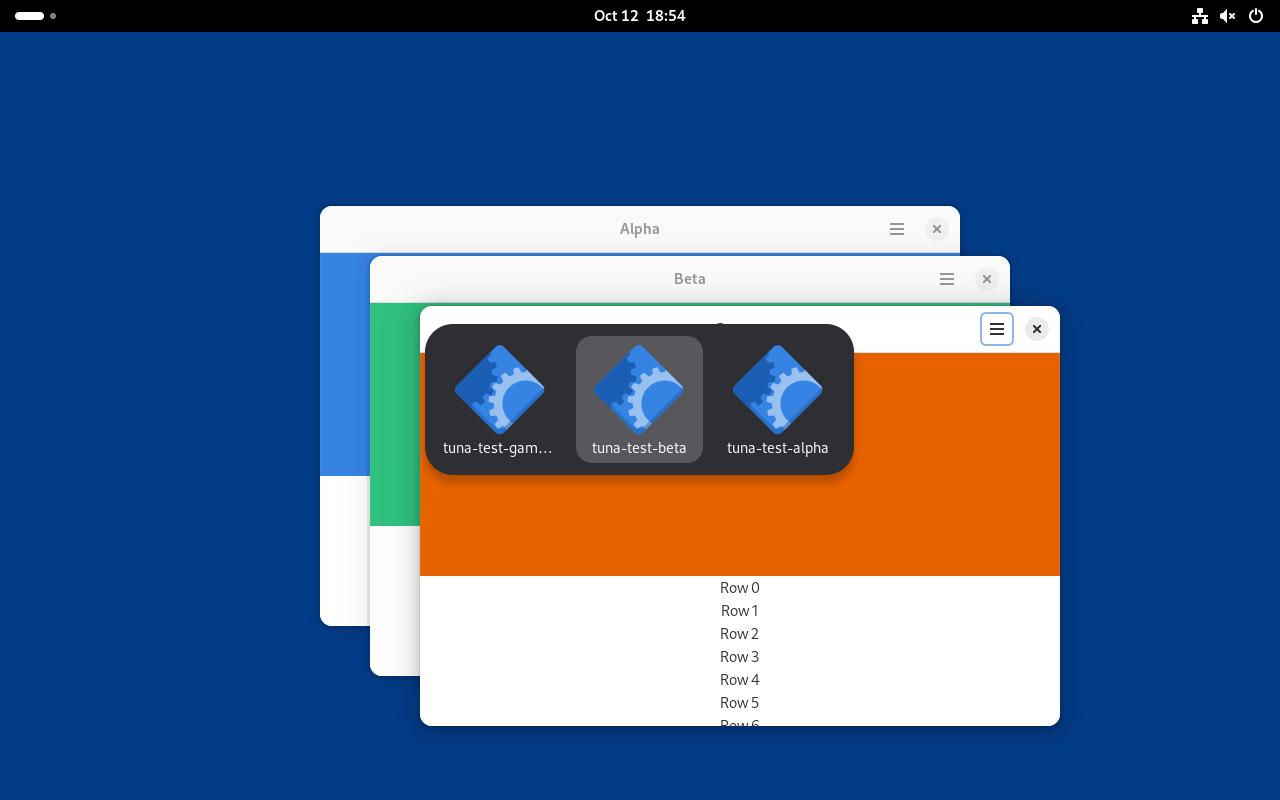
Alt+Tab
One icon per app in most-recently-used order; releasing Alt focuses the highlighted one. (P-WM-01)
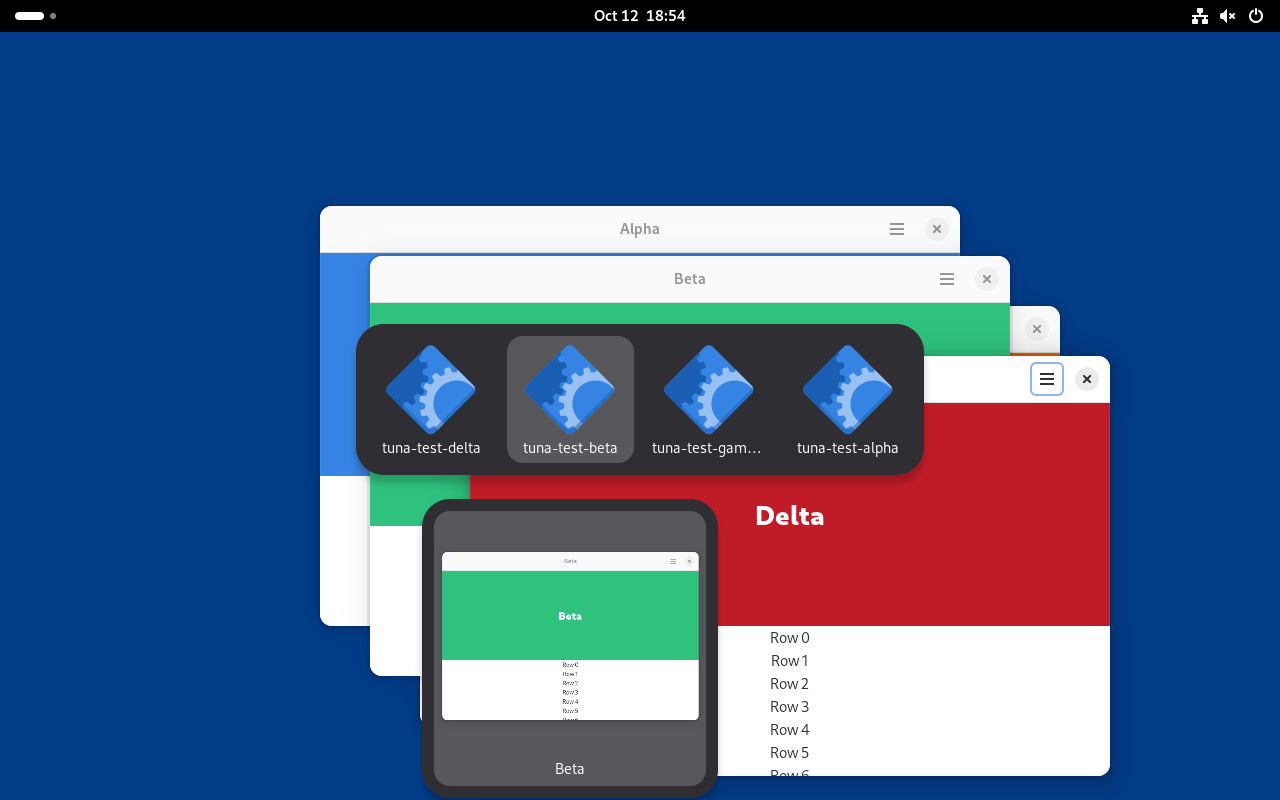
Window thumbnails
An app with several windows shows them as thumbnails (Down, or Alt+Above_Tab). (P-WM-01)
Overview
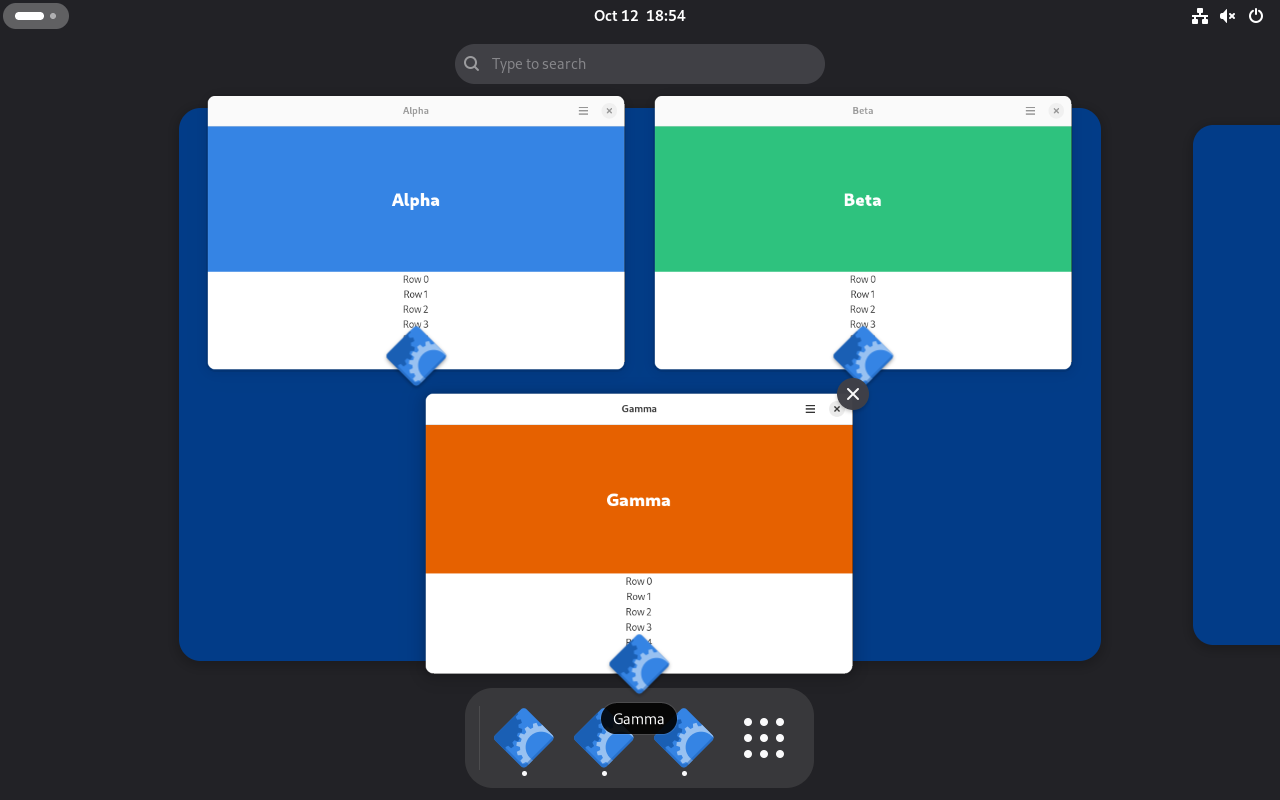
Overview
Super opens the overview: live previews with app icons, the search entry and the dash. (P-OV-01)
Workspaces
With windows on more than one workspace, the thumbnail strip shows above the previews. (P-OV-02)
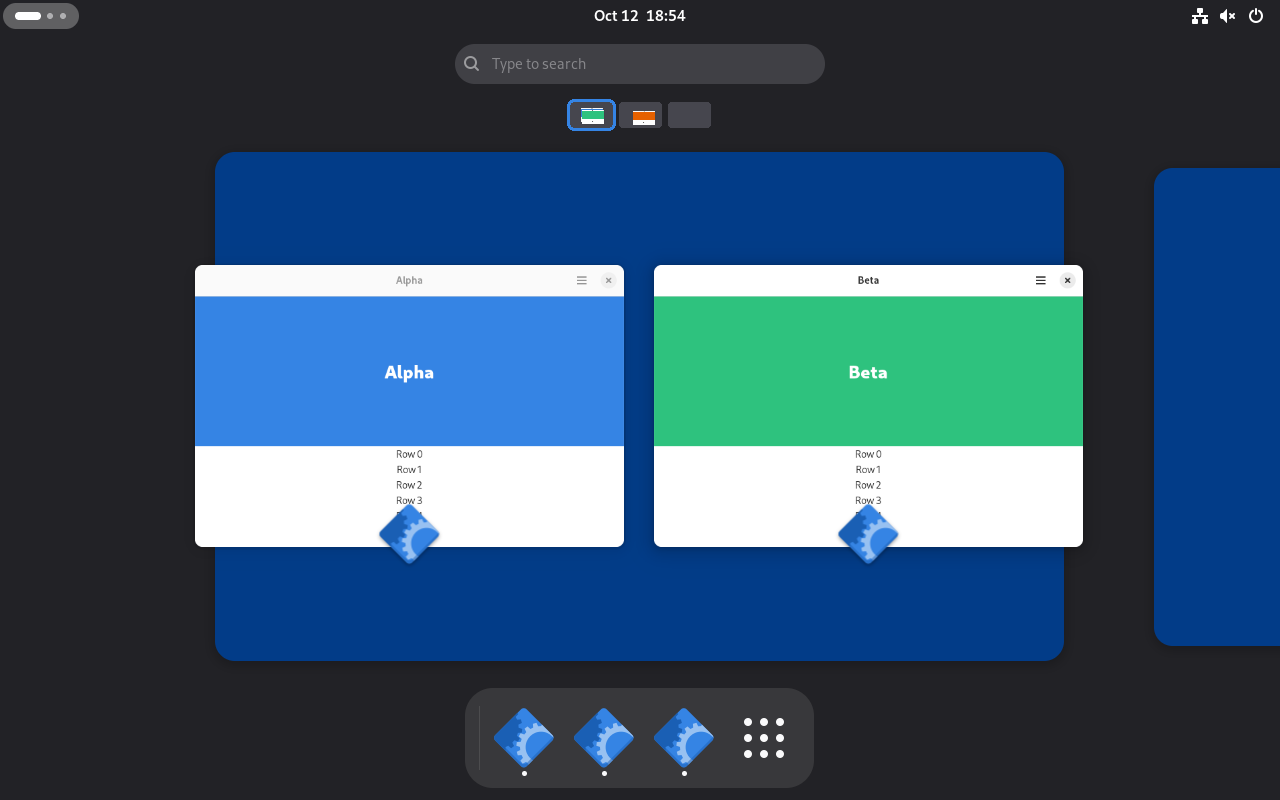
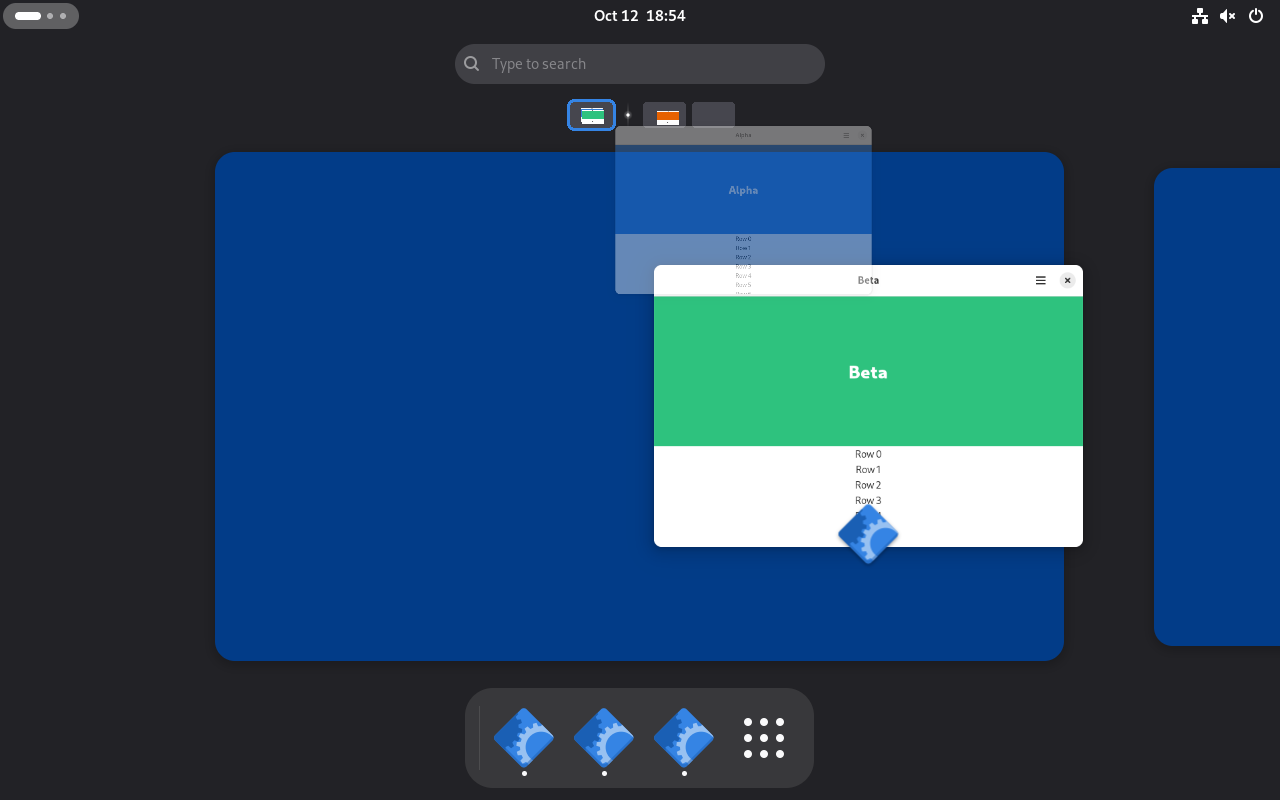
Moving windows
Dragging a preview onto the next workspace moves the window there. (P-OV-02)
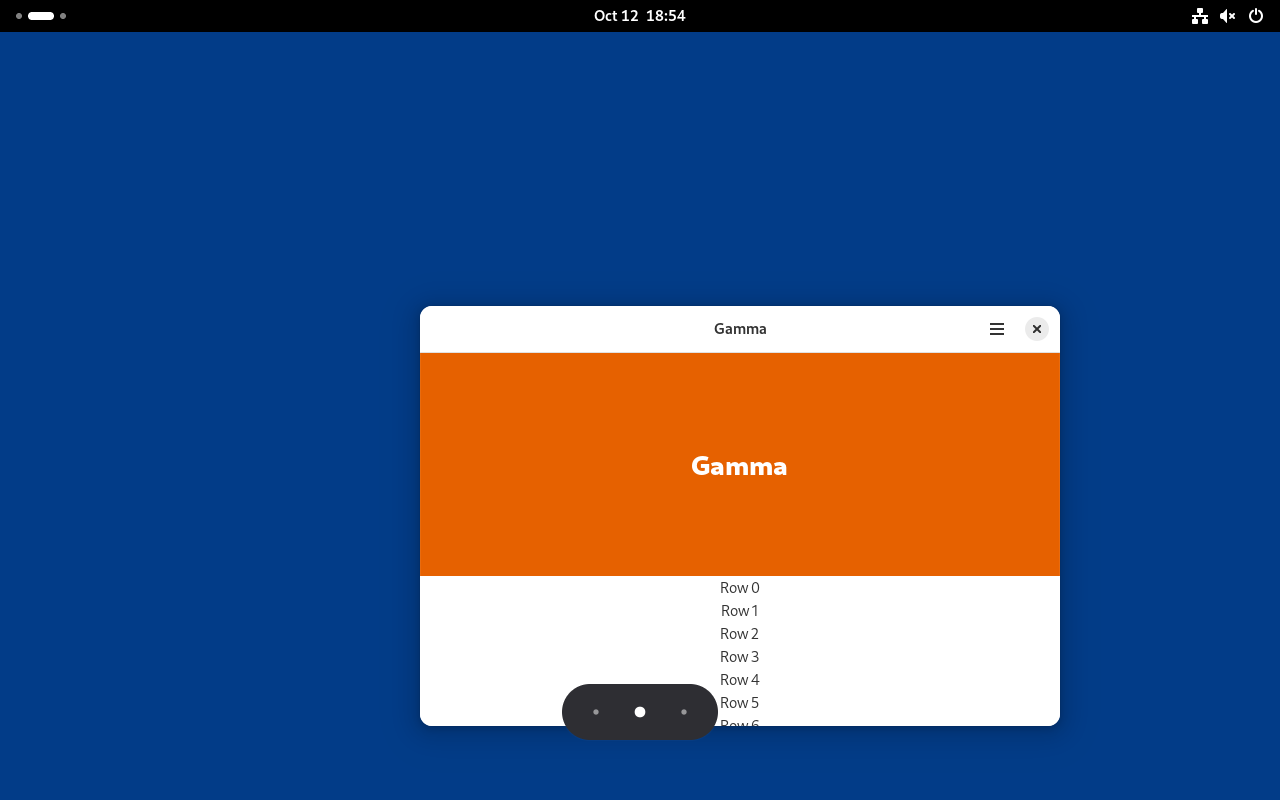
Workspace switcher
A workspace key outside the overview shows GNOME's workspace popup. (P-WM-03)
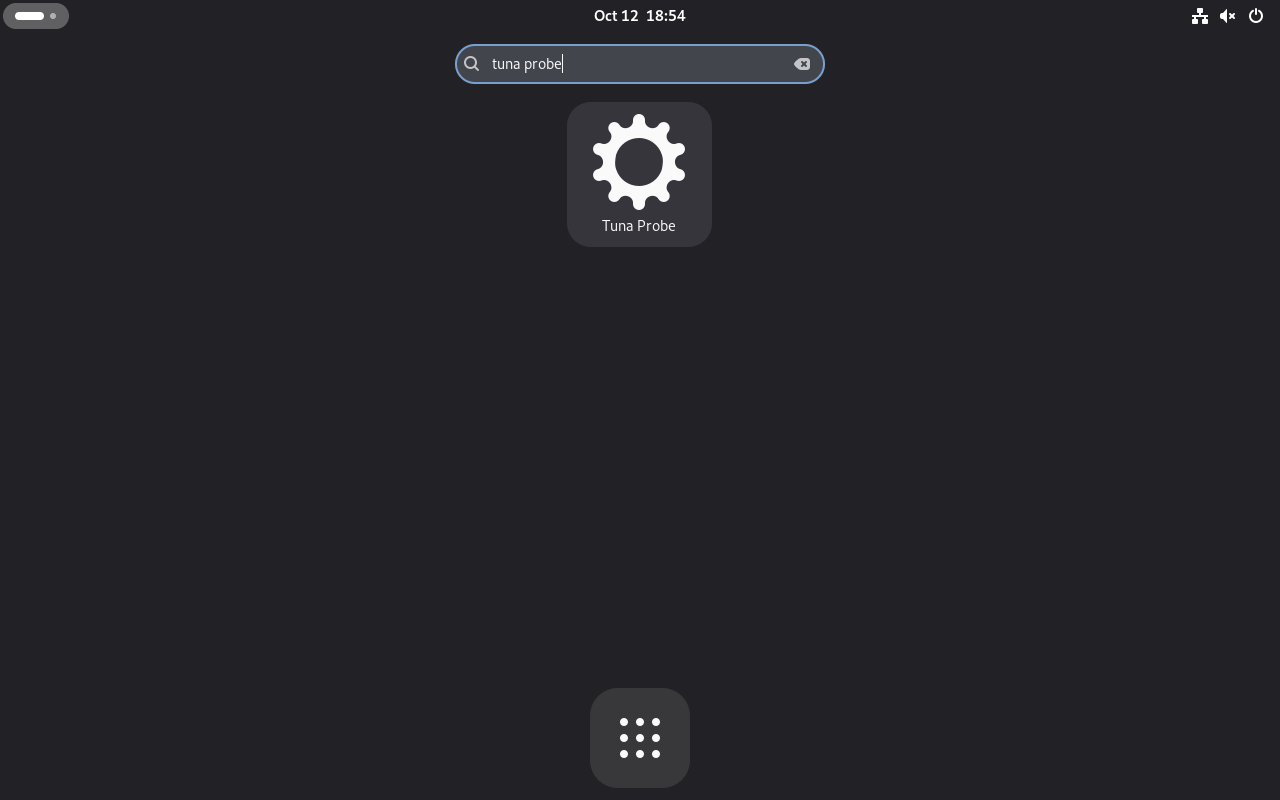
Search and apps
Search
Typing in the overview searches apps; the top hit is Enter's target. (P-OV-04)
Search providers
GNOME Shell search providers over D-Bus add their own results. (P-OV-04)
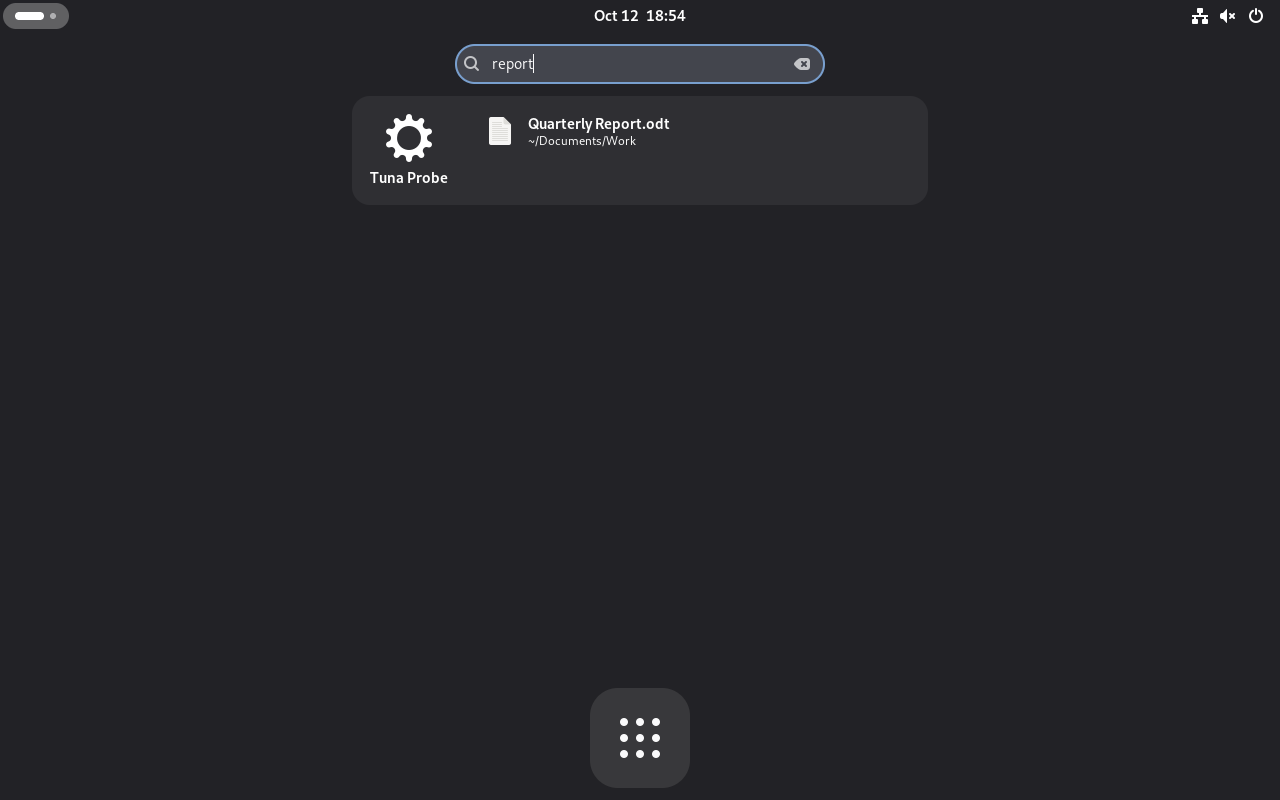
App grid
Show Apps opens the grid, with GNOME's app folders as tiles. (P-OV-05)
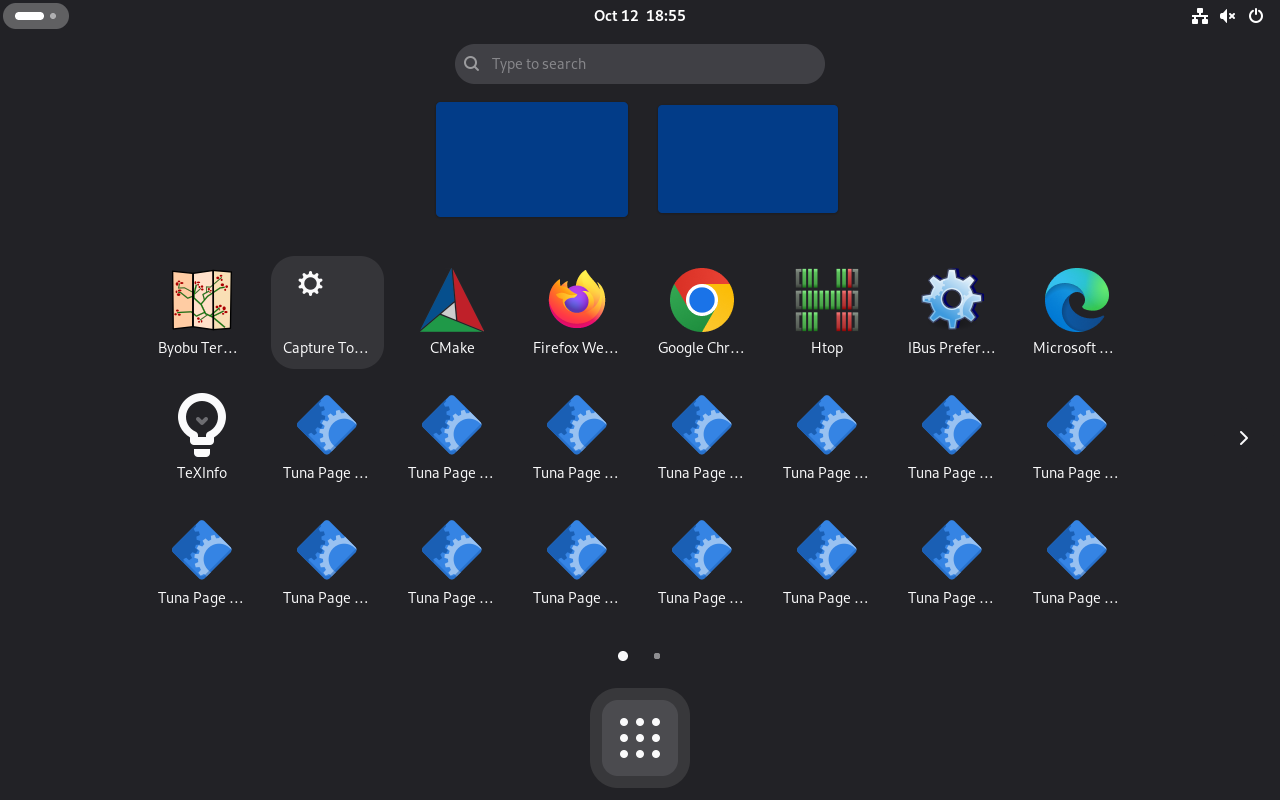
App folders
A folder opens GNOME's folder dialog with its apps. (P-OV-05)
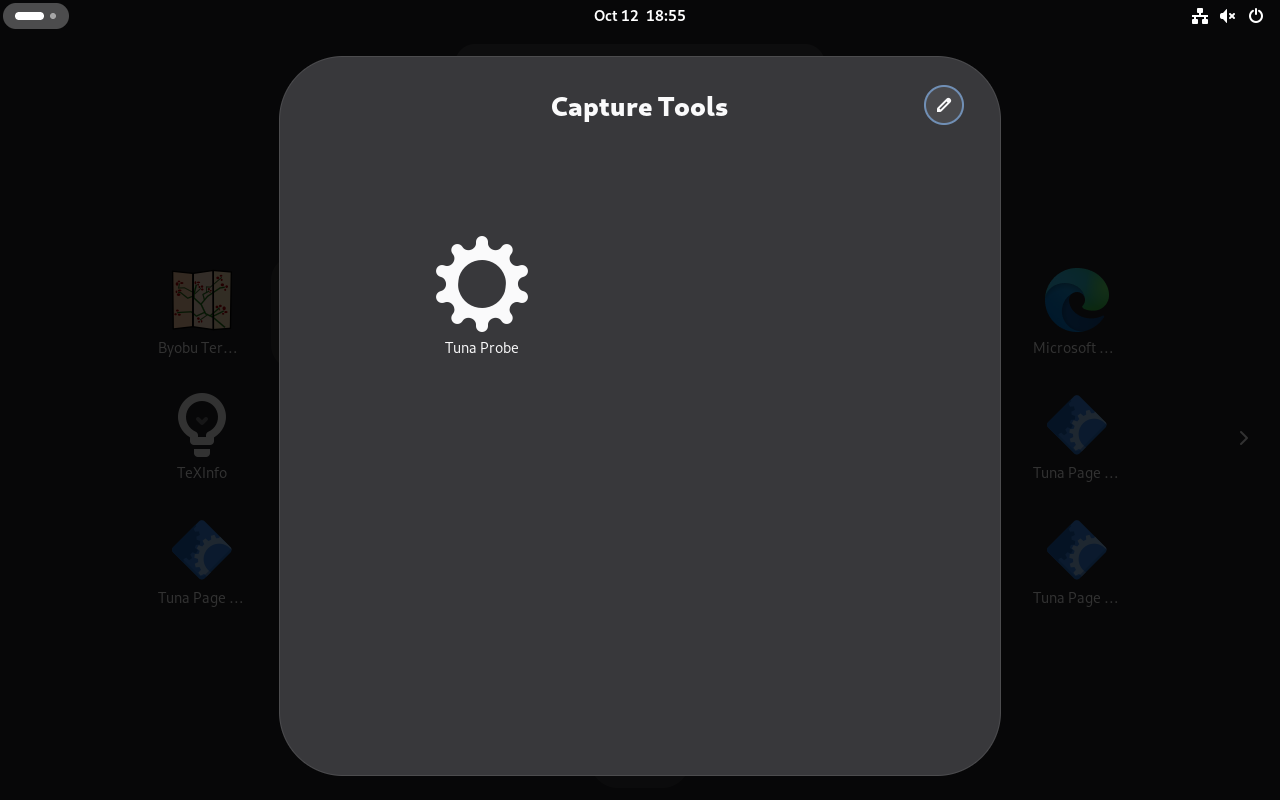
Pages
More apps than fit page the grid, with indicators and arrows. (P-OV-05)
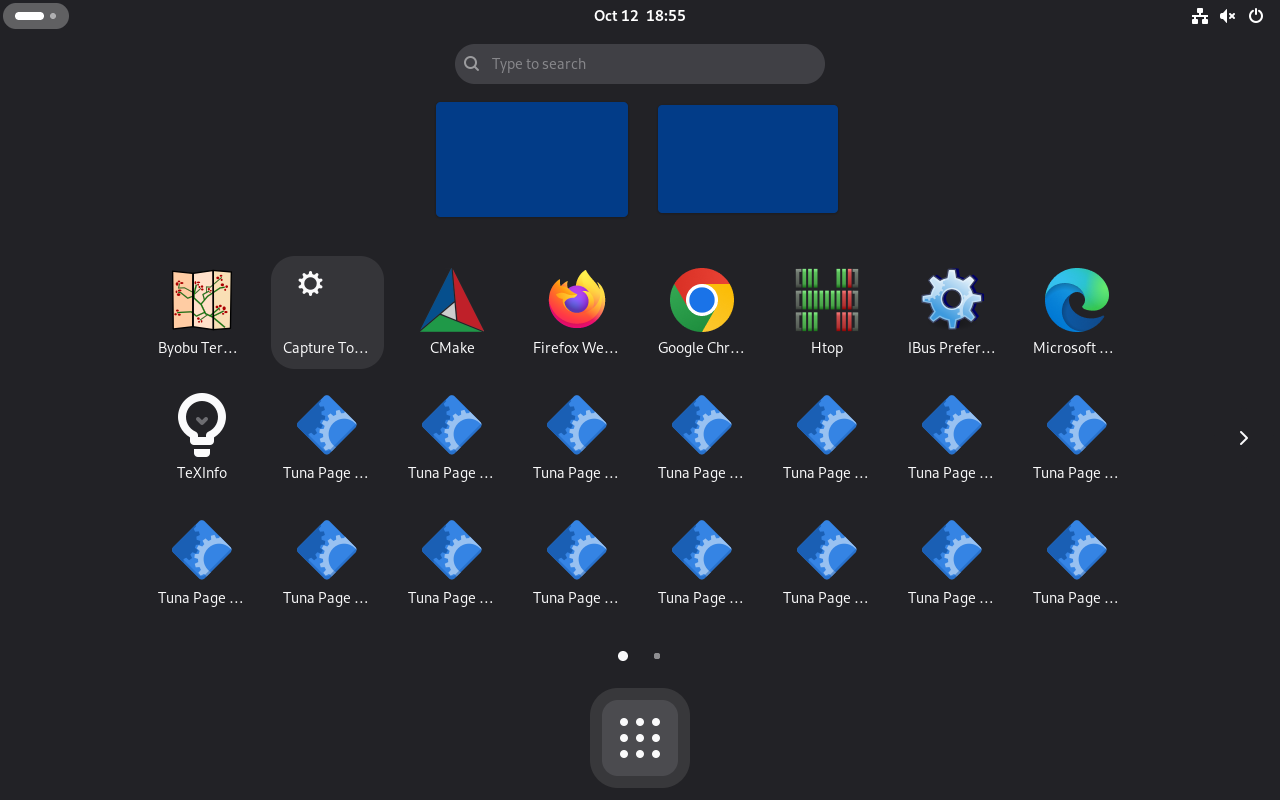
Making folders
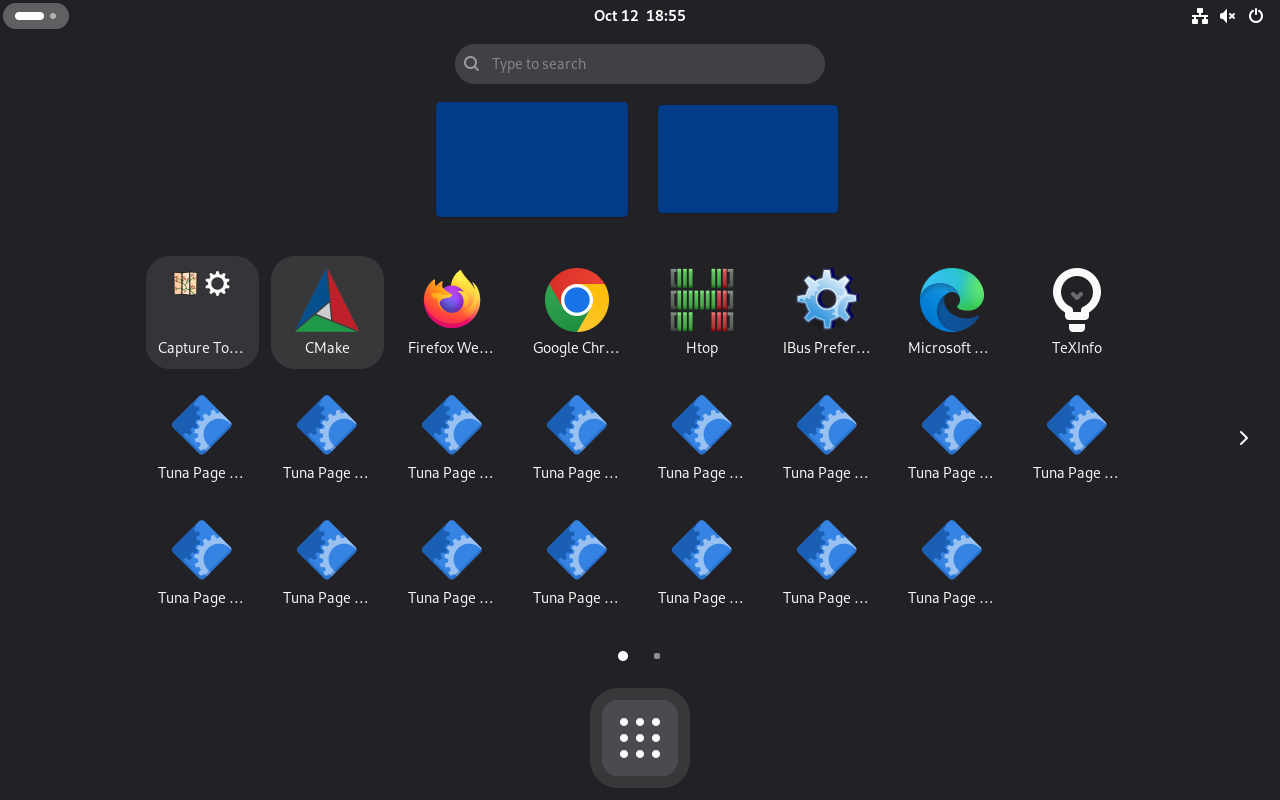
Dropping one app on another makes a folder of the two. (P-OV-05)
Reordering
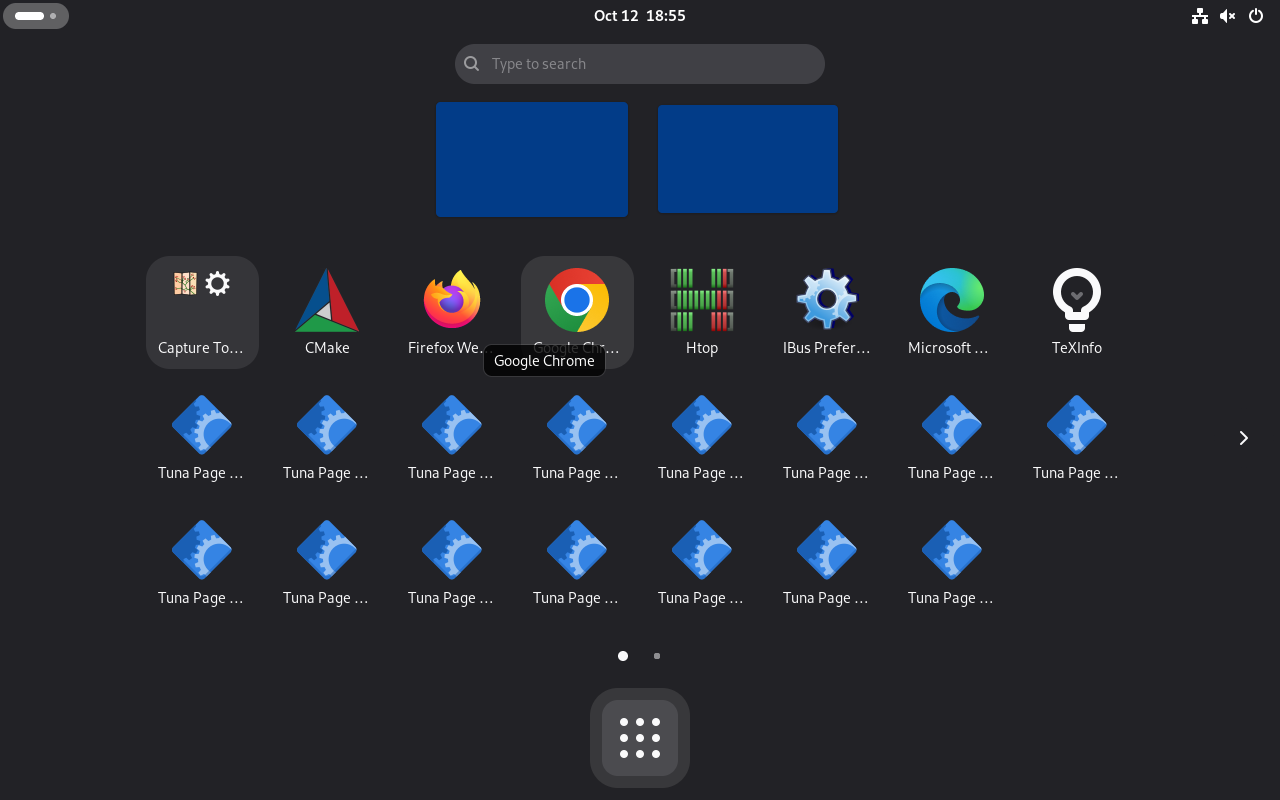
An app dropped on a tile's edge moves there, and the order is saved to app-picker-layout. (P-OV-05)
Notifications
Banners
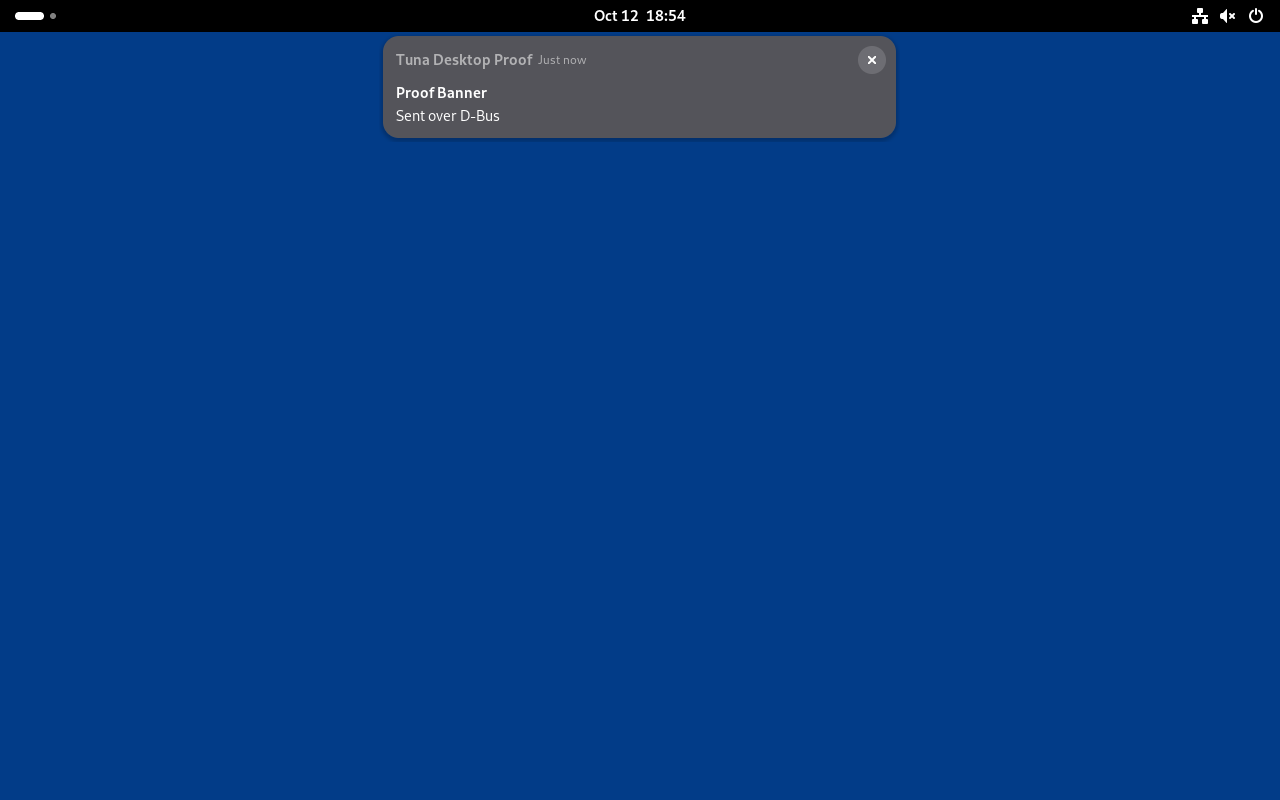
A notification sent over org.freedesktop.Notifications shows a banner at the top. (P-NT-01)
Notification list
The banner then waits in the date menu's list. (P-NT-02)
Do Not Disturb
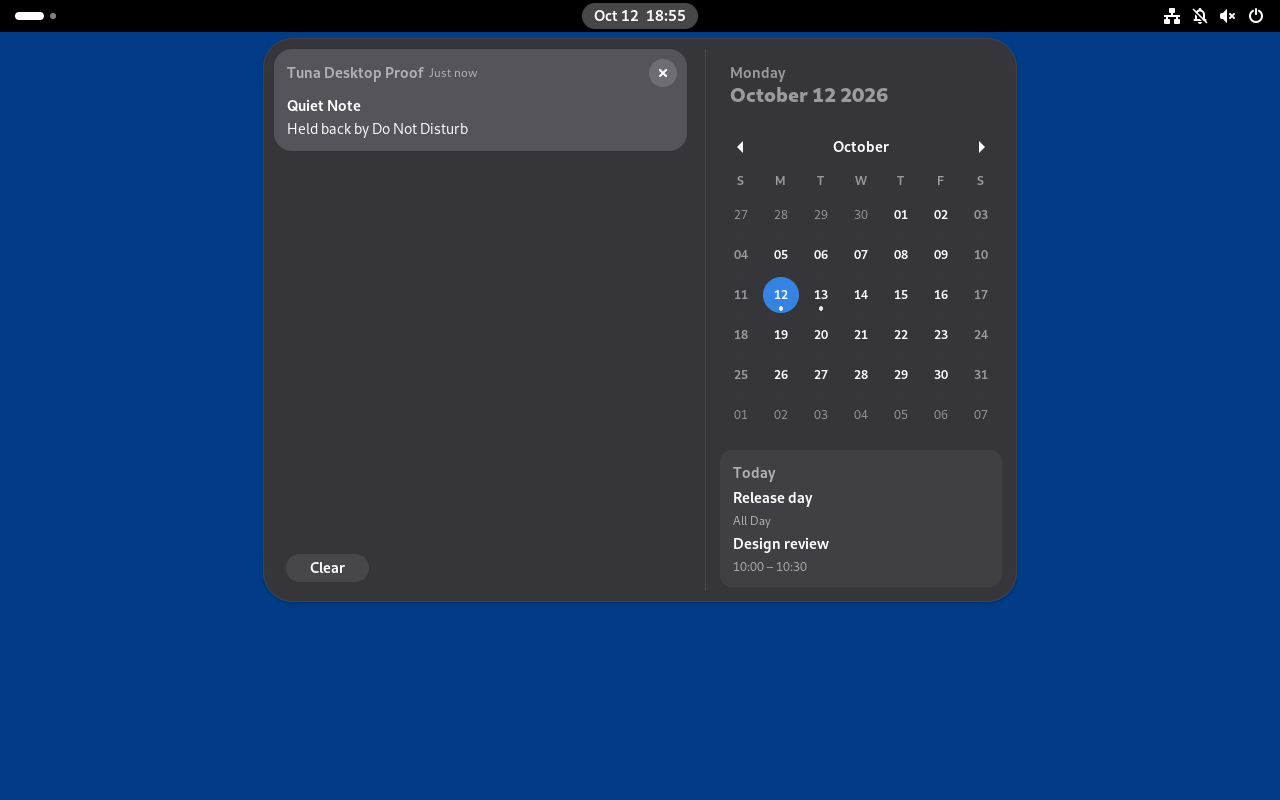
Do Not Disturb holds banners back but keeps them in the list. (P-NT-02)
Notification groups
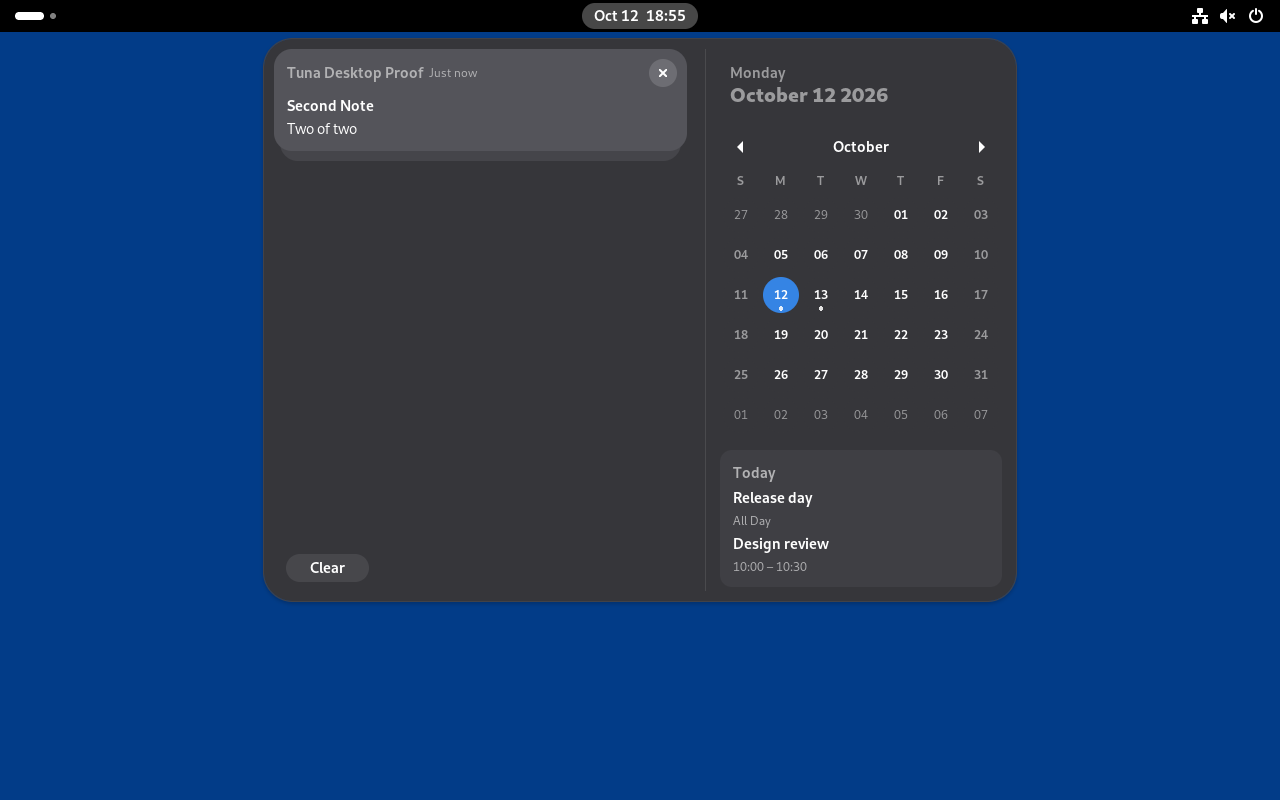
An app's notifications group in the list: collapsed, the newest card shows with the next peeking out beneath it. (P-NT-02)
Expanded group
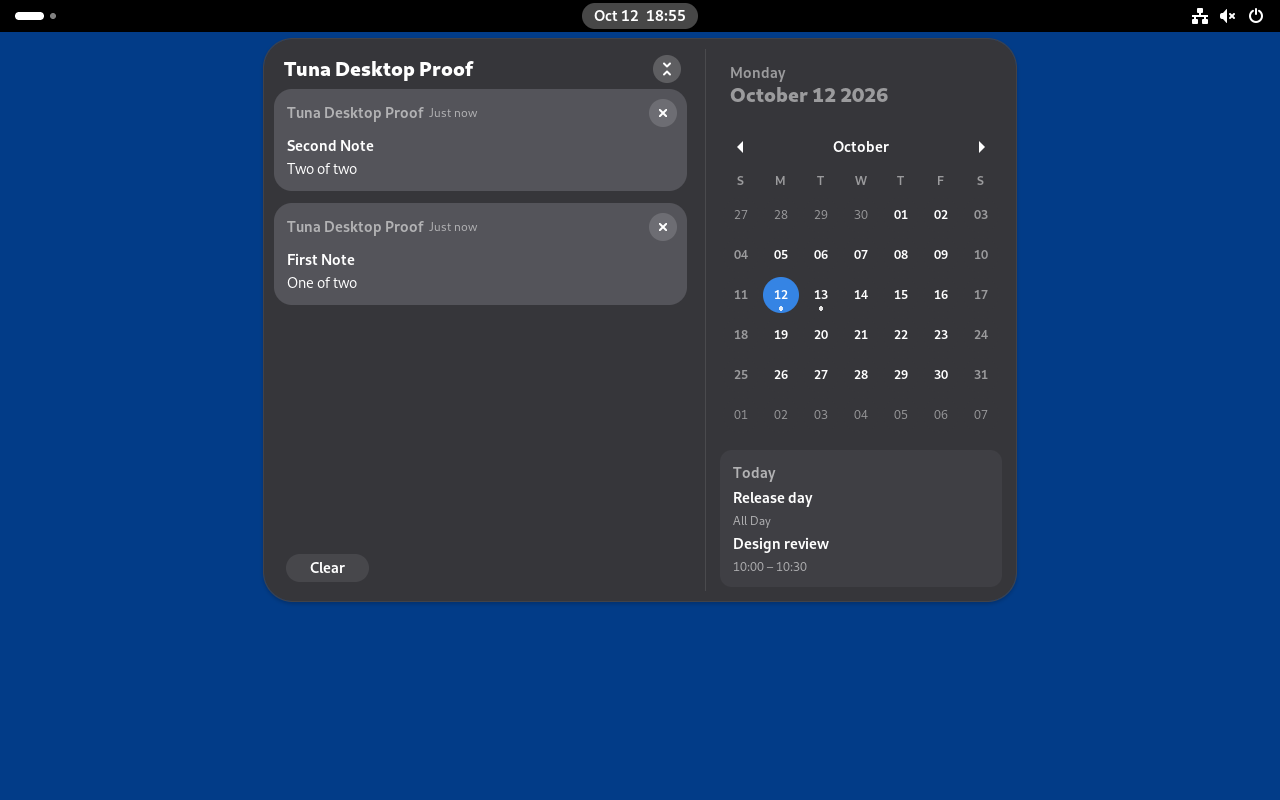
Pressing a group expands it to every card, under the app's name and a Collapse button. (P-NT-02)
System
Input methods
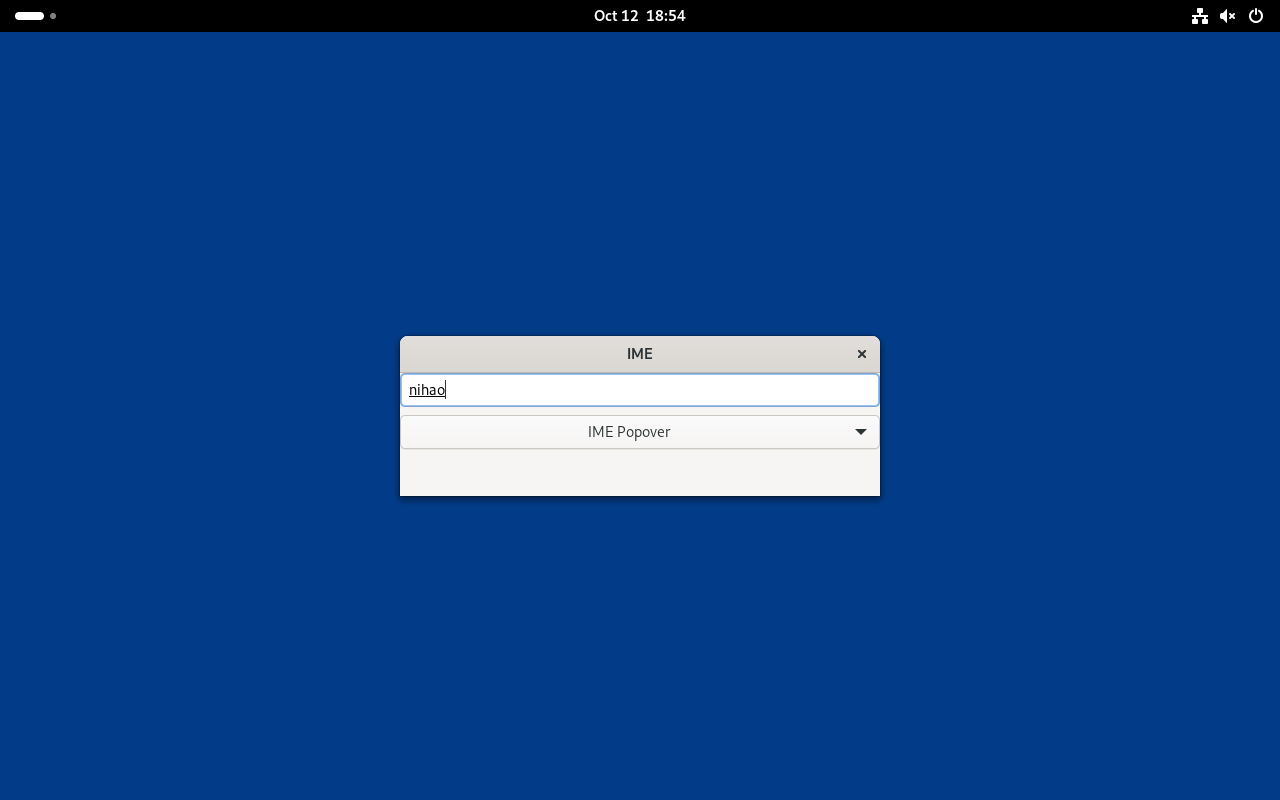
IBus composes as in GNOME: pinyin waits in the preedit and Space commits the hanzi (a test engine; tuna-ibus-bridge is IBus's client). (P-IN-01)
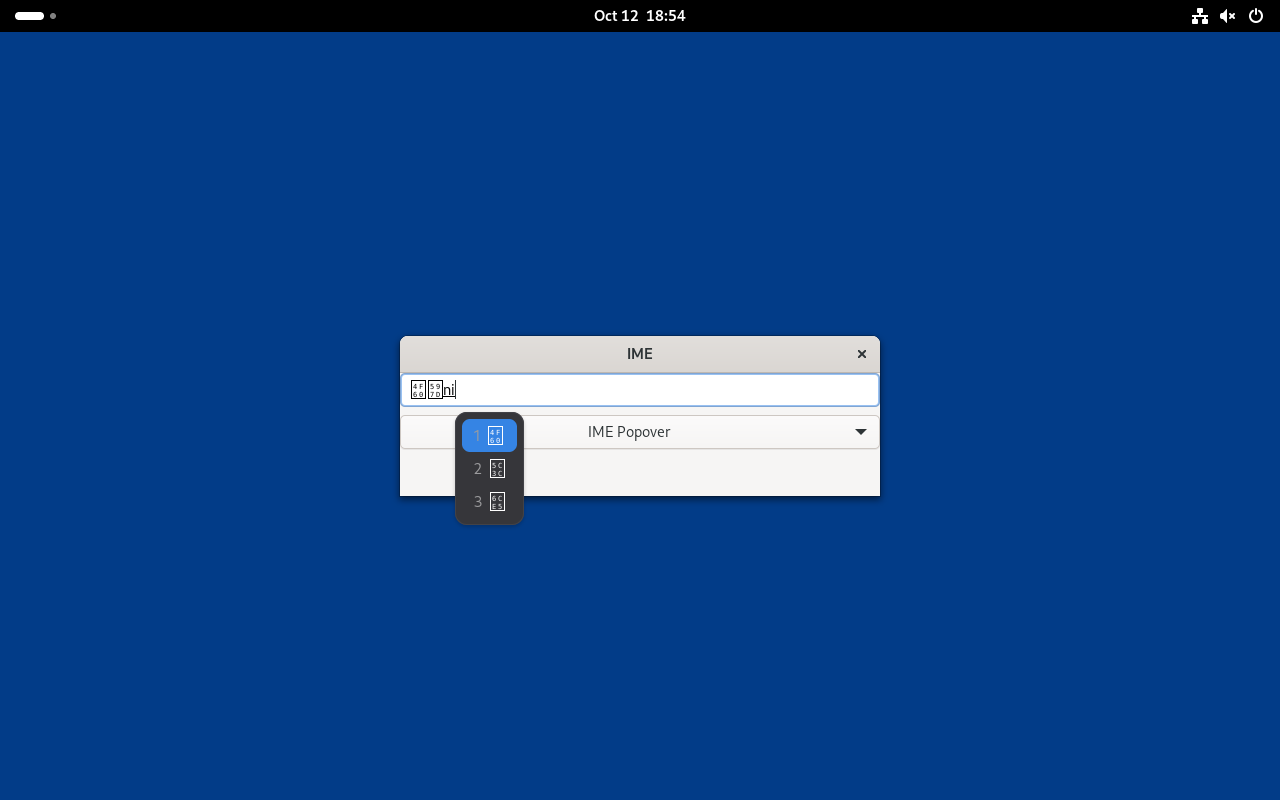
Candidate window
The shell is IBus's panel, as GNOME Shell is: pinyin with several hanzi brings up GNOME's candidate popup under the text cursor, and a click commits one. (P-IN-01)
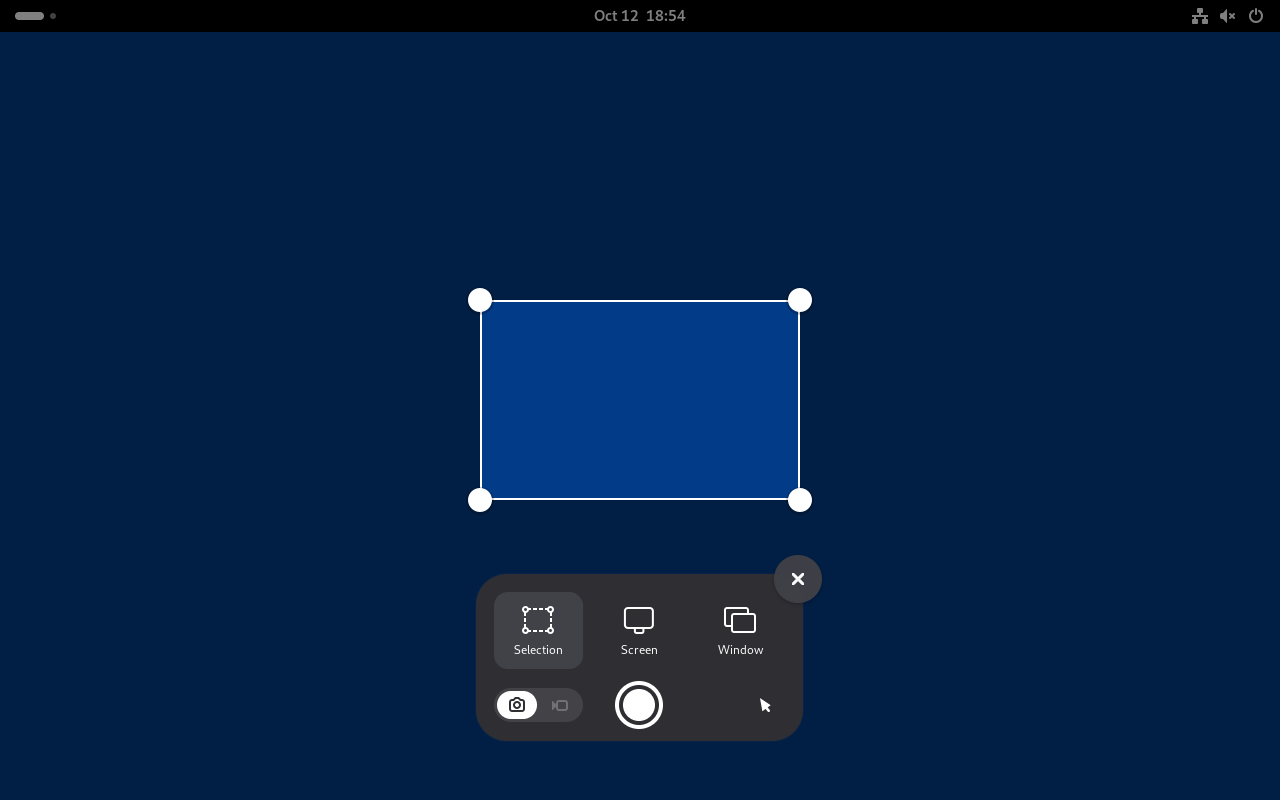
Screenshot UI
Print opens GNOME's screenshot UI: area, screen or window. (P-SY-05)
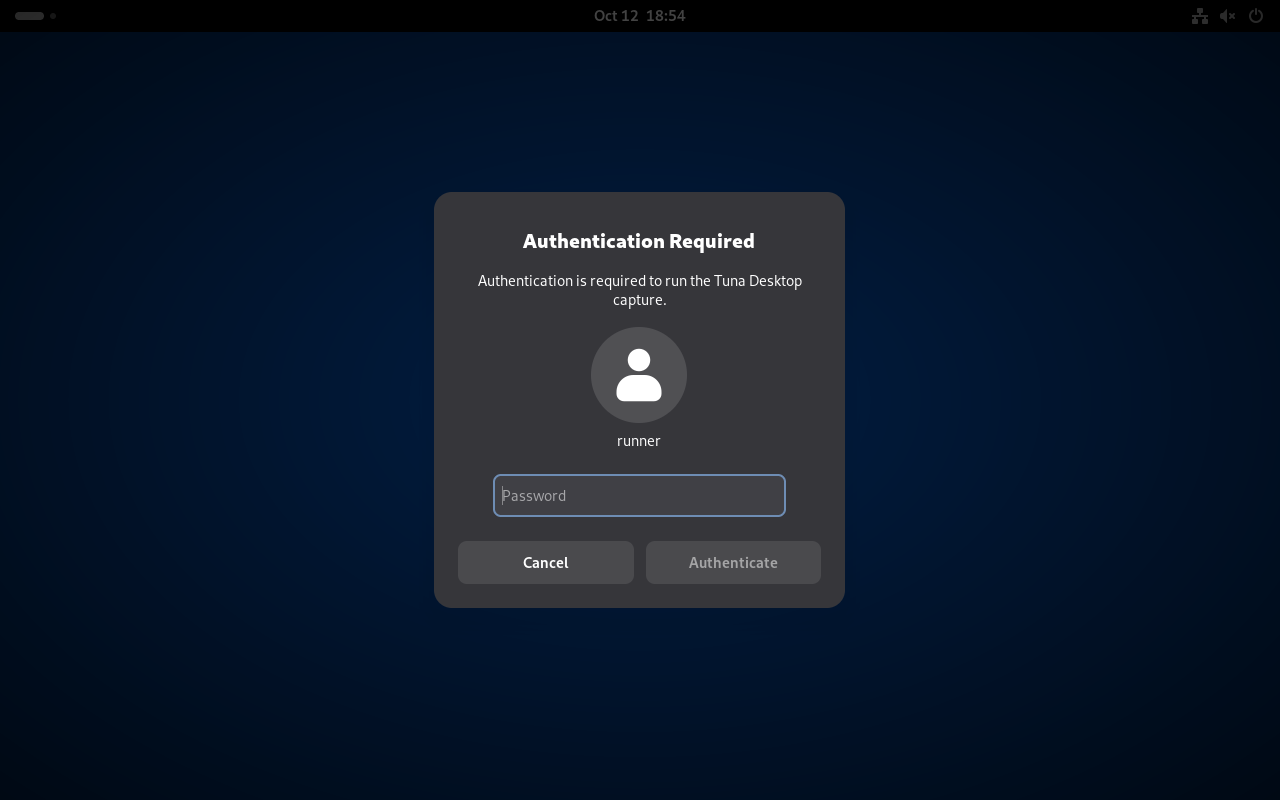
Authentication
polkit's requests show GNOME's authentication dialog.
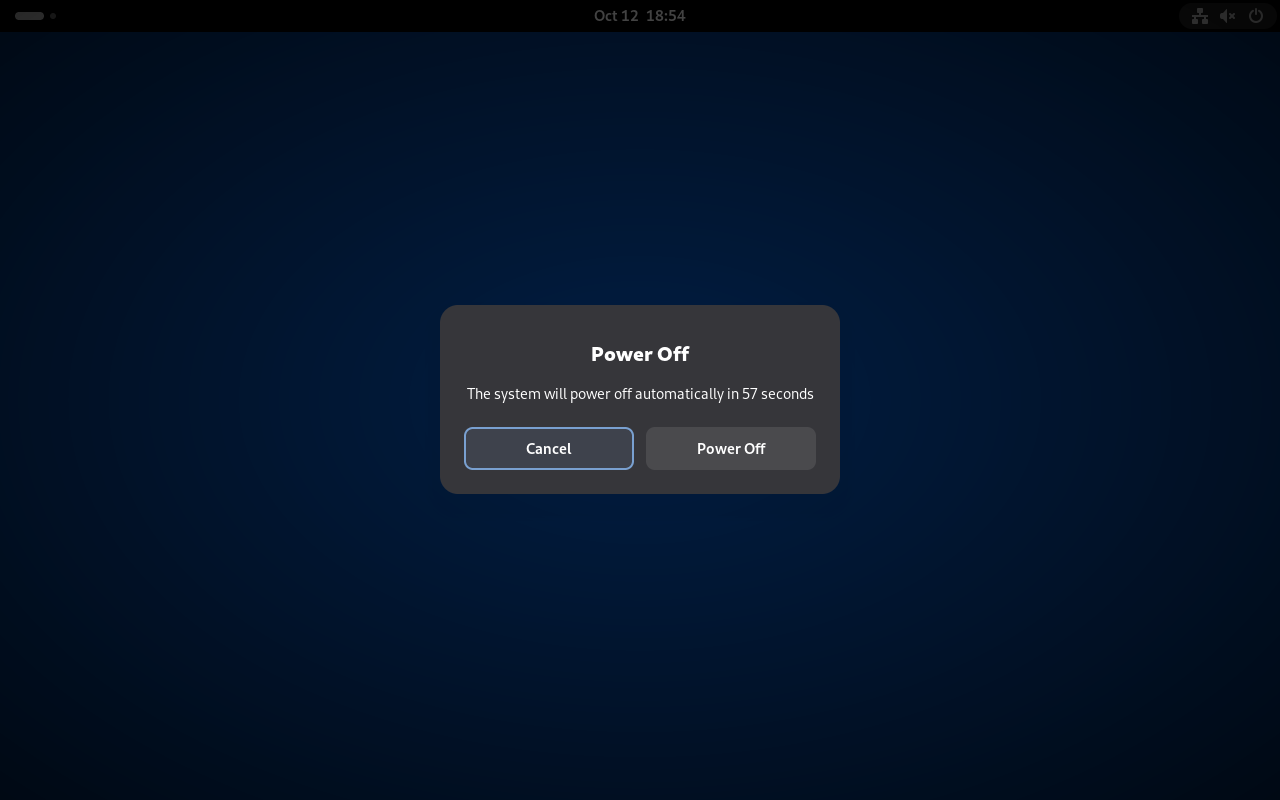
End session
Power Off… opens GNOME's 60-second confirmation dialog. (P-SY-07)
Lock screen
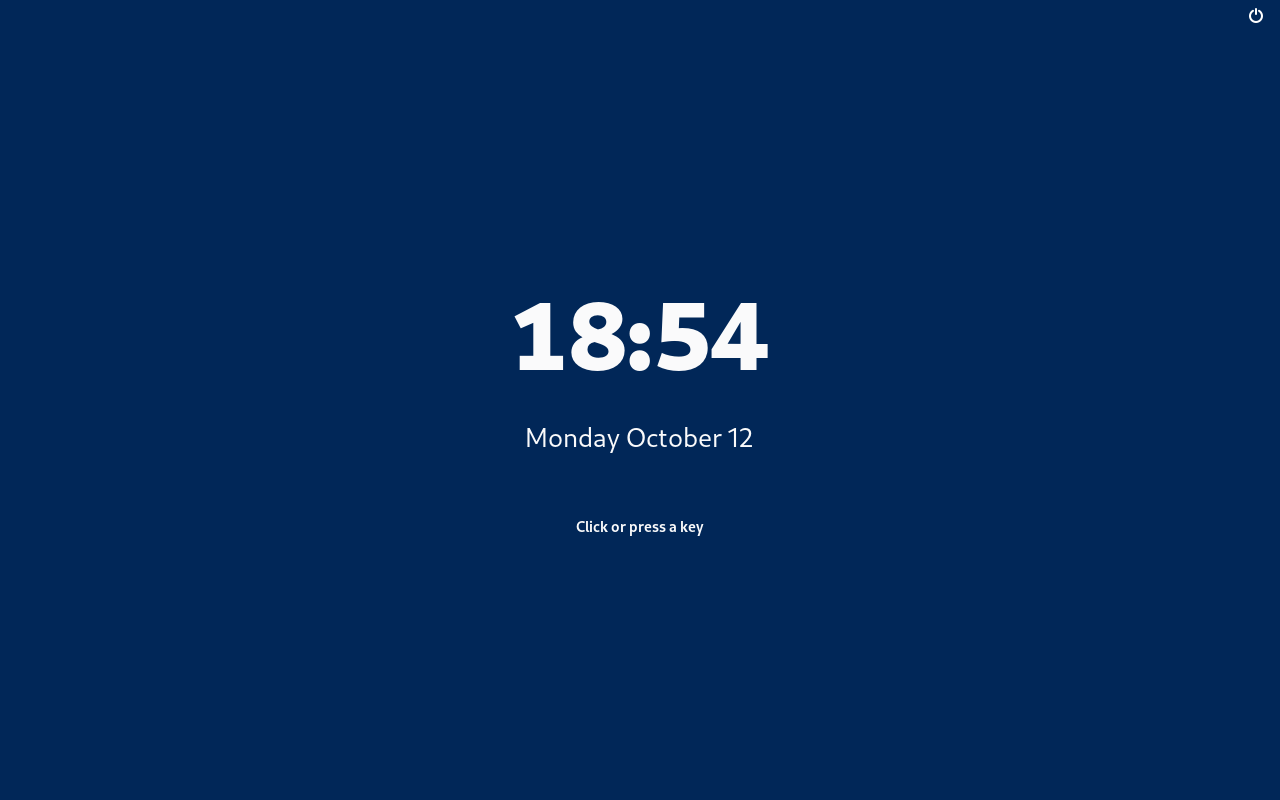
Suspending locks the session; the curtain shows the clock. (P-LK-01)
Unlock
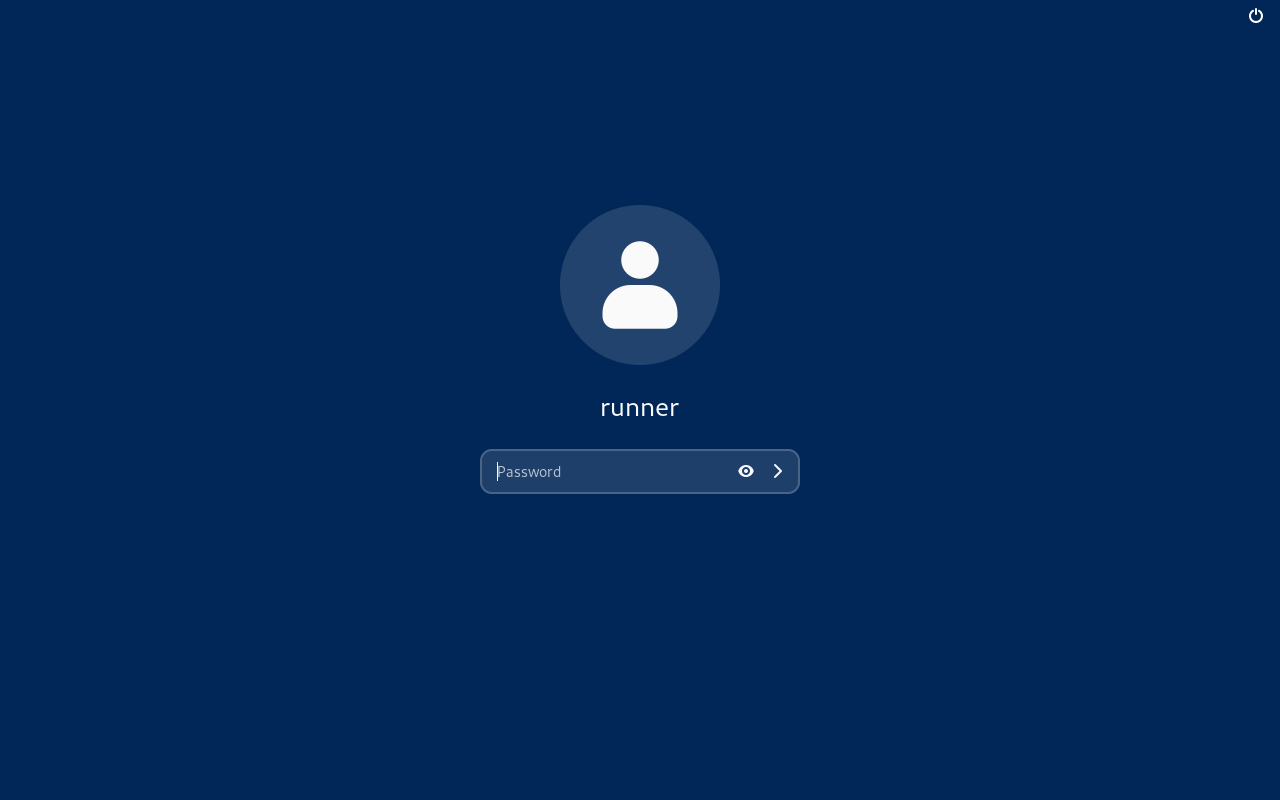
A key raises the unlock prompt; the password is checked through PAM. (P-LK-01)
Display scale
A 125% scale set through Mutter's DisplayConfig applies live. (P-SY-03)