USER GUIDE
Screenshots on this page are regenerated automatically on every release
by scripts/walkthrough.sh (the app's DUALCUT_WALKTHROUGH mode), so
they always match the released build.
Starting out
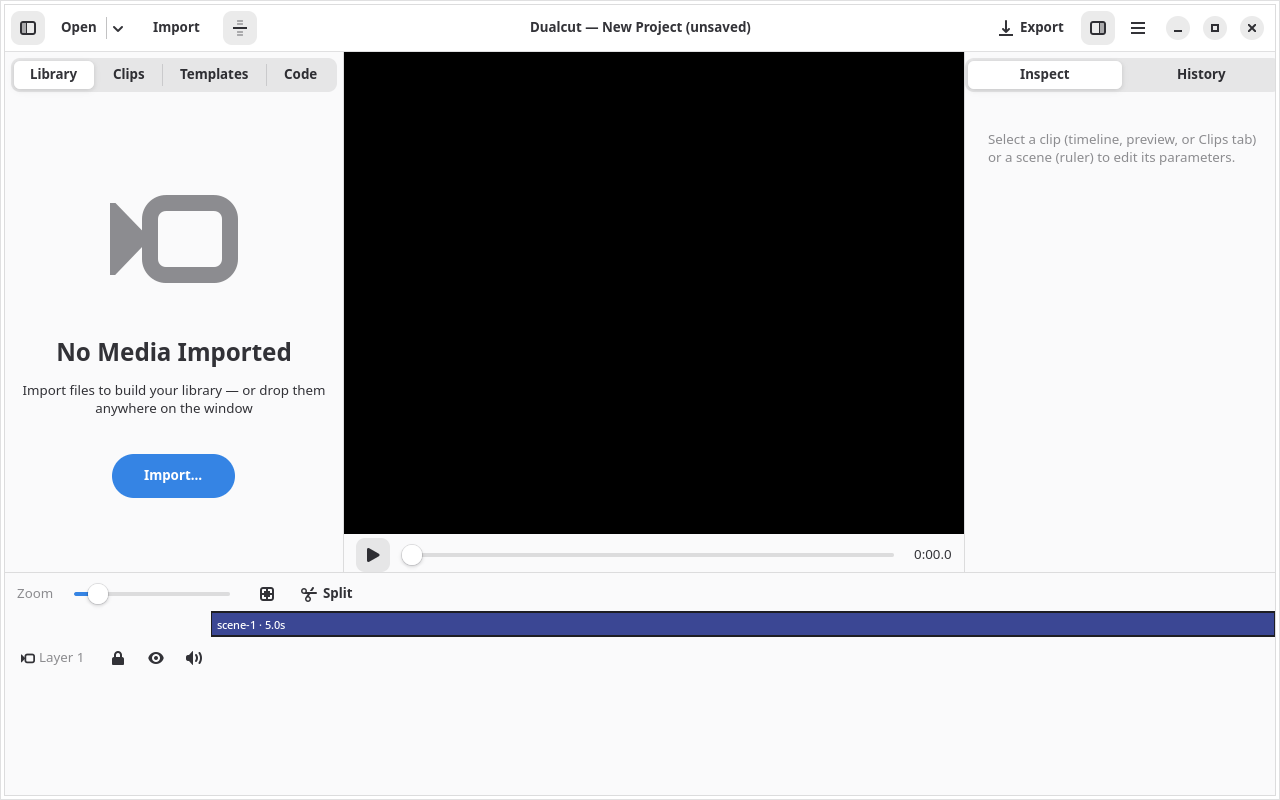
Launch Dualcut from your app menu and you get an unsaved New
Project, scaffolded with a title scene — edit immediately, then pick
a location with Menu → Save Project As… (auto-save takes over from
there). Use Open for an existing project (the arrow lists recent
ones), or pass a path on the command line: dualcut project.json.
The editor
One window, four regions: the Clips / Library / Templates / Code / Script tabs on the left, the preview with transport controls in the middle, the Inspector (parameters for whatever is selected) on the right, and the timeline in a bottom pane you can toggle from the header bar.
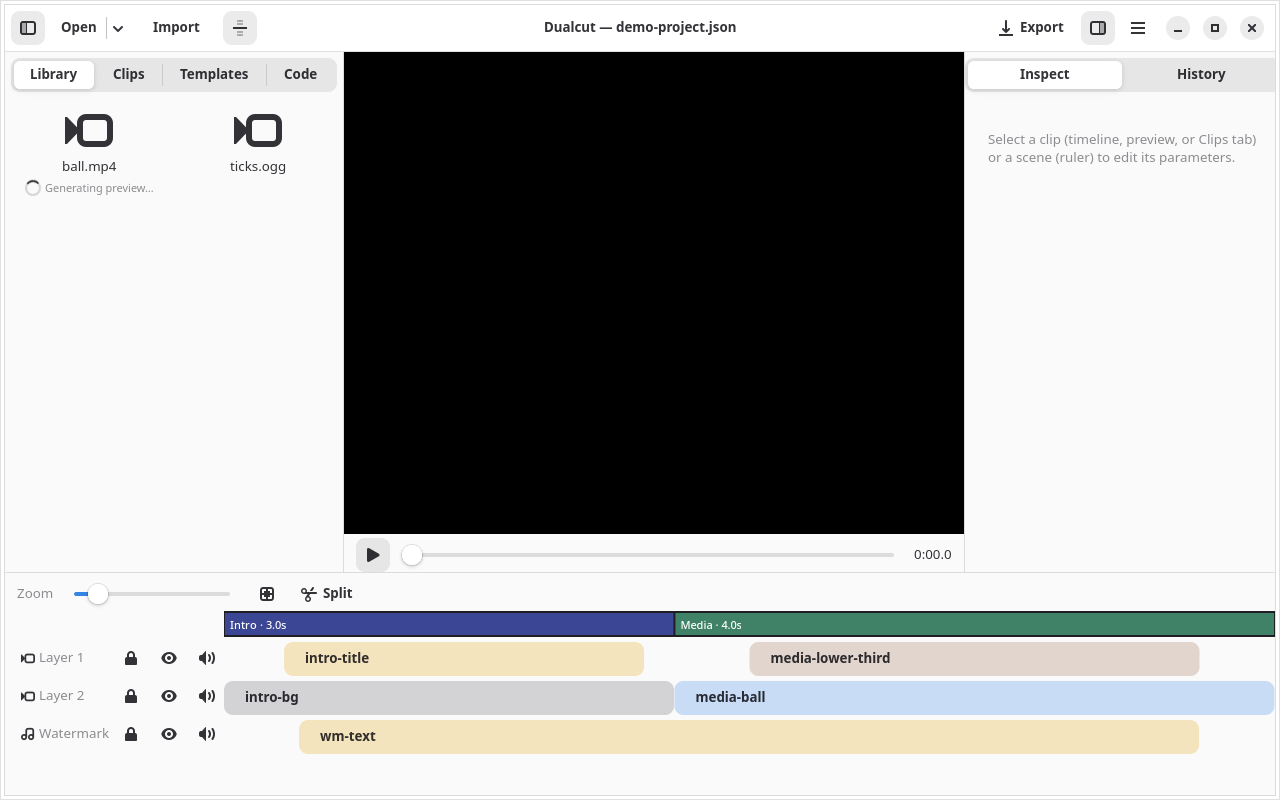
Transport shortcuts: Space play/pause, ←/→ frame-step, Home rewind, Ctrl+Z / Ctrl+Shift+Z undo/redo.
Library
Import (header or the Library tab's empty state) adds media files to the project's library — or just drag files from your file manager and drop them anywhere on the window. Double-click a thumbnail to insert it into the scene under the playhead; right-click for Add to Timeline / Remove from Library.
Imported videos are automatically transcoded in the background into
lightweight proxy media (960px-wide, every frame a keyframe) stored
in the project's .dualcut-cache/ folder. The preview and timeline
scrub through these proxies for smooth playback even with 4K footage,
while exports always render from the original files at full quality.
Turn this off with Use proxy media in Preferences.
Templates
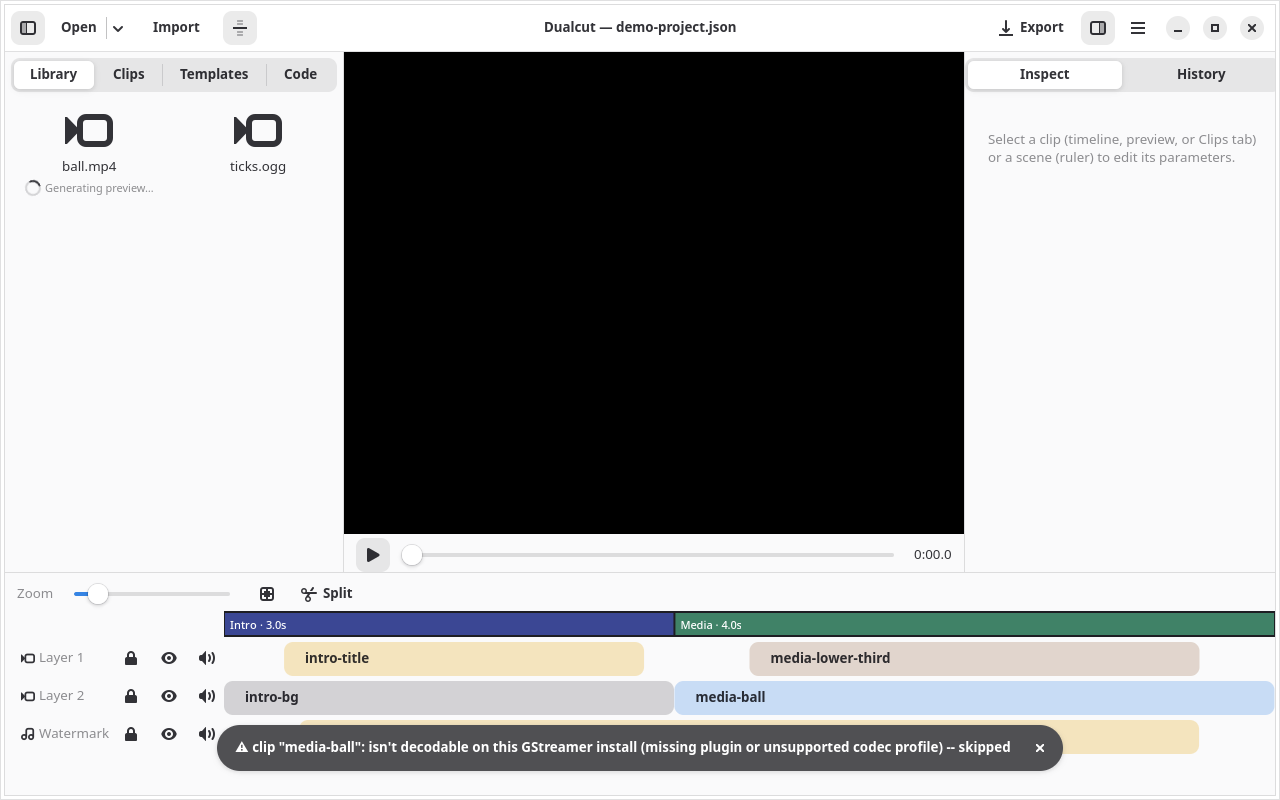
Every reusable composition (def) in the project appears here with a rendered preview. Fill in the parameter fields and press Insert to instantiate it at the playhead. Ship your own by selecting clips and using Save as template.
Code view
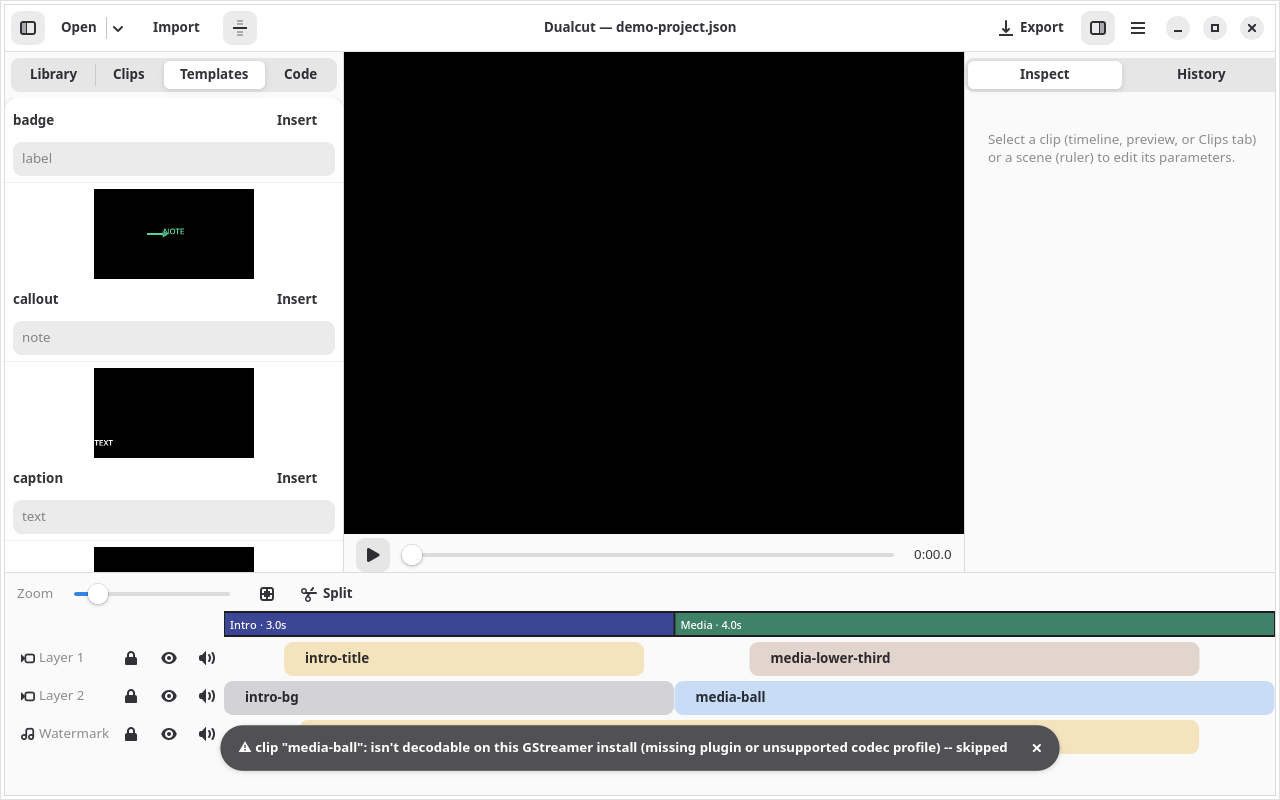
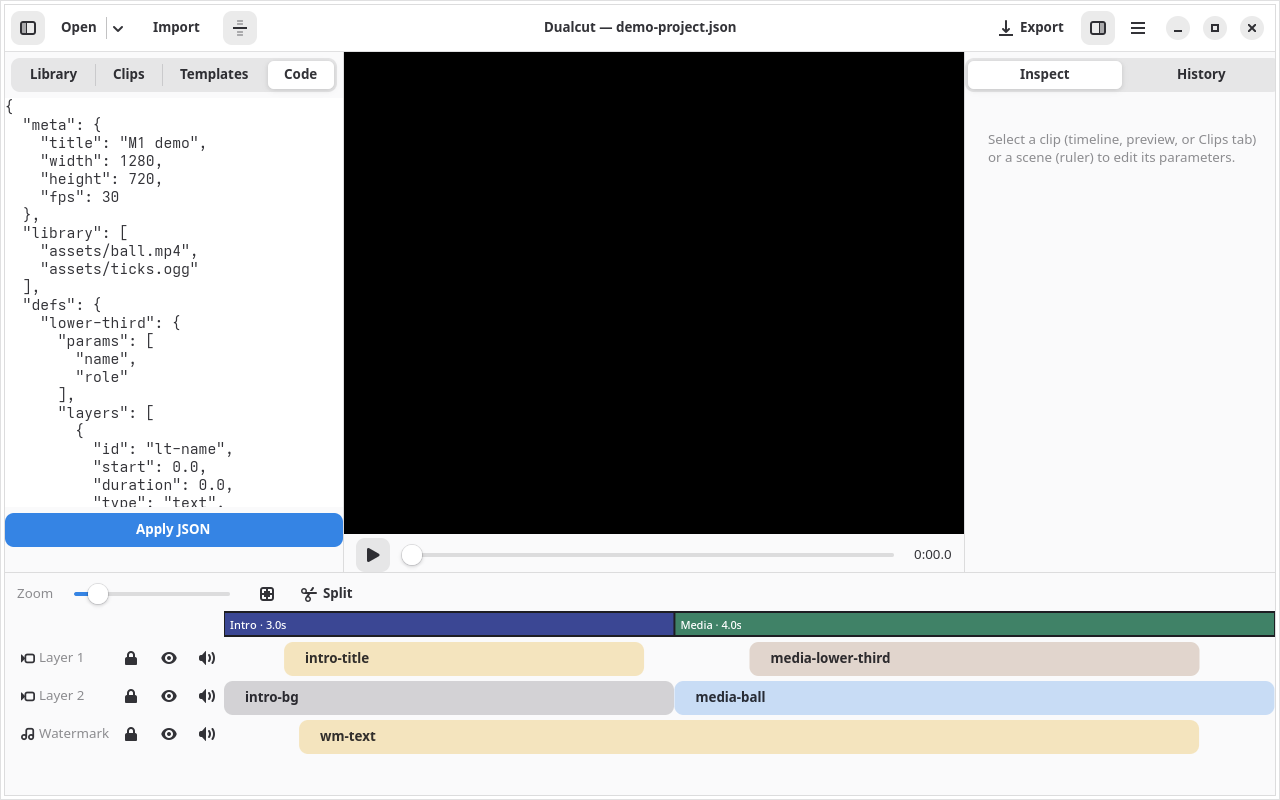
The live project JSON — the document itself. Edit it directly and press Apply JSON; the change is validated, undoable, and hot-reloads the preview, exactly as if an agent had edited the file on disk.
Script
Where Code shows the document, Script transforms it: write a
TypeScript function export function edit(project: Project): Project,
press Run script, and the returned project becomes the new document
(undoable like any other edit). Useful for bulk operations — renaming
scenes, retiming clips, generating layers from data.
Editing clips
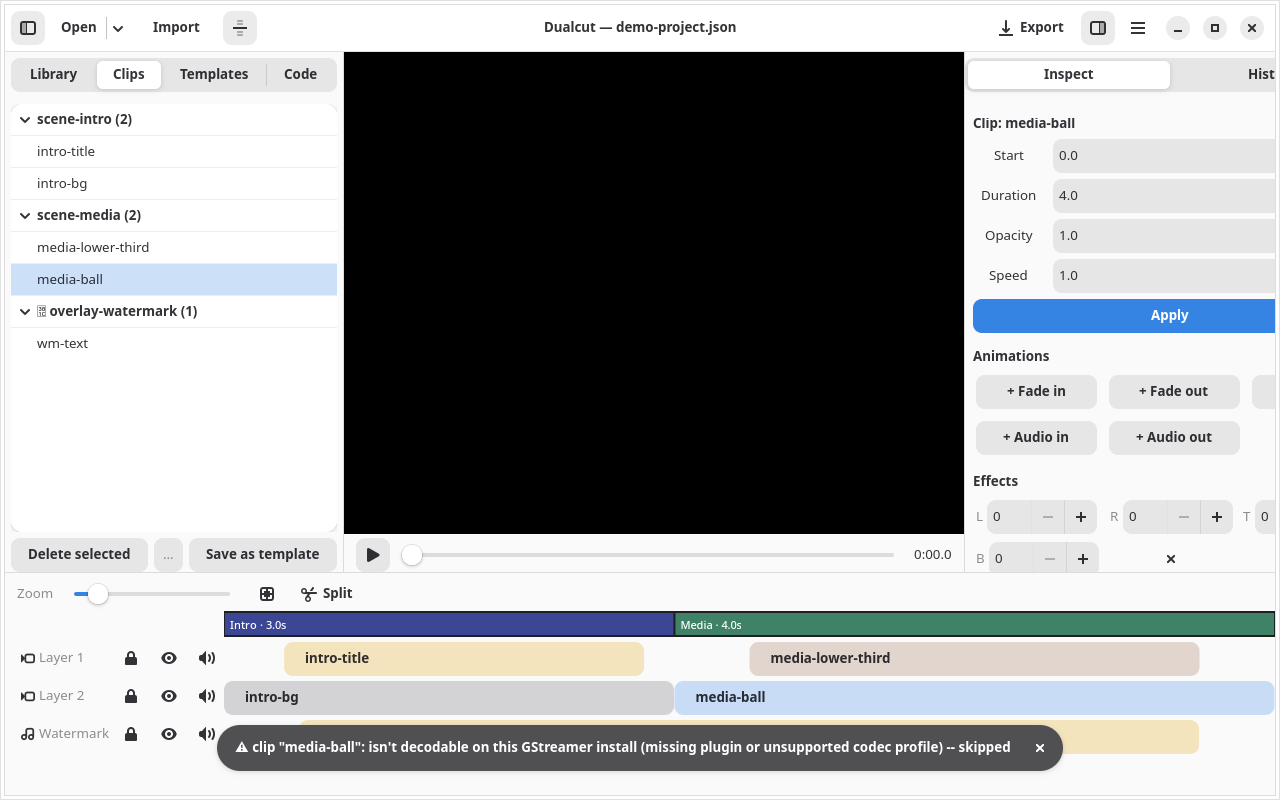
Select a clip in the timeline, preview, or Inspect list to edit its timing, transform, and text; add animation presets (fades, slides, audio fades) or hand-tune keyframes per property; stack effects (blur, color) with live parameter spinners.
Scenes and transitions
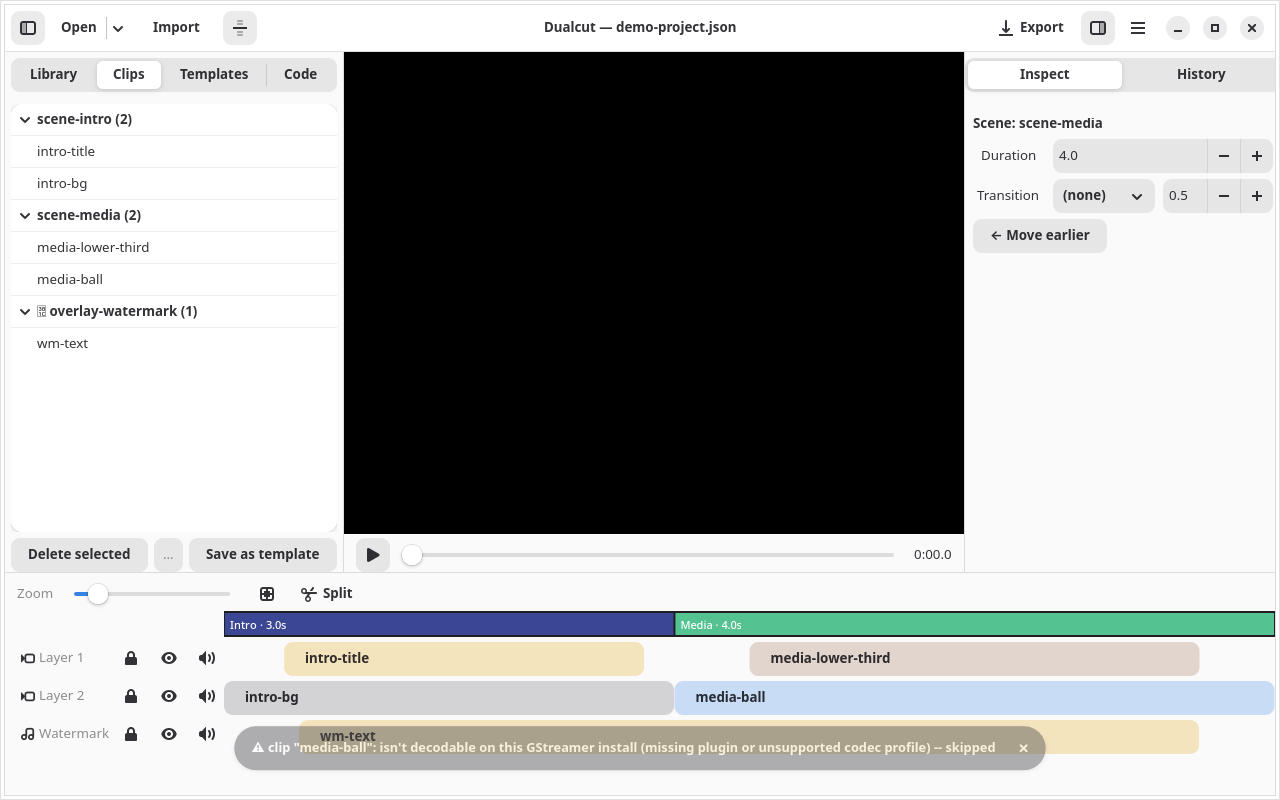
Click a scene segment in the timeline ruler to edit its duration and the transition from the previous scene — crossfade, wipes, box, iris, or clock, with an adjustable overlap. Audio blends across transitions automatically.
Vertical / Shorts export
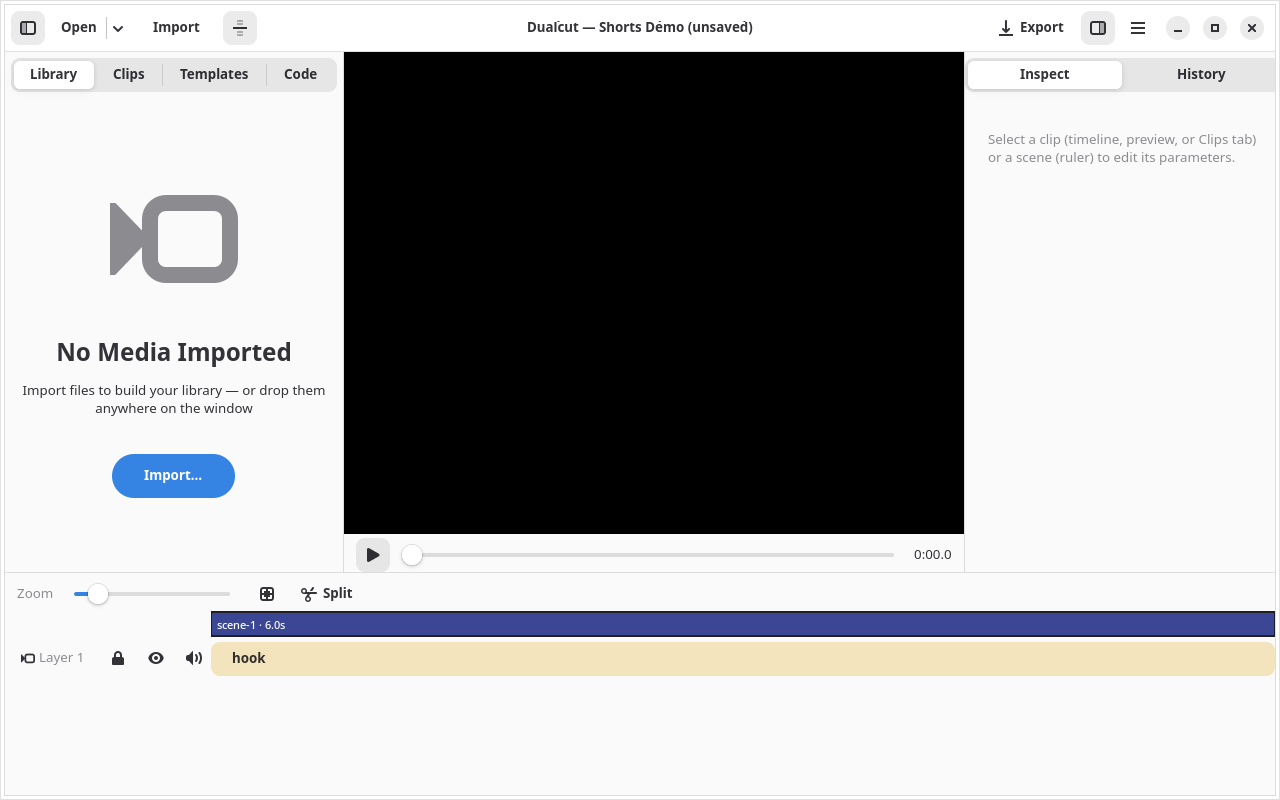
New Vertical Project (9:16) in the hamburger menu scaffolds a 1080×1920 portrait canvas for short-form/social export instead of the usual 1920×1080. Pairs with two starter templates in the Templates tab: vertical-center-crop (scales and centers a single 16:9 source to fill the portrait frame) and vertical-top-bottom-split (stacks two sources in the top/bottom halves — reaction + gameplay style). Both are plain composition — transform math on ordinary video clips — so they work with any project, not just ones started this way.
Keyboard shortcuts
Space plays/pauses, Left/Right steps one frame, Home/End jumps to the start/end, S splits the selected clip at the playhead, Delete ripple-deletes it, and Ctrl+Z/Ctrl+Shift+Z undo/redo. The hamburger menu's Keyboard Shortcuts opens a reference showing whatever is currently bound — see below.
Every shortcut is rebindable in Preferences → Keyboard Shortcuts: click any shortcut and press the new key combo, or pick a preset to match the muscle memory from another editor (Adobe Premiere Pro, DaVinci Resolve, Final Cut Pro, or iMovie) in one click. Presets only remap the actions dualcut actually has — where an app's shortcut assumes a feature dualcut doesn't have (e.g. iMovie has no dedicated go-to-start/end key), that action keeps dualcut's own default instead of going unbound.
Menu
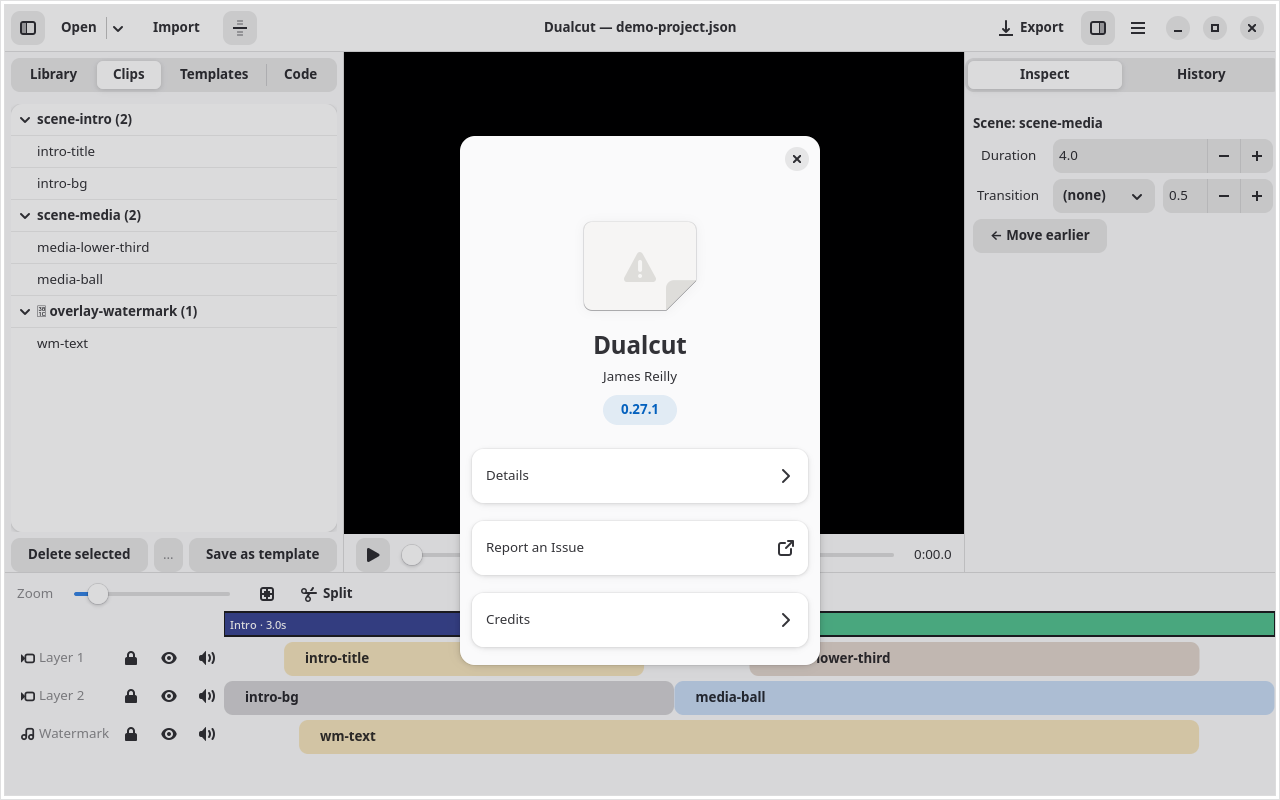
The hamburger menu holds New Project, New Vertical Project (9:16),
Save Project As…, Generate
Captions… (transcribes the project audio locally with whisper.cpp and
lands the segments as styled text clips on a Subtitles overlay track —
works out of the box in the Flatpak, which bundles a whisper-cli
binary and a small English speech model; set DUALCUT_WHISPER_MODEL to
a different ggml model path to use one other than the bundled tiny.en;
outside the Flatpak, install whisper-cli/whisper-cpp on your PATH
and set DUALCUT_WHISPER_MODEL — the action is greyed out until a
whisper binary and model are found), Install Agent Skills… (sets up
the dualcut skill for coding agents in ~/.agents/skills,
~/.claude/skills, or a directory of your choice), and About.
Working with agents
Everything above has a programmatic twin: the project file hot-reloads
when edited on disk, an HTTP API listens on port 7357, and TypeScript
scripts (export function edit(p: Project): Project) run from the
Script tab or the API. See AGENTS.md for the document
format and CONTEXT.md for the domain glossary.